Configuration and Setup 3-9
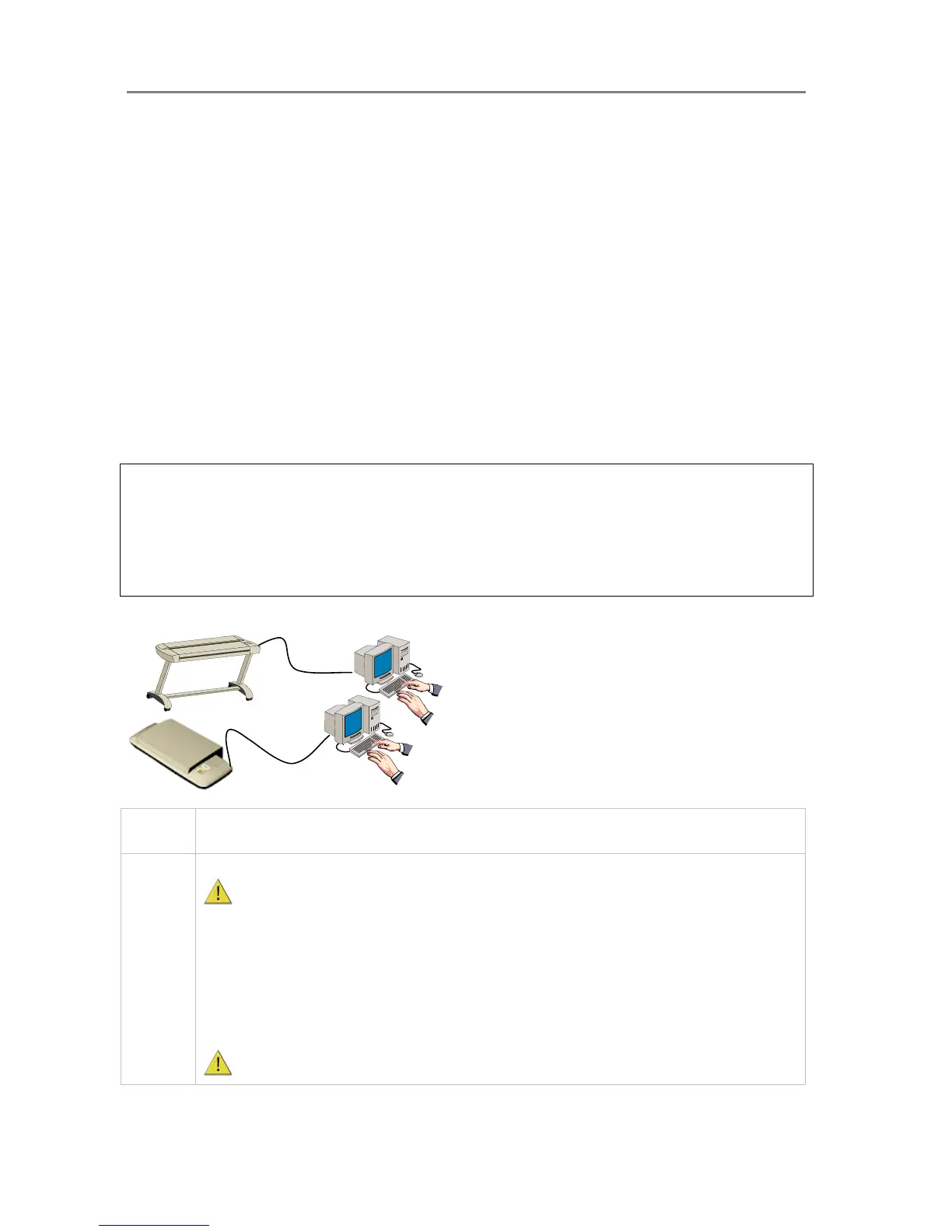
3.3 Connect the Scanner to a PC - Scan/Copy workstation
Components: Wide format copy scanner and PC. For scanning to file and saving on local PC.
If this configuration is to be used for copying purposes, it must include a printer that is either
connected directly to the PC (local printer) or the PC can be connected to the network and have
access to network printers.
Usage: For digitizing large format documents. Used for scan-to-file (digitized) output only
unless a printer is attached to the PC or PC to network printers. Operation is possible both from
the iJET Panel and from the PC.
System Requirements:
• Wide Format Copy scanner
• PC with Compatible operating system (see ws/readme.htm on WIDEsystem TOOLS CD)
• USB port on the PC
• The WIDEsystem TOOLS CD supplied with your scanner.
• Scanning software or compatible third party software.
NOTE: Scanning and Copying in this configuration would often be performed through scan
and copy software installed on the PC rather than through the scanner’s iJET Panel.
Usage of scan and copy software is not within the scope of this operator’s guide. Please refer to
the software’s documentation and on-line help for instructions on using the software with the
scanner.
Users can scan-to-file to the PC from the iJET Panel in this configuration. See the section “How
do I Scan to File?” in this guide.
Scanner’s USB device (input) interface
Step Description
1 Insert the WIDEsystem TOOLS CD-ROM into your PC.
IMPORTANT : DO NOT YET CONNECT THE SCANNER TO POWER OR PC. install WIDEsystem
before you connect the scanner or install any scanner software applications. Your scanner drivers are
automatically installed with WIDEsystem and your PC will then be fully prepared to detect and setup the
newly connected scanner device.
Start up the WIDEsystem TOOLS CD-ROM by inserting the CD-ROM into your PC. Normally the setup
program interface will start automatically. If it does not, perform the following steps to activate it.
Click the Start button on the Taskbar and choose Run from the menu.
Type D:\setup in the Command Line Box (where D: represents the name of your CD-ROM
drive).
Choose the OK button.
Important: Be sure to use the WIDEsystem TOOLS CD-ROM that came with your scanner or a













 To Next Page