Configuration and Setup 3-10
newer version. Out-of-date versions of WIDEsystem software may not detect your scanner model.
2 Install WIDEsystem Software
Click on the option Install WIDEsystem Software from CD main menu or run the setup.exe program
directly from the WIDEsystem (ws) folder on the CD-ROM. Follow the installation instructions that appear
on your screen.
3 Install Scanner Maintenance Software
Click on the option Install Scanner Maintenance Software from CD’s menu. Follow the instructions that
appear on your screen.
4 Shut down (power off) the PC
Your PC is now prepared and must be powered off before connection with the scanner.
5 Perform Preliminary Maintenance – Cleaning
Clean your scanner’s flat surface so dirt and dust are not dragged into the scan area with the original.
Clean the internal Scan area.
See the section “Scanner Maintenance” for instructions on accessing the scan area and cleaning
for your specific scanner model.
6 Set up your scan station and control the smart card
Your wide format copy scanner should be placed either on the specially designed stand-alone floor stand
or on a sturdy table. For sheet feed models, make sure there is enough space behind the scanner to
allow the media to run out.
Make sure that the scanner’s smart card is in place.
See the sections “Physical Placement of the Scan Station” and “Maintenance-Locate the Smart
Card” for detailed instructions for your specific scanner model.
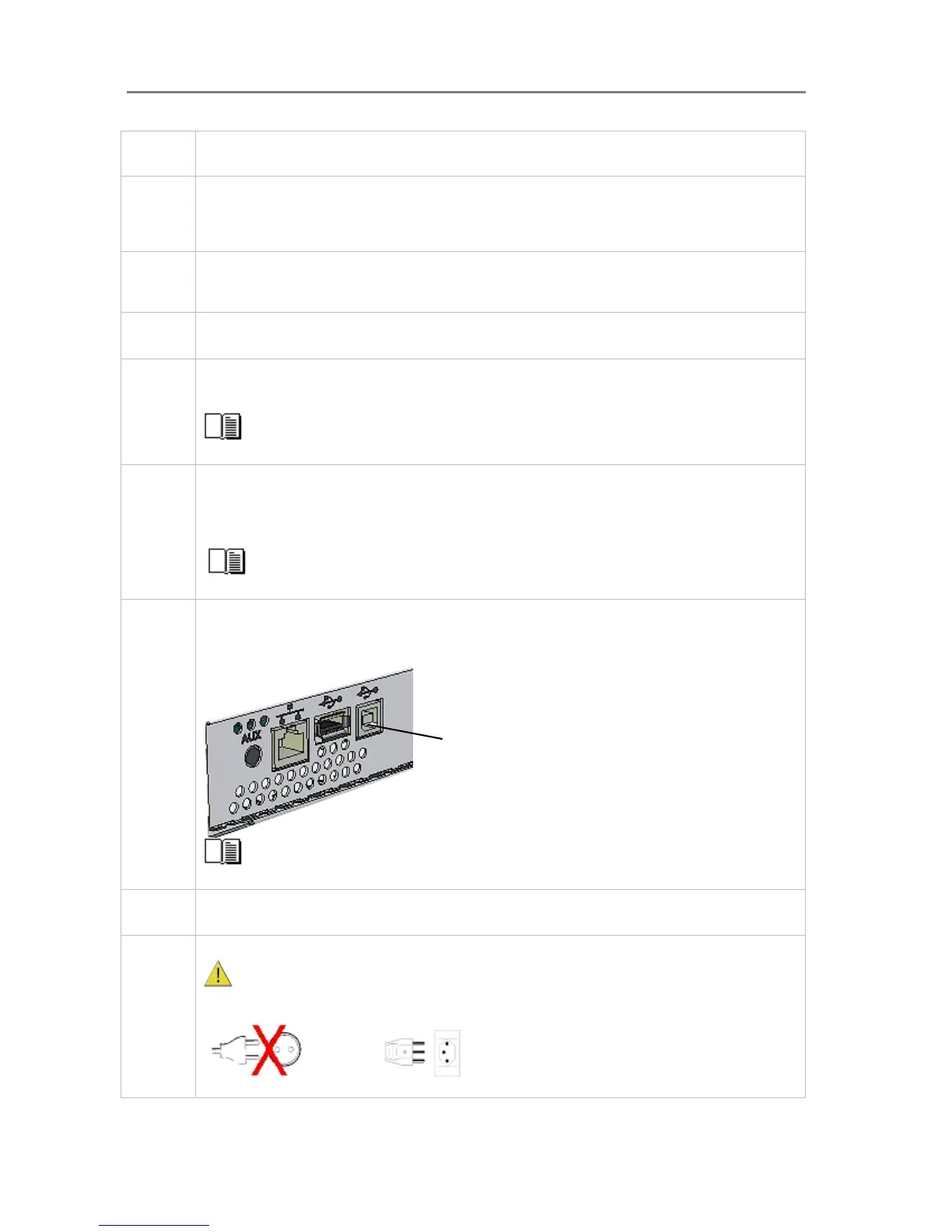
7 Connect the interface cable – scanner end
Connect the USB interface cable to the scanner’s USB device (input) port (squared formed socket). See
the document: “NOTE ON INTERFACE CABLES” for instructions on the specific interface cable type to
use with this configuration.
USB device (input) port
See the section “Locating the Interface Cable Connector Panel” for instructions relating to your
specific scanner model.
Connect the interface cable – PC end
Connect the other end of the USB cable to the PC’s USB connection port (flat rectangle socket).
8 Connect scanner power cable
The scanner is equipped with a three-wire (pin) grounding type plug. If you cannot insert the plug
into your outlet, contact your electrician to replace the outlet and ensure a grounded power connection.
Do not try to defeat or ignore the purpose of the grounding-type plug.













 To Next Page