Configuration and Setup 3-24
Resolution 300,360,600,720 This is the printer’s fixed resolution
Printer Size
A0,A1,A2….paper size
list
The printer is defined to be of a certain max standard size - A0, A2
etcetera.
Render Type
Default/No Simple/ Ctx
format
Scan to print data protocol. See the lists fro right selection.
Use Inked Area No/Yes
Yes – The printer will cut the output by looking at the area that was
actually printed.
No – use the whole paper size to determine the place to cut.
8. Repeat steps 4 – 6 with B&W Printer. To reach the B&W Printer option from the previous
step: Use the Back button
to move back to Color Printer in the menu and then
arrow down
to reach the B&W Printer option.
3.9 Creating Media Profiles – For Color Printer Setup
You must create a Media Profile for each media type you use with the specific color printer.
Otherwise, your color copy output colors will not necessarily match the original’s colors. Optimal
quality color results are only obtained if the capture device (scanner) and output device (printer)
"see" colors in the same way on a given output media. A Media Profile is a unit that stores data
that matches scanner and printer colors on a given media.
Before you start a copy job, you select a Media Type (Menu button) that corresponds with the
media in your printer and the Media Profile you prepared. By this action you are harmonizing
scanner, printer and media color factors for achieving optimal color precision in your copies.
A Media Profile is connected solely to a specific printer and media type so you will need to
create new media profiles if any of these (printer or print-media) are changed.
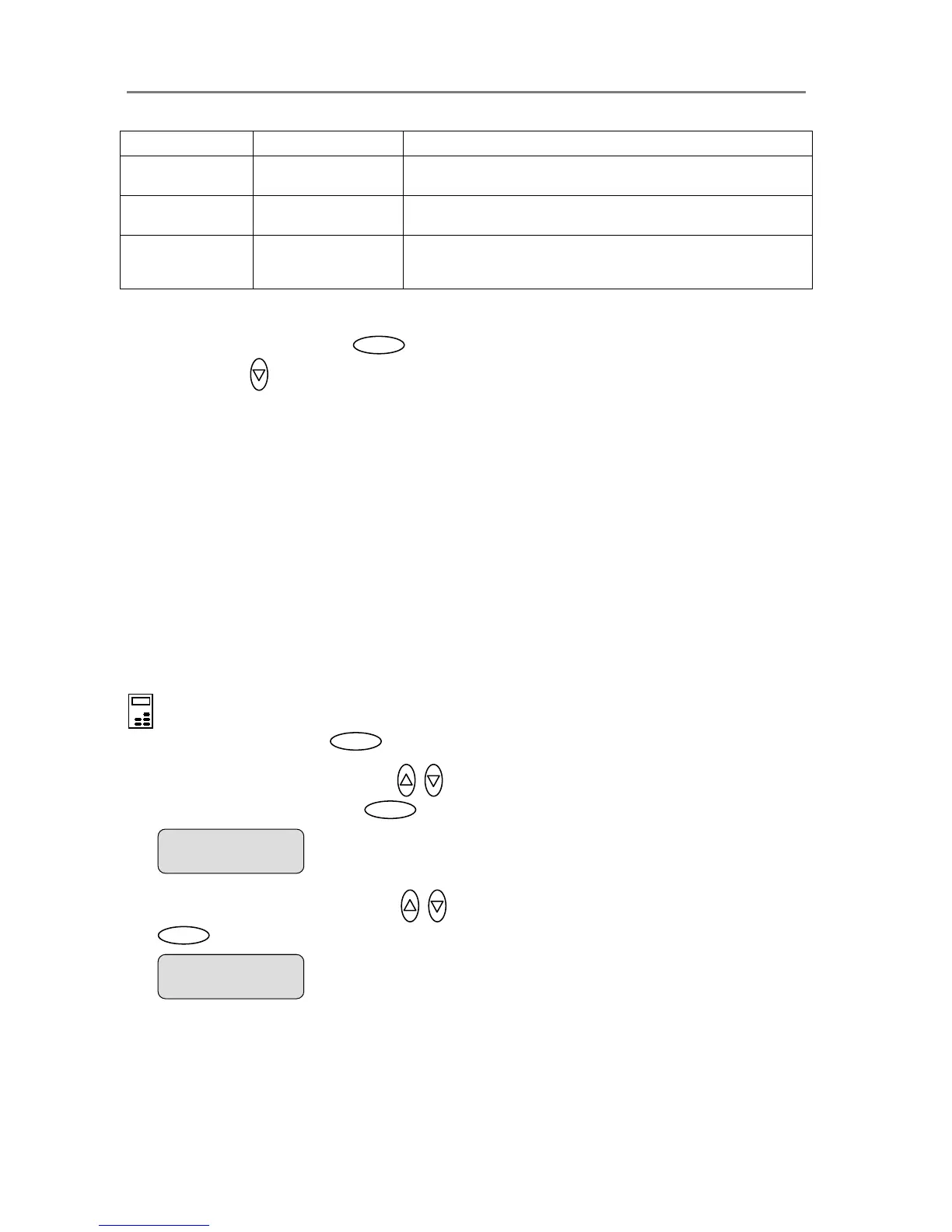
On the iJET Panel
1. Select the Menu button.
2. Use the arrow button up or down until the display window shows Advanced and
confirm with the Enter button .
3. Use the arrow buttons up or down until the display shows Options and confirm with
.
> Advanced













 To Next Page