Configuration and Setup 3-23
7.2 Printer List
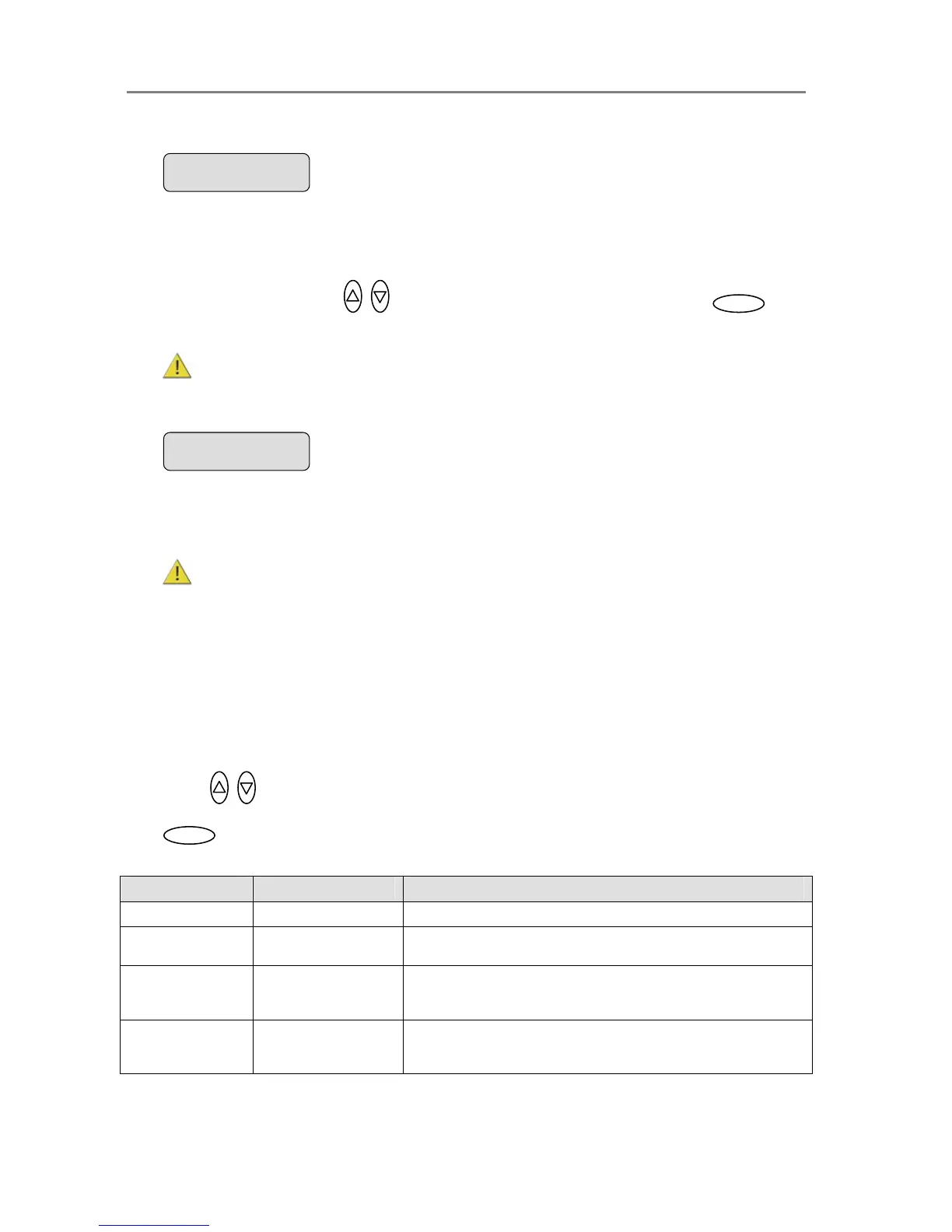
If you select Printer List and confirm with enter, you will be able to select an actual printer
model by its name. The model names that appear in the Printer List indicate printers that
have been fully tested for compatibility with your copy scanner and their setup parameters
are ready in the system.
Use the arrows up/down to move through the list of printers and press to
confirm your printer model selection.
NOTE: New printer models may become available in the list with new firmware
upgrades.
7.3 Custom Setup
The Printer Model - Custom Setup option lets you configure a printer manually. This option
gives you the freedom to use other printers than those compatible with the Auto Configure
method and those that have been tested and are available through the Printer List method.
To Ensure the Right Settings for your Printer: Your scanner manufacturer’s support
pages on the web will provide lists and tables containing recommend settings for specific
printer models that should be compatible with the scanner but are not tested. Printers on
the website’s list are similar to tested models. Look for your printer model on the list and
enter the recommended settings in the Custom Setup options. The website lists will be
updated as new printers enter the market.
If your printer is not named on the website list, you can try to use the printer’s
documentation to determine the right settings. Please note however that unlisted printers
may not be compatible with the scanner.
Here follows a short description of the parameter settings. Use the arrow button up or
down to move through the options. Use Enter to activate the option’s value
selection. Use again the arrows to change the option values and again the Enter button
to confirm your setting.
Option Values Description
Command Set RTL or PCL3GUI This is the printer’s format language
Ctrl. Language None or HP PJL
The control language is used internally by the system to apply some
of the others settings, such as resolution, size, etcetera.
Orientation Landscape/Portrait
Feeding orientation for printer. On most large format printers this will
be landscape while on some of the narrower models it will be Portrait.
Scalable No/Yes
‘No’ means that the scanner will take care of scaling before sending
data to the printer.
‘Yes” means that the printer will take care of scaling.
Printer Model
> Custom Setup
Ente













 To Next Page