Using the scanner, how do I …? 5-13
5.3.4 How do I… apply the Background (Backg.) Clean filter?
Background clean is used if you have an original with a background that is not as completely
white as you would like it. If you want the background to appear pure white in the copy, then
you can increase the background clean value. Background clean should be used with caution,
as it can also affect light colors that you will not consider as part of the background.
The Background clean setting is a "cutoff" point. Pixels with a lightness under the setting’s
value are affected. The higher the Backg. Clean value, the larger the range of pixels that will
be turned to white. You can define cutting points from 0 to 12. The default value is zero (no
effect).
Example:
You have copied an original and want to improve it through bringing out the text by making the
background whiter. You can adjust the background clean value upwards from its default of
zero (to 12, for example) and thus make the pixels at high lightness levels go to white.
The option’s setting will be applied when you press either the Color Copy or B&W Copy button.
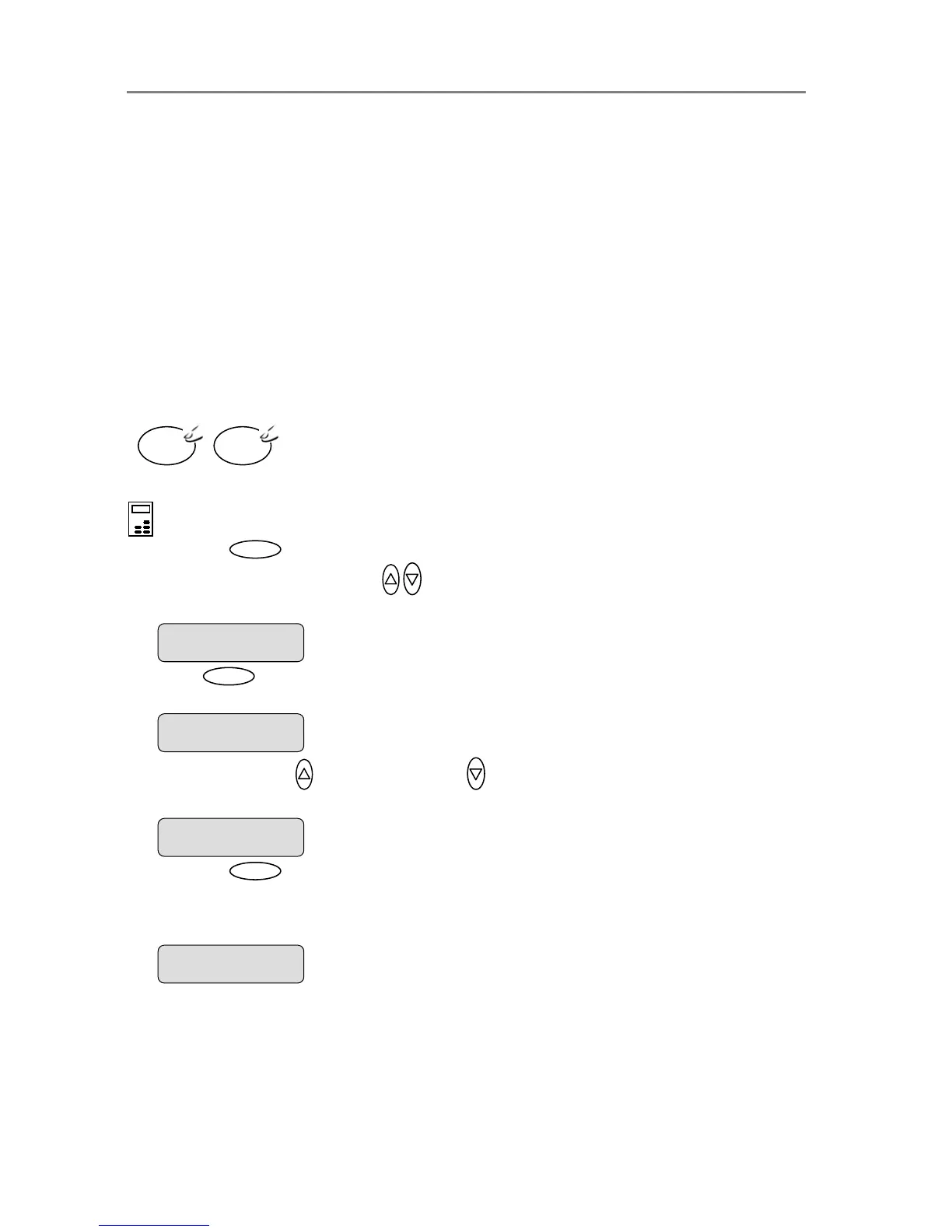
To apply the Backg. Clean filter
On the iJET Panel –
1. Press the button to enter the main Menu.
2. Use the arrow up/down buttons
to move through the Menu options until the display
shows Backg. Clean as shown below.
3. Press
Enter
to move the “>” marker down to indicate you want to change the Backg.
Clean setting.
4. Press the arrow up
or arrow down button to change the Backg. Clean value. The
higher the value, the larger the umber of shades that will be converted to white in the copy.
5. Press the
Enter
button to accept the selected setting. The “>” marker will move up to the
Menu level indicating that the value is set and you can step on through the menu options if
needed. The new Backg. Clean setting will be applied every time you press the Color Copy
or the B&W Copy button until you repeat the steps above to change it.
B&W
Copy
Color
Copy
Backg. Clean
> 10
The ”>” marker is on the Menu level. You can continue
navigating the menu options with the arrow up/down
buttons.
> Backg. Clean
10
Menu
The “>” marker is down to the value level so you can
change the setting.
Backg. Clean
> 0
> Backg. Clean
0













 To Next Page