Using the scanner, how do I …? 5-16
9. The display will now show “Scan Sheet”. Select to start. The system will scan the
color patch sheet and calculate color matching values for future jobs with the current media
type.
10. When you use the system for copying, you will select the option for the Media Type that
matches the media loaded on your printer. This is done through the Menu button. The
system will then load the corresponding Media Profile and use it to create optimal color
output for the job.
5.3.6 How do I… Mirror the Image?
You can mirror the image during capture.
The option’s setting will be applied when you press either the Color Copy or B&W Copy button.
To Mirror the image:
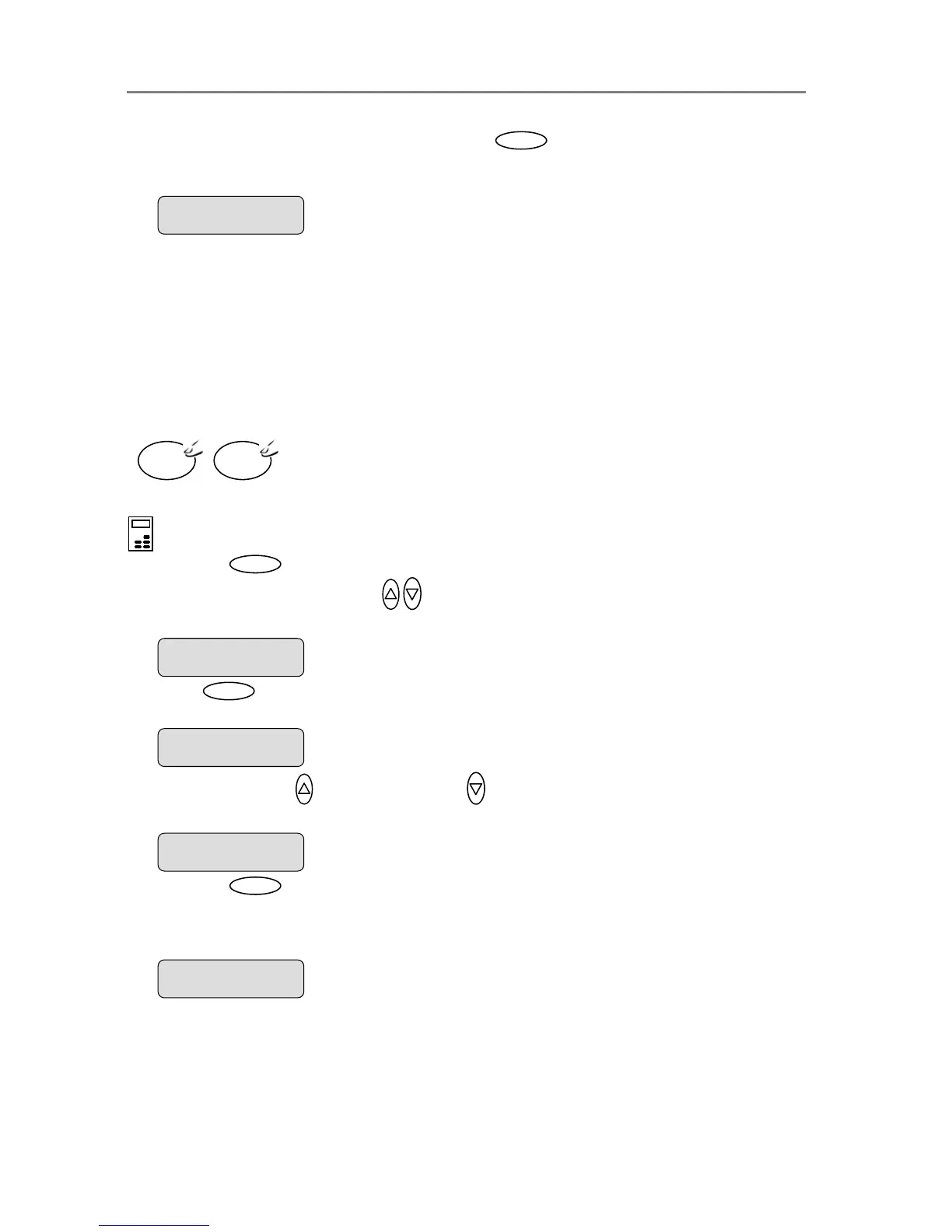
On the iJET Panel –
1. Press the button to enter the main Menu.
2. Use the arrow up/down buttons
to move through the Menu options until the display
shows Mirror as shown below.
3. Press
Enter
to move the “>” marker down to indicate you want to change the Mirror option
setting.
4. Press the arrow up
or arrow down button to change the Mirror option value to YES or
to NO. YES will mirror the original image in your copy and NO will leave it as it is.
5. Press the
Enter
button to accept the selected setting. The “>” marker will move up to the
Menu level indicating that the value is set and you can step on through the menu options if
needed. The new Mirror setting will be applied every time you press the Color Copy or the
B&W Copy button until you repeat the steps above to change it.
B&W
Copy
Color
Copy
Mirror
> YES
The ”>” marker is on the Menu level. You can continue
navigating the menu options with the arrow up/down
buttons.
> Mirror
YES
Menu
The “>” marker is down to the value level so you can
change the setting.
Mirror
> NO
> Mirror
NO
> Scan Sheet
‘Enter’ to go…
Ente













 To Next Page