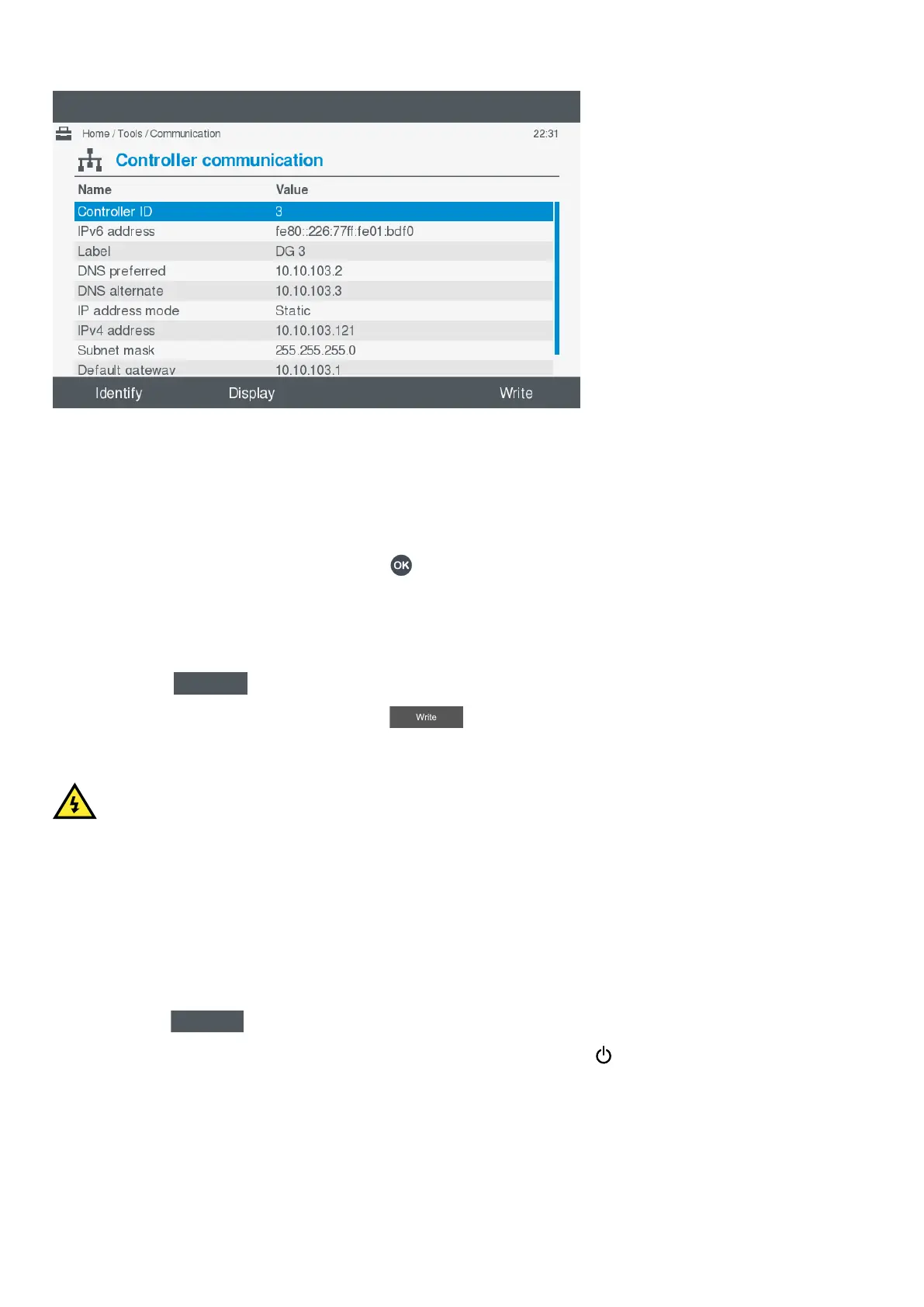
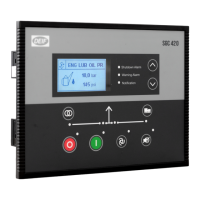
Figure 10.3 Controller communication screen
View or configure controller communication settings
To view or configure the controller communication information, perform the following steps:
1. Select Tools , from the Home menu.
2. Select Communication to view the communication settings for the controller.
• The default page shown is the controller communication.
3. Select the information to configure by pressing OK
.
NOTE
Some information is not configurable on some controller types. A message displays when you cannot change
the information.
• Either the virtual keyboard or a selection choice is displayed on screen.
• Make the required changes or selection.
• Select Next
4. When all change(s) have been made, select Write .
5. For changes to take effect, you must power off and on the controller rack and restart the display unit.
DANGER!
For changes to communication settings to take effect, all controllers and displays in the same system MUST only be
powered off and powered on. This must be done by authorised personnel who understand the risks involved in accessing
the power supply or installation design. Take extreme care in the enclosure next to the ACM terminals. Ensure the
controllers are not running and in operation, and that the controlled breakers are open before powering off and on the
controllers and display units.
Identify controller
To identify the controller, perform the following steps:
1. Select Tools, from the Home menu.
2. Select Communication to view the communication settings for the controller.
3. Select Identify
.
• The controller that the display unit is paired to now flashes the Power status LED
on the PSM module.
• The LED repeats a cycle of fast, medium, and then slow flashing.
OPERATOR'S MANUAL 4189341099G UK Page 112 of 130



 To Next Page