Configuring HTTP and HTTPS
16 Chapter 2
6. Press ESC when done to return to the main configuration menu.
7. Enter number 6 to Save changes.
The values are saved and applied immediately. There is no need to reboot.
Configuring HTTP and HTTPS
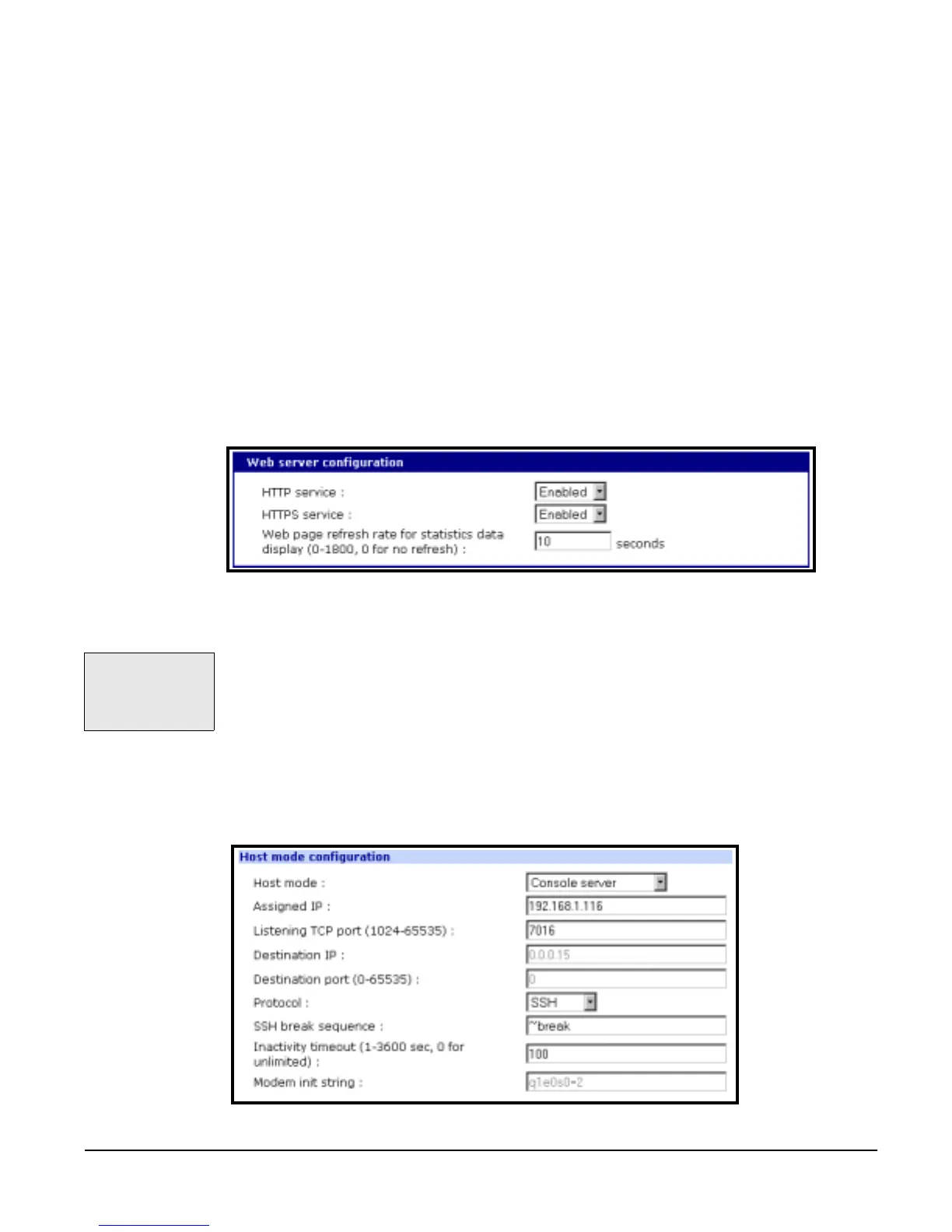
By default HTTP and HTTPS are enabled on the Digi CM device. To modify
these settings, do the following:
1. Enter the IP address for the Digi CM in a web browser’s URL.
2. Choose Web server configuration from the Network Configuration heading
on the web interface menu.
3. Choose Enabled or Disabled.
4. Set the desired refresh rate for statistics data.
The default value is 10 seconds.
5. Choose Save to flash and Apply changes.
Access Using SSH
The Digi CM can also be accessed through an SSH connection. The Port
Access Menu and each individual port can be configured for SSH. Access an
individual port for SSH by doing the following:
1. Access the web interface.
2. Use the username admin and the default password admin.
3. Under the Serial Port heading choose Configuration.
4. Choose the port or ports you want to configure for SSH, you can choose
either: Port Access Menu, All ports, or an Individual port.
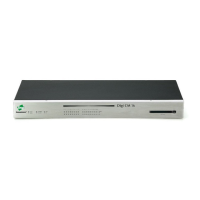
5. Choose Host mode configuration.
The Digi CM
supports Blowfish
and 3DES
encryption methods
for SSH.


 To Next Page