System Administration
Chapter 12 71
Introduction
This chapter contains a number of tasks performed either by root or the
system administrator. These tasks fall under the general heading of system
administration and include firmware upgrades, resetting the unit to factory
defaults, and disaster recovery procedures.
Upgrading the Firmware
Web Interface
You will need to download the latest firmware version to a system on the same
subnet mask as the Digi CM. The latest firmware can be downloaded from the
Digi support site at: http://cm.digi.com. Do the following to upgrade the
firmware:
1. Access the web interface.
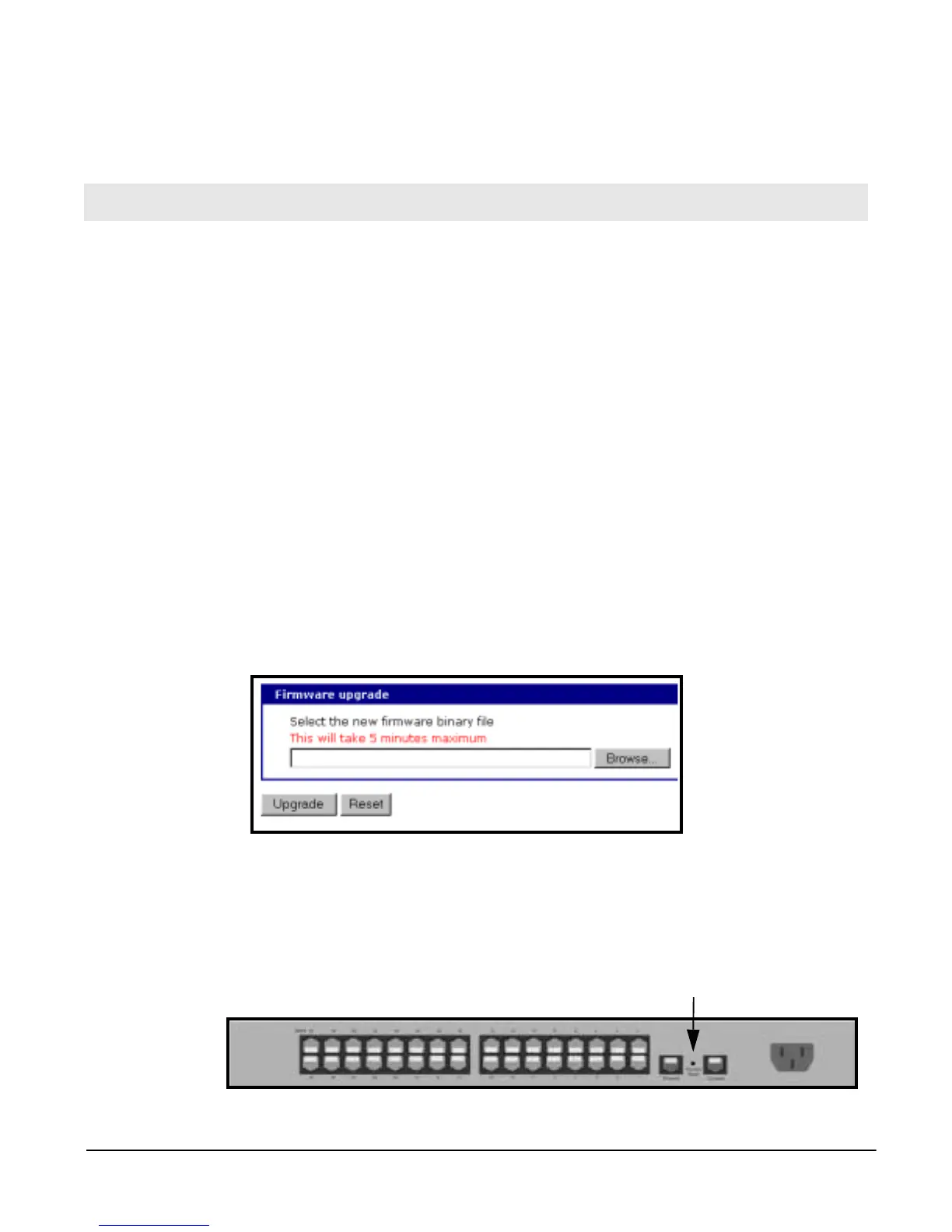
2. Under the System administration heading choose Firmware upgrade.
3. Choose the Browse button and locate the firmware download.
4. Choose Upgrade. The Digi CM will automatically reboot when the upgrade
is complete.
Resetting Factory Defaults
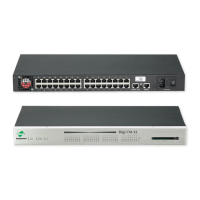
There are two ways to reset the unit to the factory defaults. The quickest and
simplest method is to push the hardware factory default reset button. The reset
button is located on the back panel of the unit next to the Ethernet port. The
arrow points to the reset button’s location.
Chapter 12
System Administration
Factory reset button


 To Next Page