120
support@edgeovens.com Technical Support: +1 (724) 628 3050
SERVICE
OVEN CONFIGURATION DOWNLOAD & UPLOAD
SERVICE OPERATION
✔
✖
7
8
7. Use the UP () or DOWN () arrows to navigate to the
CONFIG DOWNLOAD or CONFIG UPLOAD option.
8. Touch the tick (✔) icon to conrm selection and begin the USB
upload or download.
9. Depending on the size of your conguration le, the transfer will
generally take less than one (1) second.
SYSTEM
✔
✖
5
6
5. Use the UP () or DOWN () arrows to navigate to the
SYSTEM option.
6. Touch the tick (✔) icon to conrm selection.
The OVEN CONFIGURATION DOWNLOAD and UPLOAD functionality is
intended to be used where an oven setup (SERVICE parameters only) has
been altered from the factory default settings. The service conguration le
can be uploaded to the remaining ovens within the same stack or to ovens
at different locations.
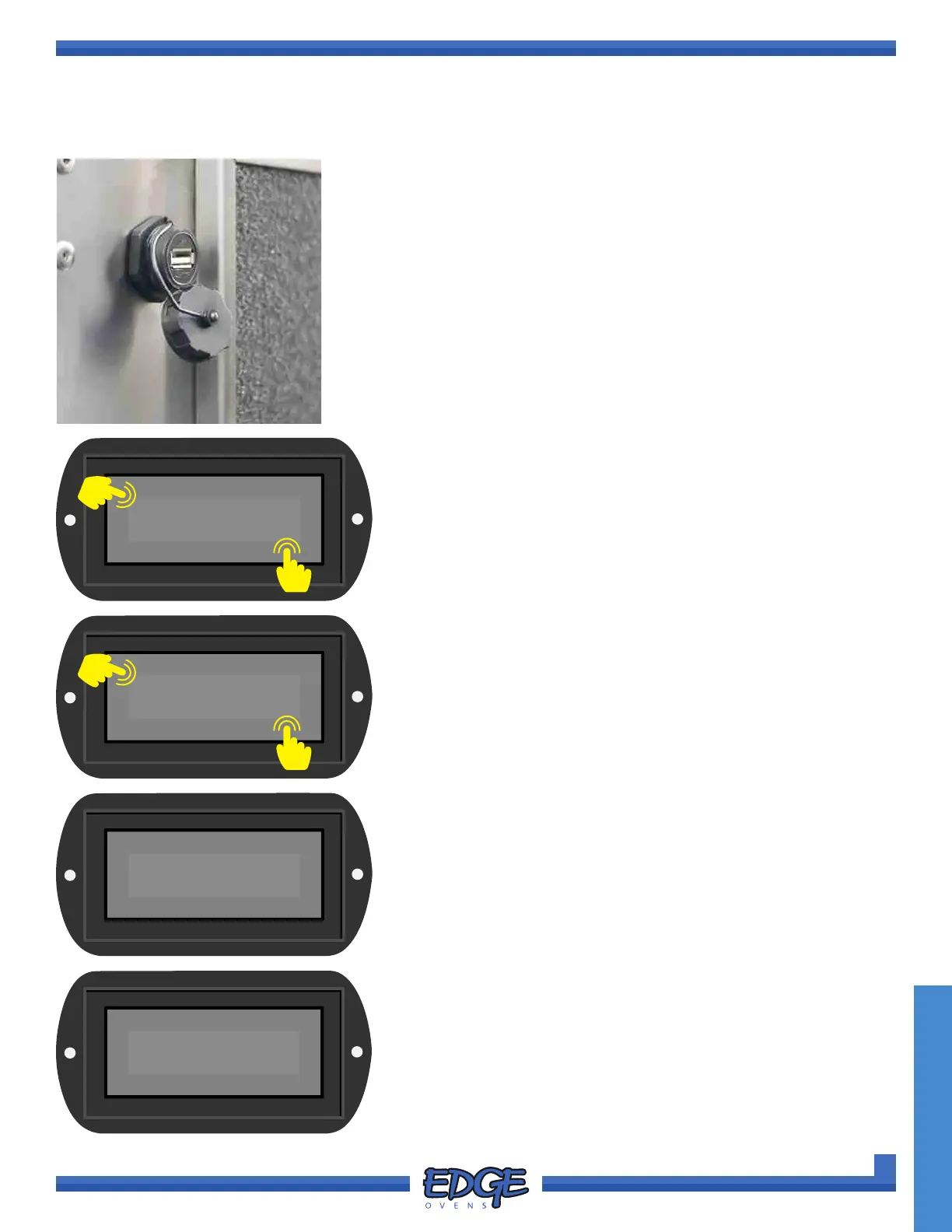
1. Locate the USB port on the rear side of the oven control cabinet,
adjacent to the cooling fan lter cover. (Figure 4-1)
2. Remove the USB dust cover by unscrewing the cover.
3. Insert the USB ash drive into the USB port.
4. Follow steps 1 - 5 of the “ACCESSING THE SERVICE MENU” section.
FIGURE 4-1
CONFIG
DOWNLOAD
Downloading
CFG file
Download Complete
Remove USB drive
10. Once complete, the “Upload Complete, Remove USB drive” or
“Download Complete, Remove USB drive” message will ash
up on the screen for approximately ve (5) seconds, before
returning to the previous option screen. It is now safe to remove
your USB drive.
11. To return to the SYSTEM MENU touch the cross (✖) icon as
required to exit each option level. Swipe left or right to return to
the main OPERATING SCREEN.



 To Next Page