77
support@edgeovens.com
Technical Support: +1 (724) 628 3050
OPERATION
OVEN OPERATION
OVEN SETTINGS (CONTINUED)
CONTROL SYSTEM SOFTWARE UPDATE
Download the latest G2 control system rmware from edgeovens.com/
support. The le type is .b31 type and will be named mcXXuiXX.b31
the XX will denote the MC and UI version, for example mc35ui33.b31.
Transfer the le to the root directory of the USB ash drive.
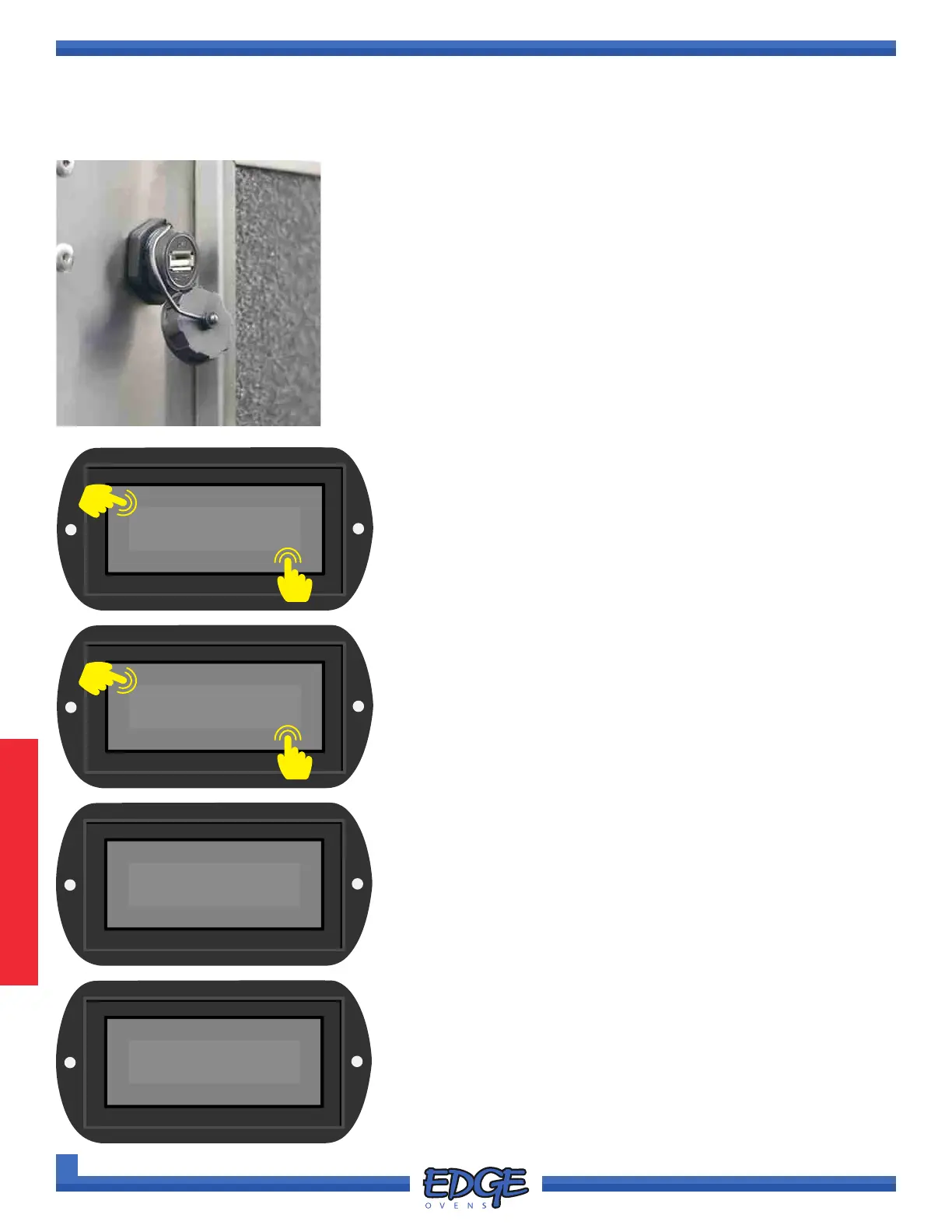
1. Locate the USB port on the rear side of the oven control cabinet,
adjacent to the cooling fan lter. (Figure 3-1)
2. Remove the USB dust cover by unscrewing the cover.
3. Insert the USB ash drive into the USB port.
4. Follow steps 1 - 5 of the “ACCESSING THE SETTINGS MENU”
section, for instruction of how to access the SETTINGS MENU options.
SYSTEM
✔
✖
6
5. Use the UP () or DOWN () arrows to navigate to the
SYSTEM option.
6. Touch the tick (✔) icon to conrm selection.
5
✔
✖
8
7
7. Use the UP () or DOWN () arrows to navigate to the SW
UPDATE option.
8. Touch the tick (✔) icon to initiate software update.
9. The oven control system will begin by validating software
update. Before progressing to installing the update.
10. The oven control system will then begin the software installation
process, and will undertake as many as three (3) full oven
reboots, during which the oven will turn itself OFF and ON. The
oven update process will take approximately three (3) minutes
in total.
FIGURE 3-1
Bootloader
Validating mcXXuiXX.b31
SW UPDATE
Bootloader
Installing mcXXuiXX.b31



 To Next Page