CONFIGURING THE SURVEILLANCE SOFTWARE
If you downloaded the latest firmware
file from our website, you can click the
Browse button to pick a firmware file
located on your computer‟s hard drive
and upload it to the network camera.
After you select a firmware file from
your computer, click the Upgrade
Firmware button to start the upgrade.
WARNING: DO NOT DISCONNECT
THE CAMERA DURING THE
UPGRADE!
If the firmware file you provided is
invalid or you didn‟t provide a firmware
file, you‟ll be prompted to select another
valid firmware file.
The network camera will reboot after
the upgrade procedure is done.
PLEASE NOTE THAT THE IP
ADDRESS OF THE CAMERA WILL
RESET TO ITS DEFAULT VALUE:
192.168.2.3
Reset to Fac-
tory Defaults
Replace current settings with the fac-
tory defaults.
Note:
The IP address will be reset to the fac-
tory default value of „192.168.2.3‟. See
Configuring Your PC’s IP Address
(page B-1) if the EdiView Finder utility is
unable to detect the camera.
If you find the network camera is
responding slowly or behaving
strangely, click this button to reboot the
network camera.
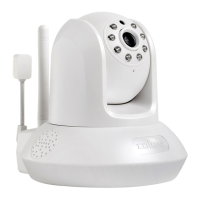
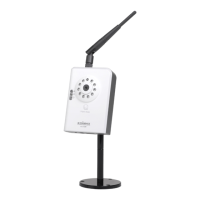
Click the Turn Off LED Light but-
ton to switch off the LED lights on this
network camera, in case you don‟t want
other people to know the camera is
transferring data.
You can click this button again to switch
LED lights on again.
Click Apply to save the settings.


 To Next Page