CONFIGURING THE SURVEILLANCE SOFTWARE
3.3 Configuring myedimax.com
Note:
This feature requires a web browser that sup-
ports JAVA applets. If JAVA applets are not
viewable in the browser, visit www.java.com to
download and install the JAVA software.
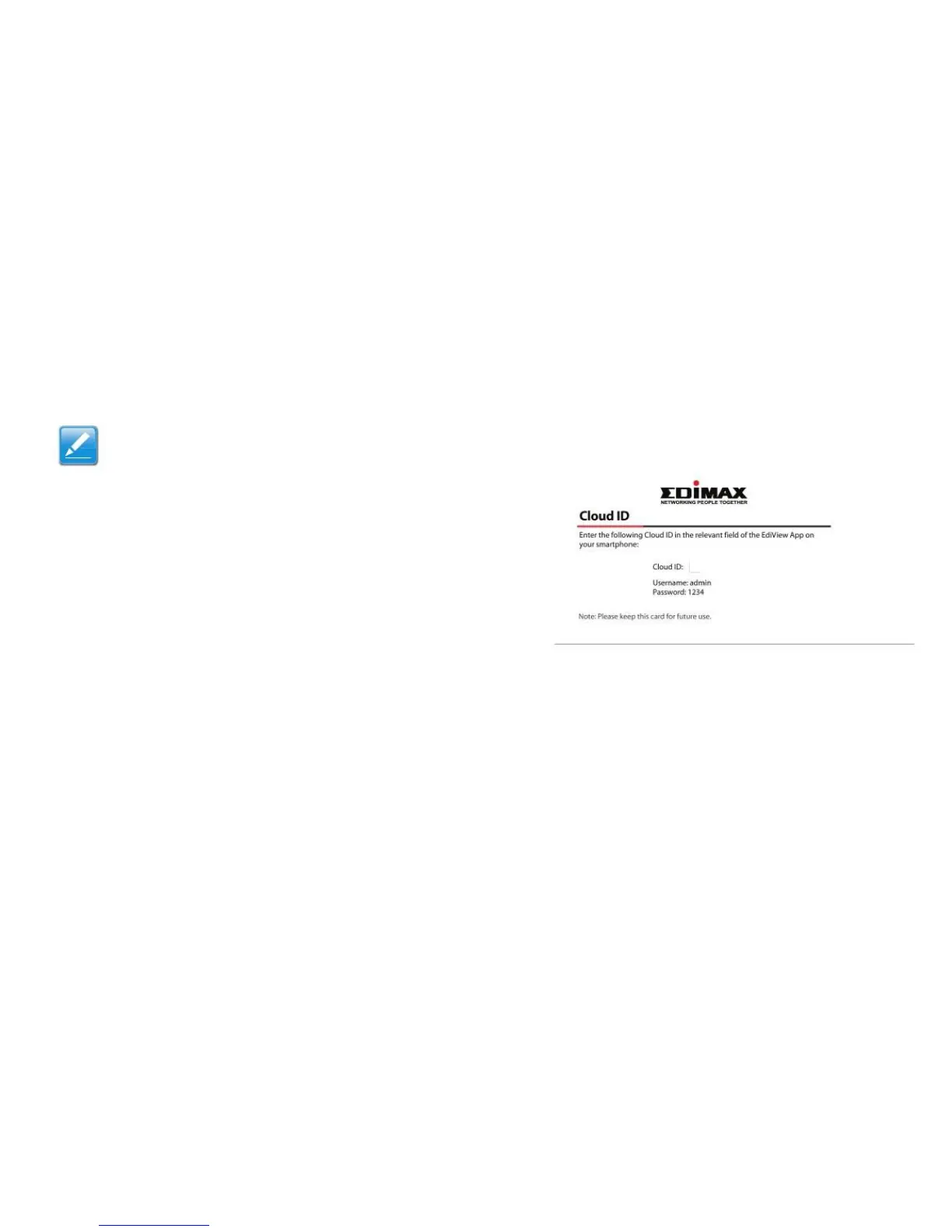
1234567890ab.myedimax.com into your web
browser.
System administrator rights are required to launch the
applet in IE. Log into Windows with an administrator
account or use the Run as Administrator feature to
launch IE.
Only 32-bit IE is supported.
1. To access myedimax.com, enter [Cloud ID].myedi-
max.com into the web browser‟s address bar, where
[Cloud ID] is the twelve character Cloud ID of the net-
work camera found on the included Cloud ID card. For
example, if your Cloud ID is 1234567890ab, enter


 To Next Page