DTP CrossPoint 84 Series Matrix Switchers • HTML Operation 136
Set Passwords
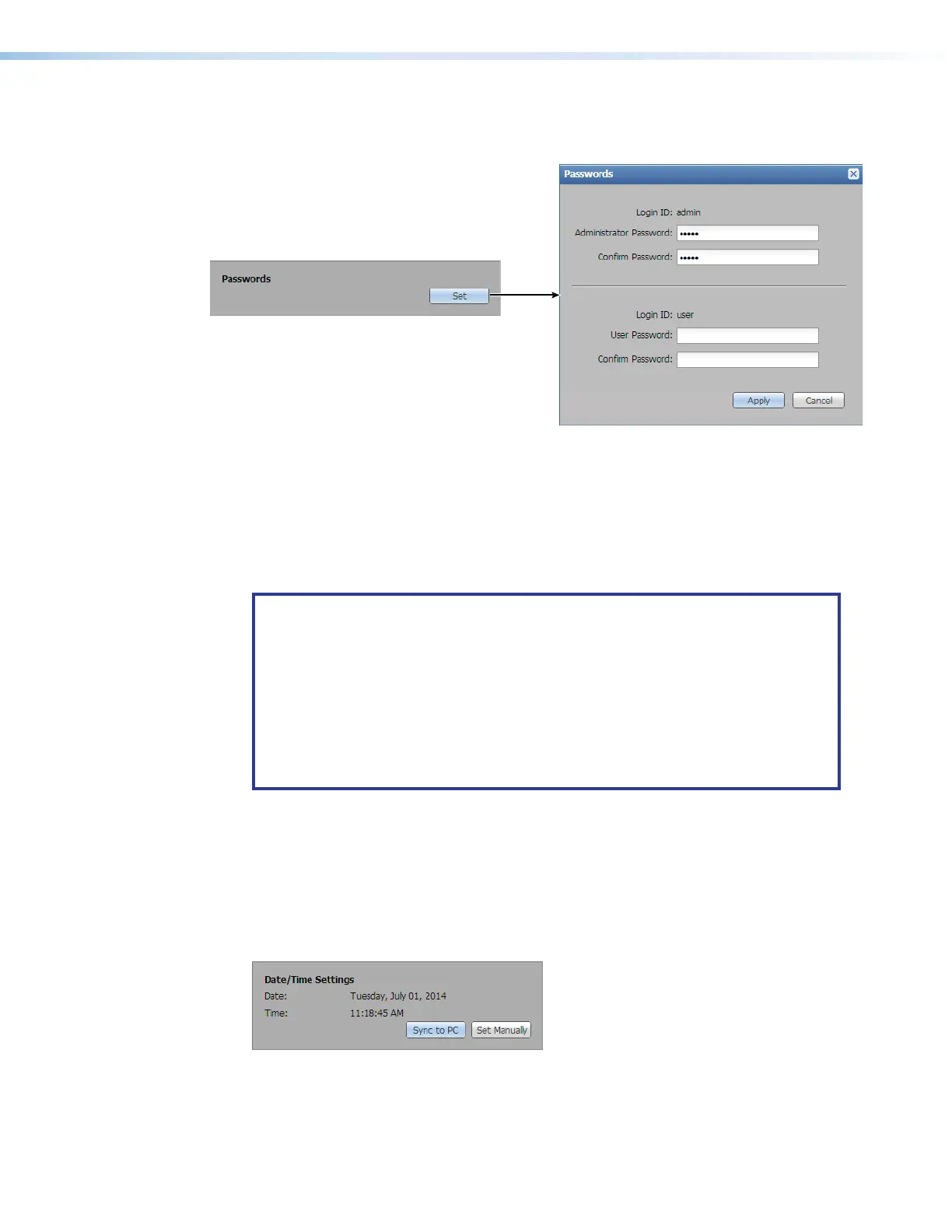
Click Set in the Passwords panel (see figure 81,
1
) to open the Passwords dialog box.
111111111111111111
44
4444444444444444
22
2222222222222222
33
3333333333333333
22
2222222222222222
33
3333333333333333
Figure 81. Passwords Dialog Box
The fields in the Passwords dialog box are for entering and verifying administrator and user
passwords. Passwords are case sensitive and are limited to 12 upper case and lower case
alphanumeric characters. Each password must be entered twice: once in the Password
field (
2
) and then again in the Confirm Password field (
3
). Characters in these fields are
masked by asterisks or dots (*****). If you do not want to password protect an access level,
leave both fields blank. After entering the desired password in both fields, click the Apply
button (
4
).
NOTES:
• The factory configured passwords for all accounts on this device have been set
to the device serial number. Passwords are case sensitive. If the device is reset,
the password will be the original password configuration.
• An Administrator password must be created before a user password can be
created.
• You cannot clear an existing password using this dialog box (see the Reset
(clear) administrator password and Reset (clear) user password SIS
commands, both on page68).
Set the Clock
Sync to PC
The simplest way to set the switcher clock is to click Sync to PC in the Date/Time
Settings panel (see figure82). The switcher uploads the time and date information from
the connected computer.
Figure 82. Date/Time Settings Panel — Sync to PC
77
78



 To Next Page