DTP CrossPoint 84 Series Matrix Switchers • Matrix Software 74
9. Follow the on-screen instructions. By default, the installation creates the necessary
subfolders of C:\Program Files and the necessary groups. It places the appropriate
icons into correct group folders and on the PC desktop:
NOTE: C:\Program Files(x86)\... for 64-bit Windows OS.
Product Configuration Software —
•
Folder
— C:\Program Files\Extron\Extron PCS
•
Gr
oup folder — Extron Electronics\Extron Product Configuration
Software
•
Check
for Extron PCS Updates
•
Extron
PCS Help
•
Extron
Product Configuration Software
•
Uninstall
Extron Product Configuration Software
DSP Configurator —
•
Folder
— C:\Program Files\Extron\DSP_Configurator
•
Gr
oup folder —
Extron Electronics\DSP Configurator
• DSP Configurator Help
• DSP Configurator
• Uninstall DSP Configurator
Product Configuration Software
Starting the Program
Start the Extron Product Configuration Software by clicking the desktop icon or as follows:
1. Click Start > All Programs > Extron Electronics > Extron Product
Configuration Software > Extron Product Configuration Software.
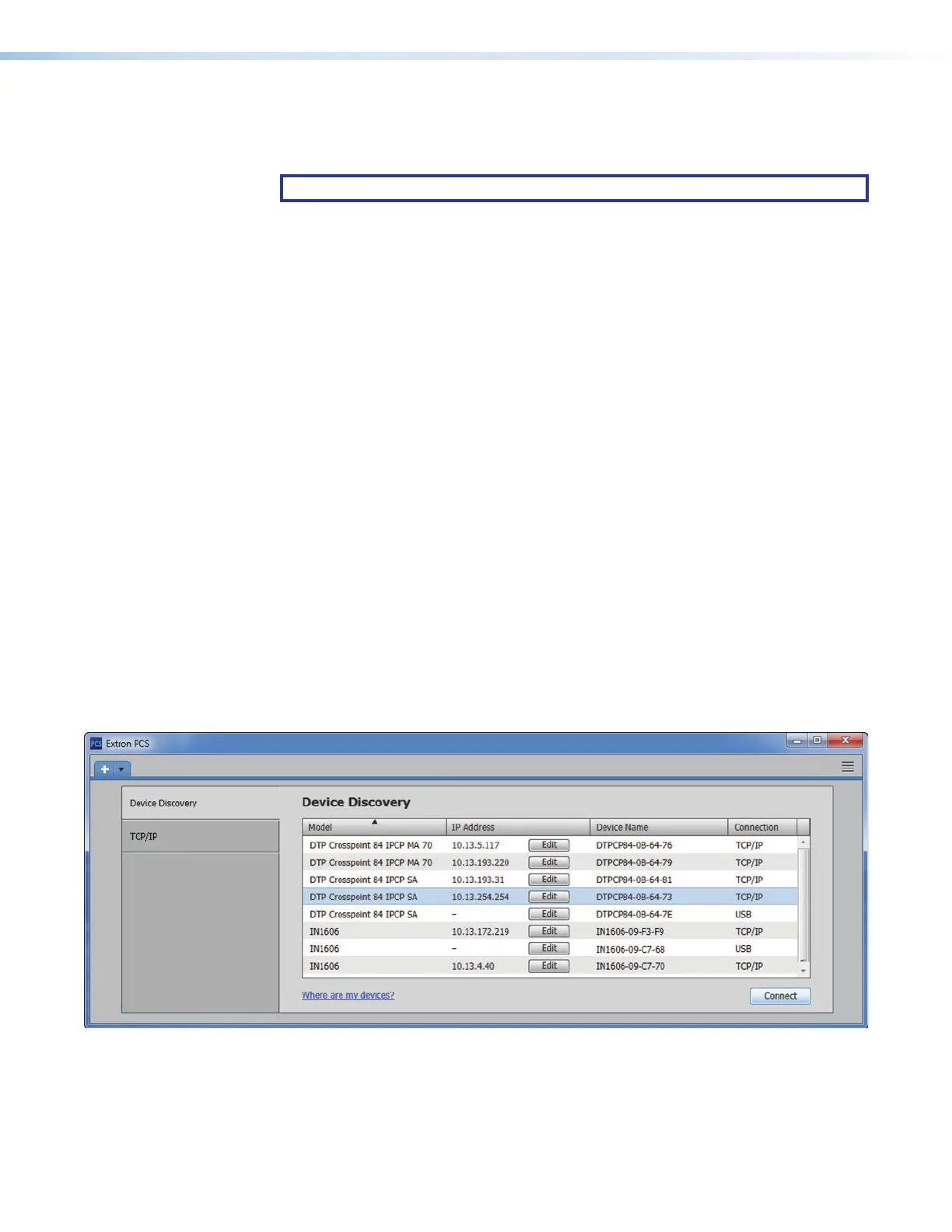
The Product Configuration Software opens to the Device Discovery screen (see figure36).
11
1111
1111
11
1111
1111
Figure 36. Device Discovery Screen
2. Select (click) your DTP CrossPoint and click Connect (
1
). The Product Configuration
Software opens to the EDID Minder page (see figure37 on page75).
3. Operate the Product Configuration Software as described in the PCS Help.
32



 To Next Page