DTP CrossPoint 84 Series Matrix Switchers • Reference Information 148
2. Click the Software link on the main download page (see figure 85,
2
on page 147).
3. Download and install Button Label Generator on your PC.
By default, the Windows installation creates a C:\Program Files\Extron\
ButtonLabelGenerator
directory and places the Button Label Generator icon into a group
or folder named “Extron Electronics.”
NOTE: C:\Program Files(x86)\ ... for 64-bit Windows OS.
Using the Button-Label Generator software
Start the Button-Label Generator program by clicking the desktop icon or as follows:
1. Click Start > All Programs > Extron Electronics > Button Label Generator
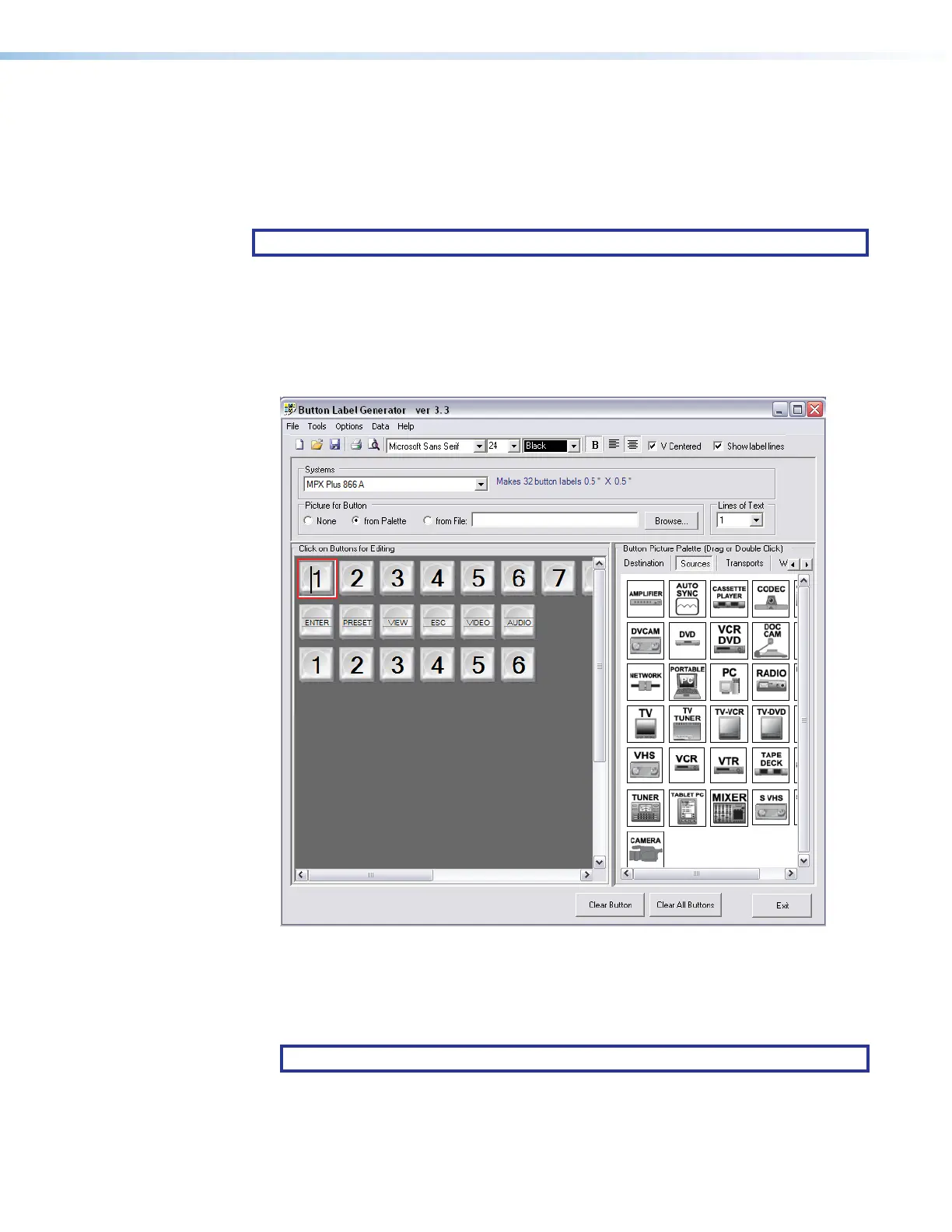
> Button Label Generator. The Button-Label Generator window appears (see
figure86).
11
1111
1111
22
2222
2222
33
3333
3333
Figure 86. Extron Button-Label Generator Window
2. In the Systems drop-down box (
1
), choose the MPX Plus 866 A option to match, as
closely as possible, the button label size and quantities for your DTP CrossPoint switcher.
3. Using normal Windows controls, you can create and print labels that can be placed in
the label windows on the front panel of the switcher.
NOTE: For best results, print on transparent or translucent material.
4. Click the Clear All Buttons button (
2
) and create new labels as many times as
necessary to make all of the button labels that you need.
To access the help program, click the Help menu (
3
).
81



 To Next Page