3 Eyecon 9420 & 9430 Instruction Manual
9430 Addendum
9.4 Configuration
Basic settings are those that should be adjusted to meet the operational preferences
of your facility. Advanced settings are restricted and should only be adjusted under
direction of Eyecon support personnel.
9.4.1 Color Cameras
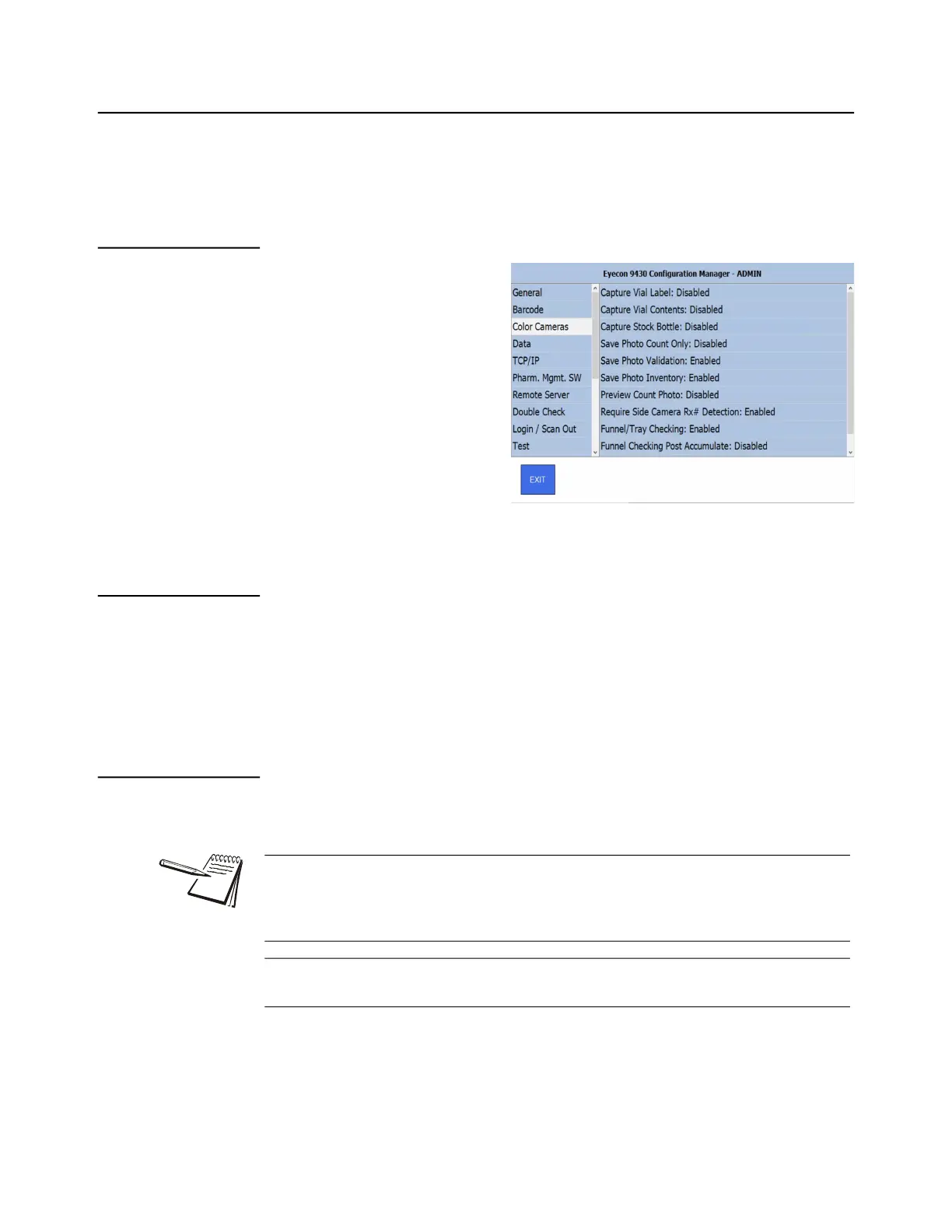
1. From the main menu, press
the [Settings] button to
view the configuration
menus. Select the Color
Cameras group on the left
side.
2. The first 3 parameters specify which type of color photos should be captured:
9.4.2 Capture Vial Label & Capture Vial Contents
If either of these parameters are enabled, after a prescription is dispensed, the user
would be prompted to place the filled vial on the tray and photo(s) of the Vial Contents
and/or Vial label would be captured simultaneously.
- The user will be given the opportunity to capture multiple sets of these
photos if needed
9.4.3 Capture Stock Bottle
Enabling this parameter will cause the Eyecon to prompt the operator to place the stock
item on the tray after the Vial Label and/or Contents Photo(s) have been captured.
- The next 2 parameters specify which counting modes should prompt
for capturing of the specified color photos:
Alternatively, the stock item image can instead be captured by placing it next to the
filled vial when the photo(s) are being captured, thus eliminating a step and a photo.
Place the stock bottle towards the front of the tray so that it does not obstruct the view
of the vial ensuring that the vial label photo is fully captured.
If the stock bottle barcode can be seen by the side camera, the vial label Rx barcode
detection may produce errors and result in the ‘bonk’ sound.



 To Next Page