Eyecon 9420 & 9430 Instruction Manual 31
3.2 General menu
3.2.5 Stock Item Verification
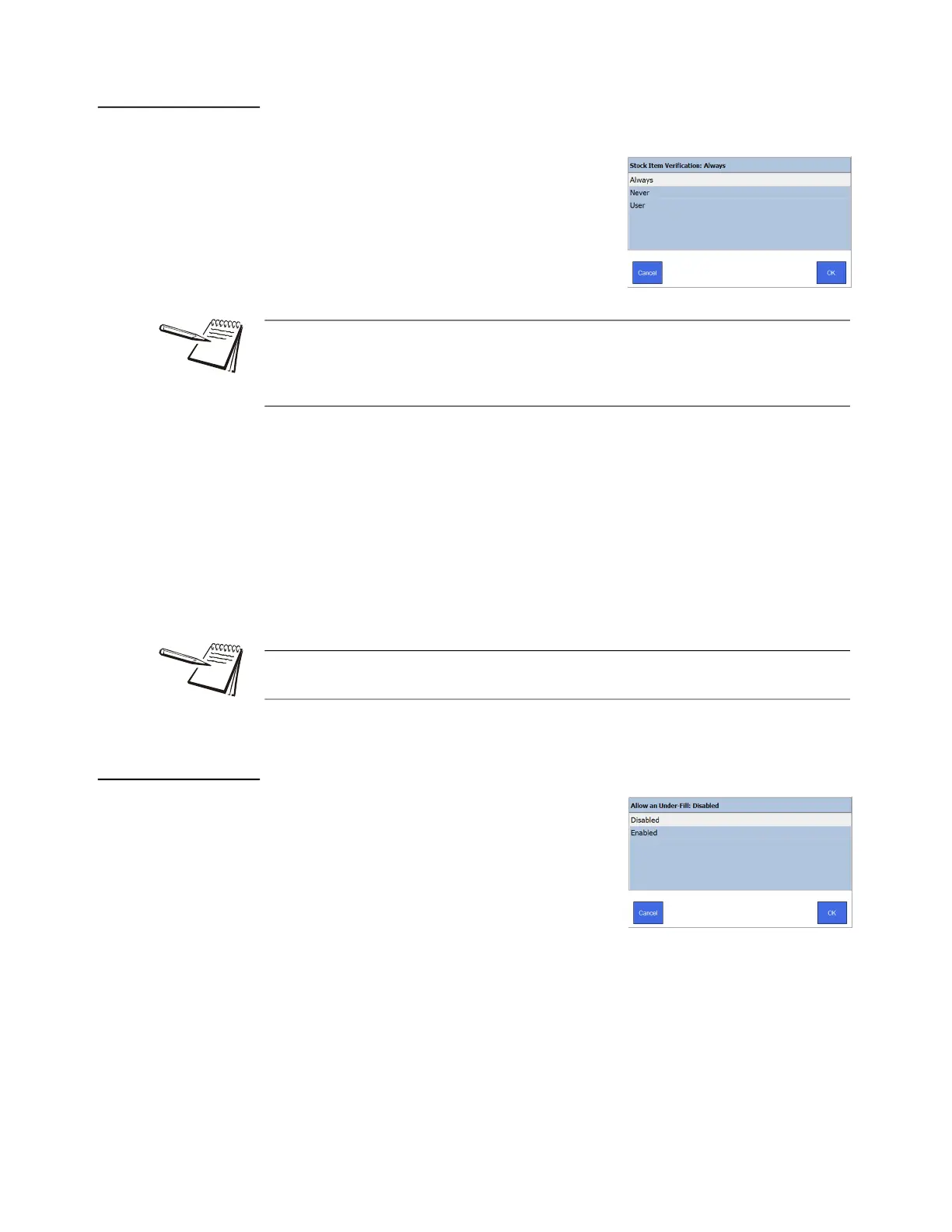
Choose whether to verify a stock item scan every time, never or per user.
• If Stock Item Verification is set to Always, the
Scan Stock Item screen will appear every time
the Rx label is scanned.
l If Stock Item Verification is set to Never, the Scan Stock Item screen will
never appear after the Rx label is scanned and will go to the Counting
screen.
l If Stock Item Verification is set to User, scan the stock item to proceed or
press the Skip Validation button to proceed to the Counting screen.
Tap your choice and press OK to accept the change or Cancel to abort a change.
Display returns to the General menu.
3.2.6 Allow an Under-Fill
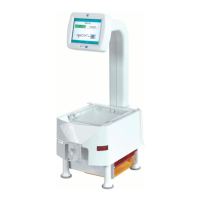
If you enable this parameter and perform a partial
fill, the Eyecon will keep track of the amount
dispensed and inform the user of the remainder
required if/when the Rx label is scanned some
time after the initial partial fill.
Tap your choice and press OK to accept the
change or Cancel to abort a change. Display
returns to the General menu.
The PMS system can override this setting if it is sent in the Rx Fill request. This is
defined in Settings > Pharm Mgmt SW > Interface Override of Stock Item Verification.
If set to, “enabled,” the setting on the Eyecon will be overridden if the Stock Item
Verification field is populated in the incoming Rx Fill packet from the PMS system.
The selection for this parameter can be overridden by the data provided via an
interface with the Pharmacy Management Software (PMS).



 To Next Page