46 Eyecon 9420 & 9430 Instruction Manual
Settings menu
3.5 TCP/IP menu
The next menu in the Configuration Manager is the TCP/IP menu. Access this menu
to see or change a variety of network settings.
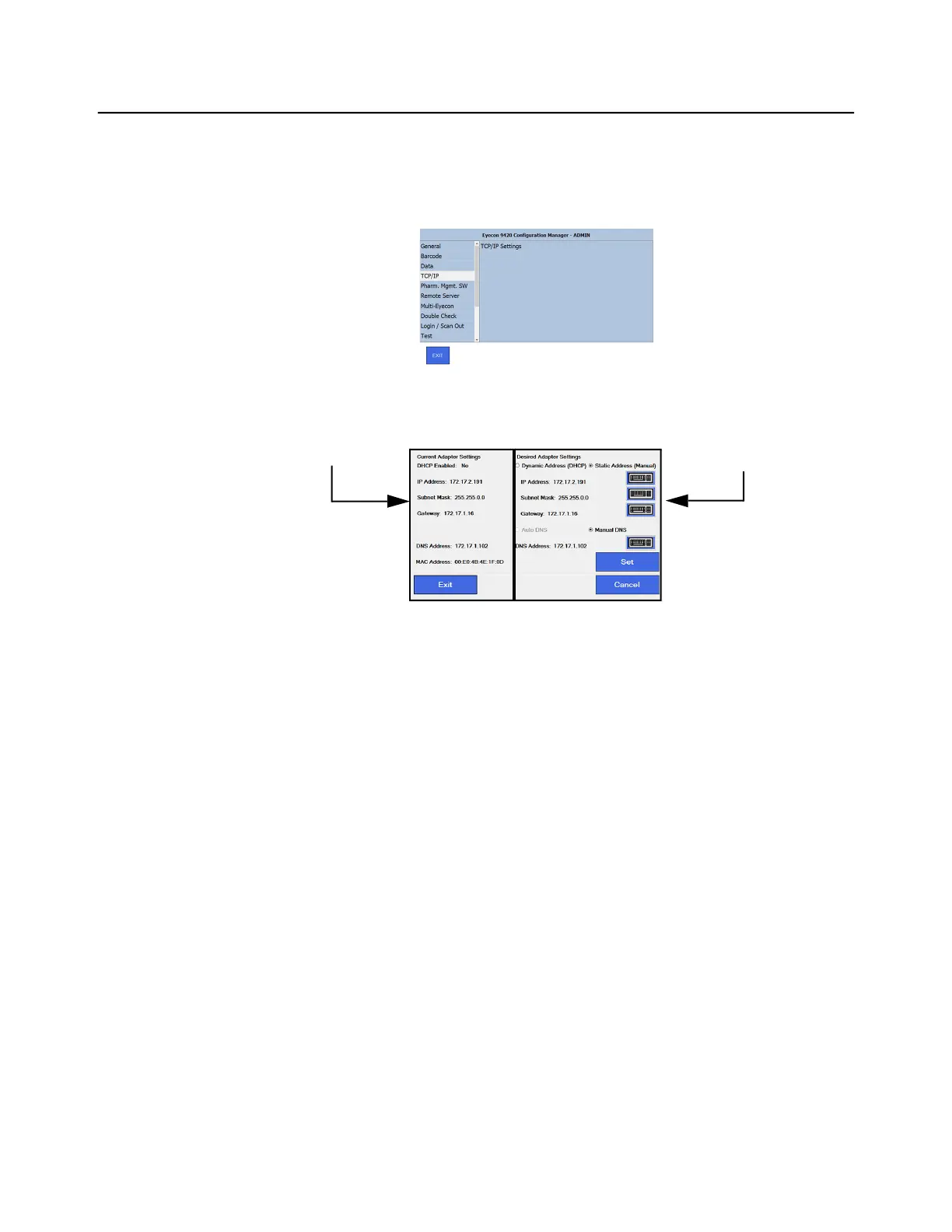
1. From the Configuration Manager, Tap TCP/IP on the left followed by TCP/IP
Settings on the right.
The current adapter settings are shown on the left side of the screen.
The right side of the screen is for making changes to the settings.
Generally, you should set the Adapter Settings to Dynamic Address (DHCP) and then
press Set to allow your router to assign an IP address to your Eyecon. If an IP address
of 0.0.0.0 appears, there may be a problem with the connection to the network. Check
your cable or connections. Once you have an IP address, we recommend changing the
Adapter Settings to Static Address (Manual) and editing the last segment to use an
address in the range your IT department has configured for your router static IP
addresses. This will prevent a router from changing your dynamic address and causing
a loss of connection to the pharmacy system. Using the Dynamic Address will also
properly set the other addresses. Your IT person may pick other values based on your
network configuration.
2. If needed, use the keypad buttons on the right side of the screen to change the
corresponding adapter settings:
• IP Address
• Subnet Mass
• Gateway
• DNS address
Current Settings Desired Settings



 To Next Page