Eyecon 9420 & 9430 Instruction Manual 75
3.15 Inventory menu
3.15.9 Export Inventory
Select this to download/export the inventory data that you can then upload to some
inventory software providers. Some pharmacy systems support importing this file to
update the on-hand position in the PMS, for those PMS providers that do not yet
support an inventory interface with Eyecon. This file can also be opened with Excel, or
some other programs, to review and analyze the data, or to save a record of the counts
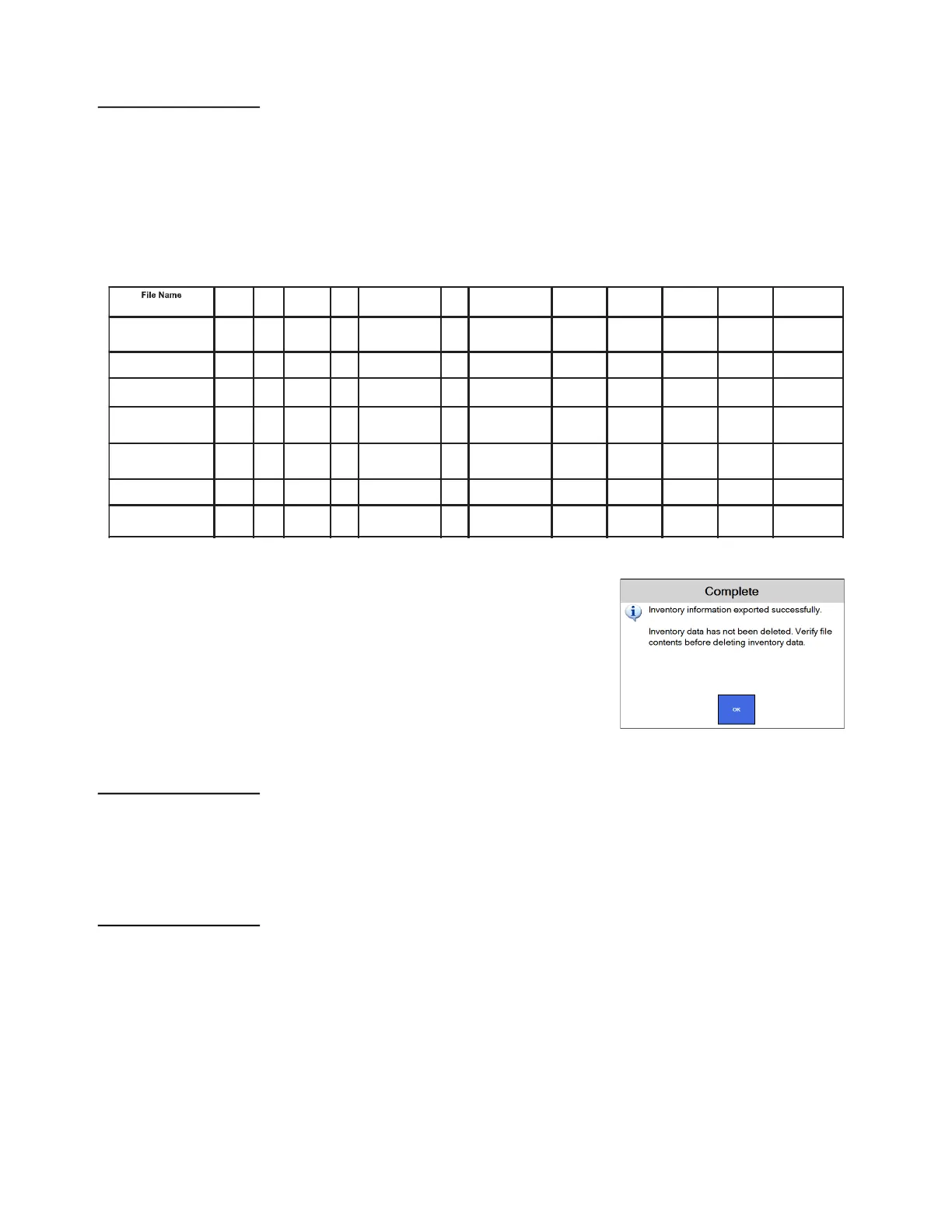
that were preformed on that date. The following files will be generated when exporting
inventory data:
The message at right appears if the download/
export was successful.
3.15.10 Delete Inventory Data
Choose this to delete all inventory information from the Eyecon. A warning message
appears asking if you are sure you want to do this. Make your choice and the display
returns to the Inventory menu.
3.15.11 Import Inventory Reason Codes
Custom Inventory Reason Codes can be imported to the Eyecon. Use one of the
following methods to import the codes.
USB Flash Drive
1. Place the edited InventoryAdjustReasons.txt file in the root directory of the USB
flash drive.
2. Plug the USB flash drive into the Eyecon before tapping Import Inventory
Reason Codes.
Header
?
Drug
#
Drug
Name
Qty # of Transactions T/D Transaction # User ID User Name NDC
Format
# of fields Compatibility
Summary_YYYY-MM-DD
HH_MM_SS.csv
Yes Yes Yes Yes Yes No No No No 11 digit plus
two dashes
4
Summary_YYYY-MM-DD
HH_MM_SS.txt
Yes Yes Yes Yes Yes No No No No 11 digits 4
BriefSummary_YYYY-
MM-DD HH_MM_SS.csv
No Yes No Yes No No No No No 11 digits 2 Computer Rx
CIMAudit_YYYY-MM-DD
HH_MM_SS.csv
Yes Yes No Yes No No No No No 11 digits 3 Cardinal CIMs
Transactions_YYYY-MM-
DD HH_MM_SS.csv
Yes Yes Yes Yes No Yes Yes Yes Yes 11 digits
plus tw o
dashes
19 Pioneer Rx
Transactions.txt Yes Yes Yes Yes No Yes Yes Yes Yes 11 digits 19
EntRxInv_YYYY_MM_DD
_HH_MM_AM.txt
No Yes No Yes No No No No No 11 digit 4 McKesson
Enterprise Rx



 To Next Page