Eyecon 9420 & 9430 Instruction Manual 61
3.10 Test menu
This lets you set if or when a login is required for each of the three counting modes.
Choose Off so logins are not required. Choose Pre-Login to require the user to log in
before starting counting, validation or inventory. Choose Scan-Out to require the user
to scan their user barcode when finished with each count.
3.9.7 User Lookup
Choose to turn the user lookup function On or Off. If User Lookup is enabled, the
Eyecon will look up the User ID that was entered/scanned to validate that it is an actual
Eyecon user. It will also record the name associated with that user in the transaction
record for future reference.
3.9.8 Auto-Logout
If using Pre-Login, this allows the Eyecon to automatically log off the currently logged
in user after the count in process is completed i.e Pressing the Finish button for each
transaction.
This completes the Login / Scan Out menu.
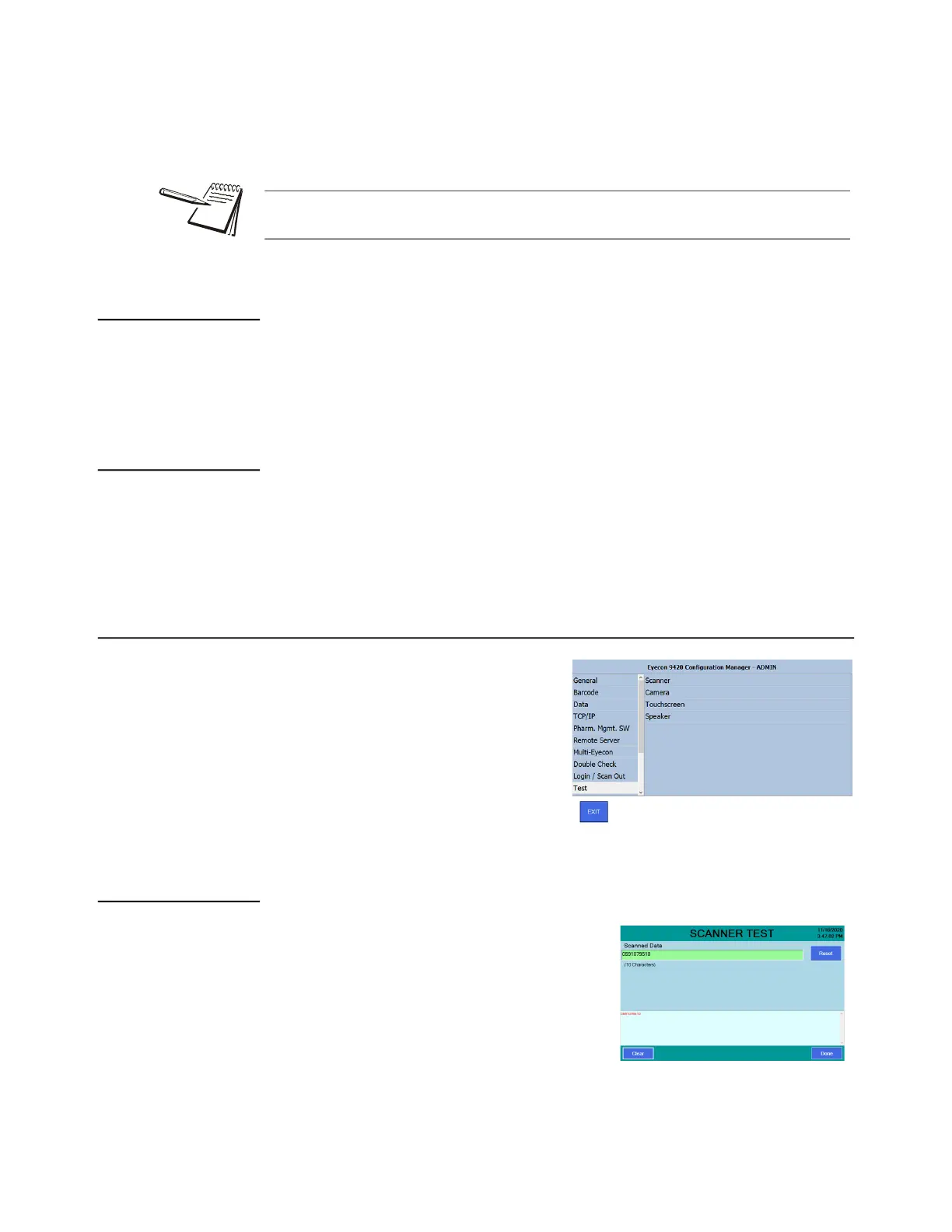
3.10 Test menu
The Test menu, shown at right, allows you
to test the scanner, camera, touchscreen
and speaker of the Eyecon.
3.10.1 Scanner test
Tap on Scanner and the screen at right is
displayed.
Test the scanner by scanning a stock bottle
barcode. If the scanner is operating properly, the
barcode number will be displayed in the green
window. The barcode contents will also be
displayed in the bottom of the screen, along with
the number of characters ccontained in the
barcode.
Choosing Scan-Out will cause the Finish button on the count screens to be replaced
with a label indicating that User Scan-Out is required.



 To Next Page