Eyecon 9420 & 9430 Instruction Manual 85
4.3 Validation mode operation
4.3.1 Rx validation and dispensing
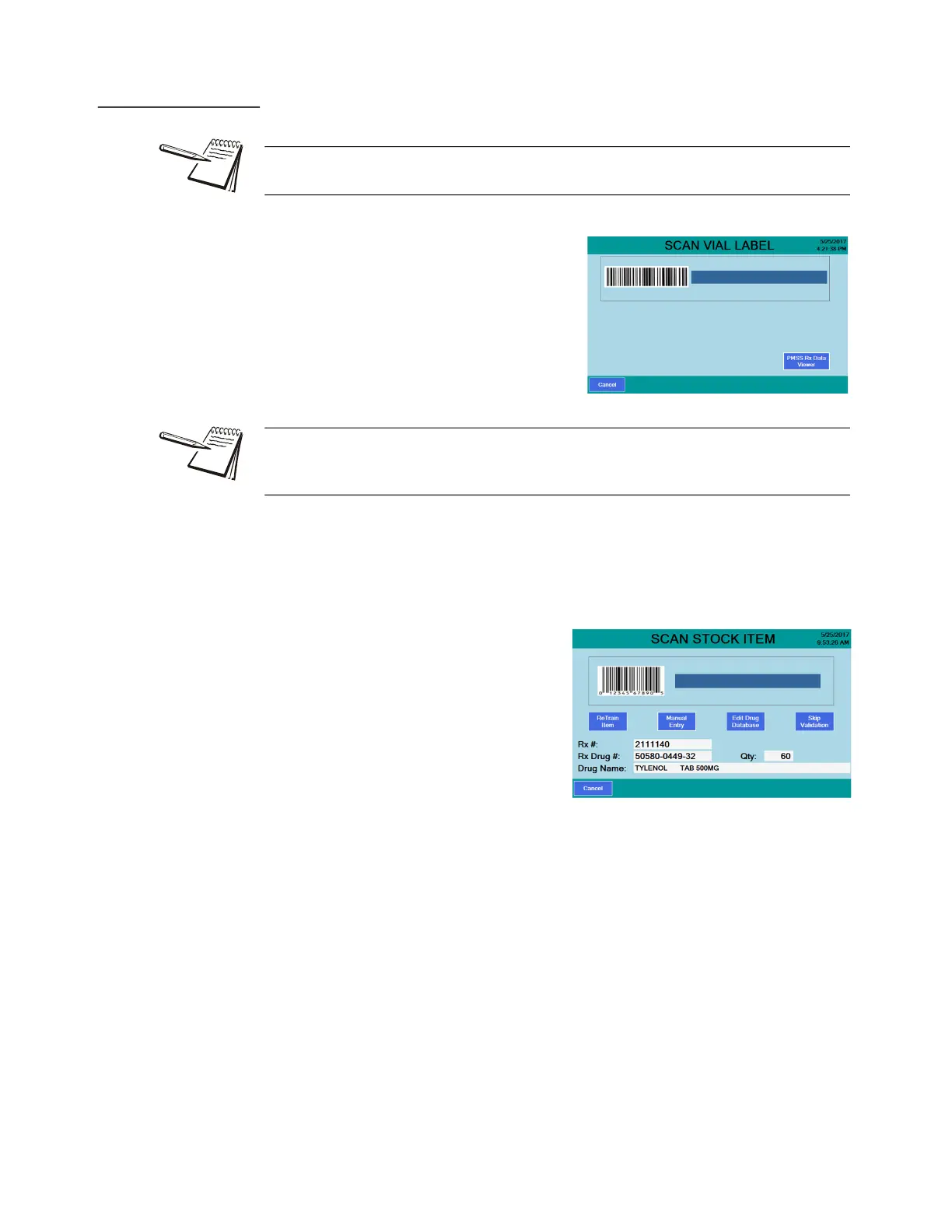
1. From the START screen, press the
Validation button.
The SCAN VIAL LABEL screen,
shown at right, appears.
2. Scan the appropriate vial label barcode, which is determined by the mode of
operation (Validation or PMS).
If there is a problem with the barcode, an appropriate message will be
displayed. Follow the onscreen prompts to correct the problem.
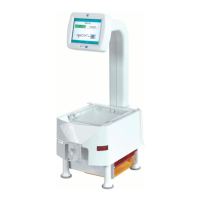
The SCAN STOCK ITEM
screen, shown at right, is
normally displayed. However,
the settings in Stock Item
Verification on page 28 can
bypass this screen or add an
extra button on the screen
(Skip Validation). The PMS
data packet can also override
this setting, if Interface
Override of Stock Item Verification is enabled in the Pharm. Mgmt.
S.W. setting group. If Skip Validation button is present, press it to
bypass validation when double counting a robotic filled vial.
If the SCAN STOCK ITEM screen is bypassed, go to step 4. If not go to
step 3.
This section covers both Validation mode and PMS mode operation. The processes
are nearly identical and variations will be noted where necessary.
In the PMSS mode, a PMSS Rx Data Viewer button appears in the lower right corner.
Press this to view the most recent prescriptions that have been received by the
Eyecon from the PMS. This is for reference and troubleshooting only.



 To Next Page