88 Eyecon 9420 & 9430 Instruction Manual
Eyecon operation
Counting
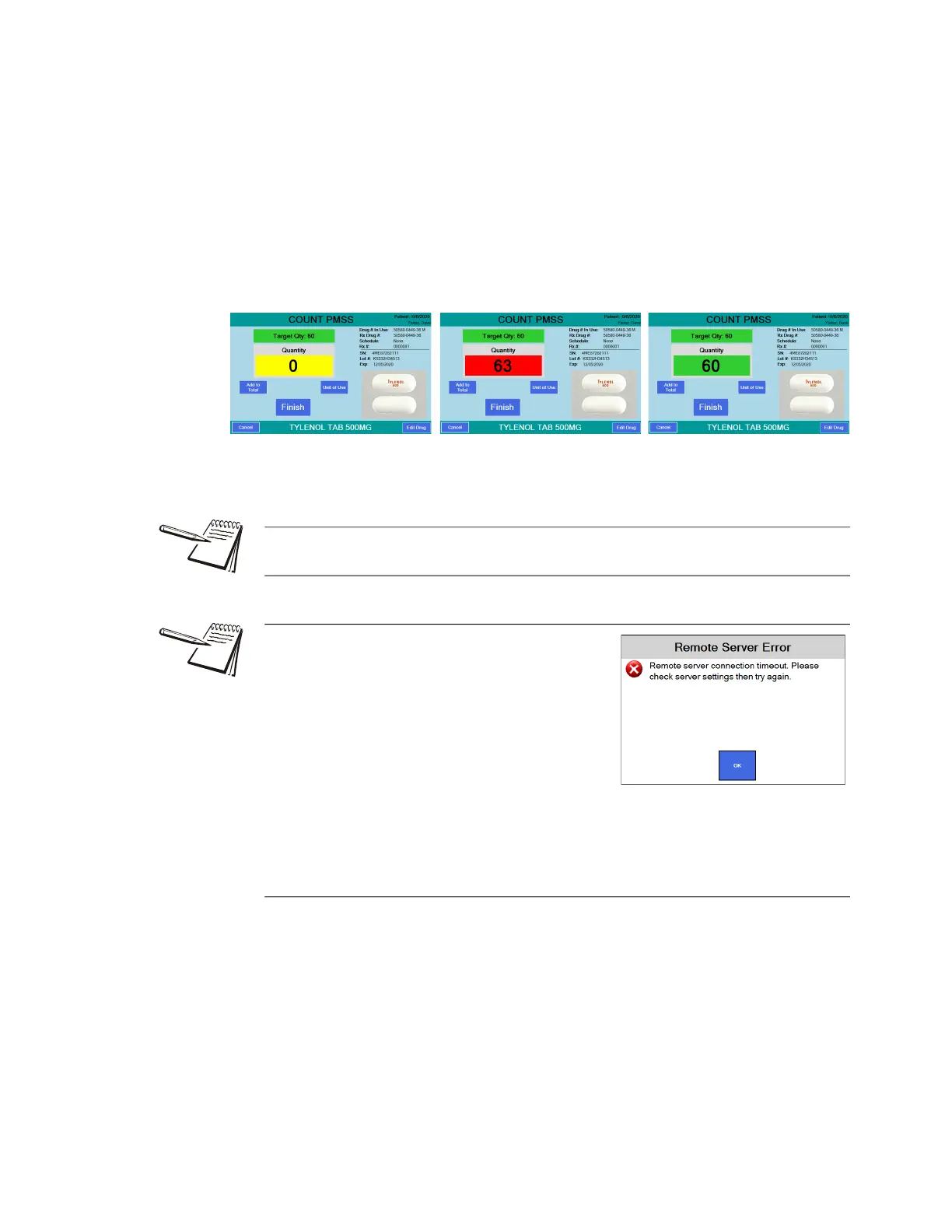
4. When you start the counting process, the Target Qty: window shows the
correct amount to be dispensed. The Quantity window will show 0 quantity and
is yellow whenever the quantity is below the required amount, as shown in the
left photo below. Pour pills onto the counting platter. See Best counting
practice on page 98.
If you exceed the required quantity the Quantity window will turn red and show
the current count, as shown in the center photo below. Use the spatula and
remove pills until the quantity is correct and the window turns green as a visual
signal, as shown in the right photo below.
5. When the correct quantity is on the platter, press Finish.
The Eyecon returns to the SCAN VIAL LABEL screen.
If a drug photo does not exist in the Eyecon database, Not Found or Disabled will
appear in place of the photo.
If you are in PMSS mode with bi-directional
enabled (see Remote Server menu on page 47),
when you press the Finish button the Rx filling
results are sent back to the pharmacy
management system. If there is a connection
problem you will see the message screen at
right.
Require Bidirectional Acknowledgement can be
disabled if the Remote Server Error is displayed. This can be disabled if the PMS
system is receiving bidirectional communication from the Eyecon but is having an
acknowledgement issue. Please contact Eyecon Technical Support if this is required.
They will work with your PMS provider to address the problem.



 To Next Page