78 Eyecon 9420 & 9430 Instruction Manual
Eyecon operation
4 Eyecon operation
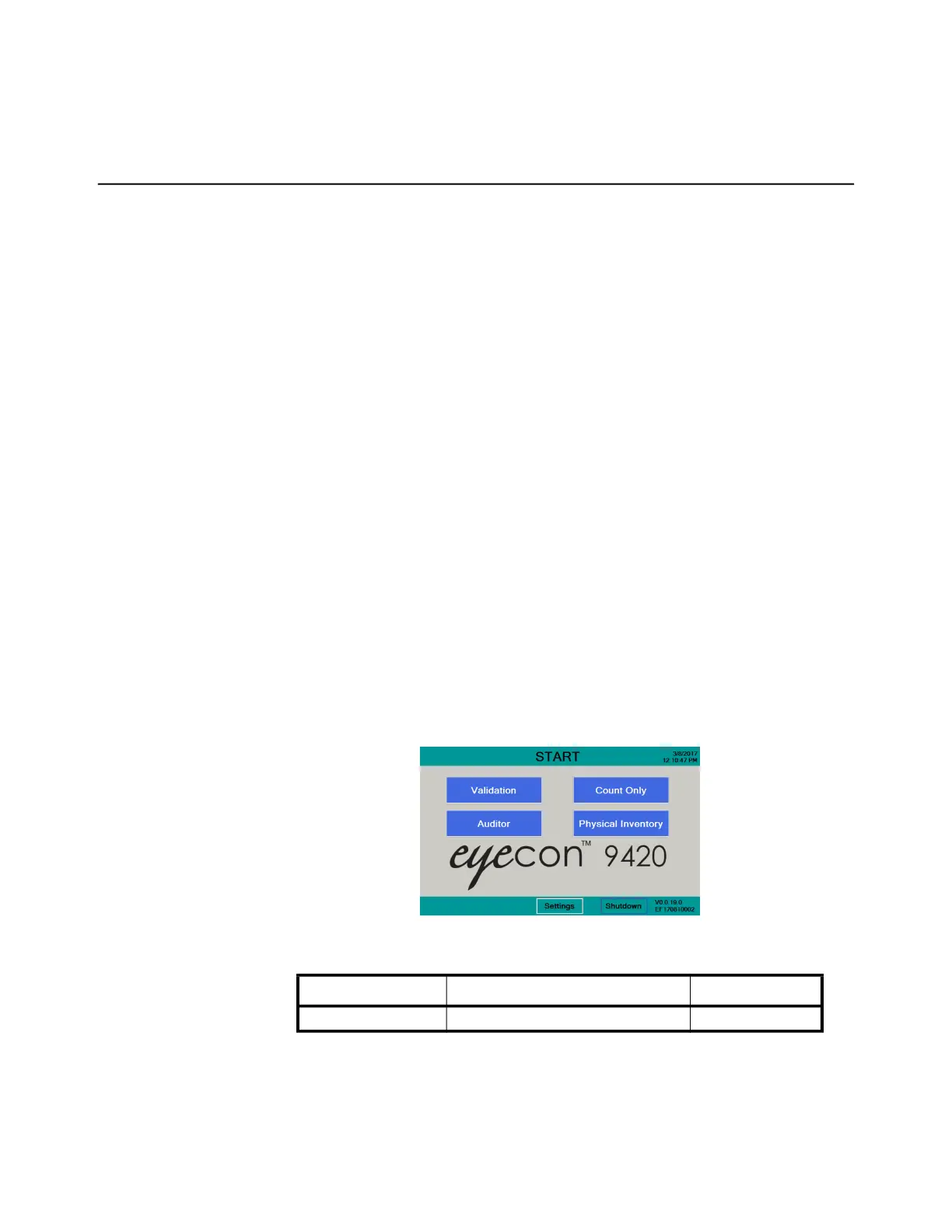
4.1 START screen
Four modes of operation are offered.
• Count Only is a basic counting mode where the stock bottle barcode is
scanned or the NDC is manually entered recalling associated drug
information. Pills can then be counted by scattering pills on the counting
platter. See Count Only mode on page 80.
• Validation provides an additional level of patient safety by assuring the
stock bottle and quantity are correct for the prescription being
dispensed. This mode is used both for simple barcode validation where
the user scans a barcode (printed on each Rx label) that contains the
Rx#, NDC, & Qty and the interfaced mode where the pharmacy
management system (PMS) sends the details for each prescription to be
filled to the Eyecon. See Validation mode operation on page 84.
• Physical Inventory offers a means to physically count all of your
inventory. It also supports an interface with your PMS system to instantly
update your on-hand position in the PMS. This can be used for cycle
counting your stock, verifying your C-II inventory, or preforming your full
physical inventory as needed. See Physical Inventory mode on page 91.
• Auditor allows you to view the details of completed transactions, the
saved tray photos of dispensed pills, and the counts performed in
Eyecon’s inventory mode. A variety of filters are available to assist you
in locating specific transactions of interest to you. You can also export
the reports to a .csv file and the photos as .jpg files. A free Remote
Auditor application is available by request. It provides the Auditor
functionality remotely using a Windows based pharmacy computer.
Contact Eyecon tech support to inquire about the Remote Auditor
application. See Audit reports on page 112.
Button Description Reference Page(s)
Validation Advance to the Validation mode 84



 To Next Page