RESTRICTED USE ONLY Fargo Electronics, Inc.
Pro-LX Laminating Card Printer/Encoder User Guide (Rev. 5.0) 68
Resolving the lamination (not adhering to the card surface) problem (cont.)
Step Procedure
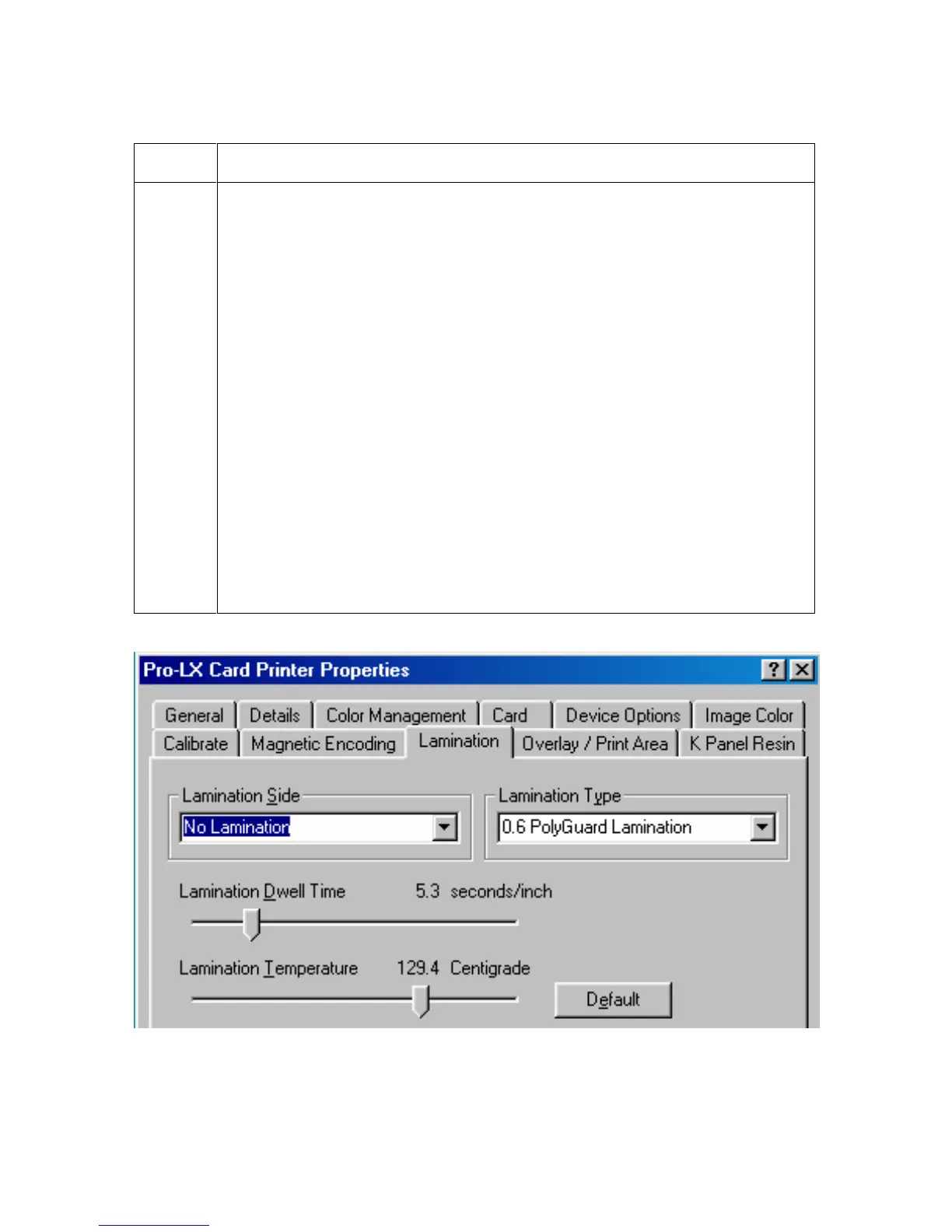
2 Check Lamination Temperature.
a. Open the Printer Control Panel from the Computer.
If using Windows 95/98/ME, right click on the Pro-LX Card Printer
Icon and select Properties.
If using Windows NT 4.0, right click on the Pro-LX Card Printer and
select Document Defaults.
If using Windows 2000/XP, right click on the Pro-LX Card Printer and
select Printing Preferences.
b. Click on the Lamination tab.
c. Increase the Lamination Temperature by +5 degrees.
d. Click on the OK button.
e. Print and Laminate a card from the software.
f. Continue to adjust the Lamination Temperature until the lamination
adheres completely and cannot be peeled off.
g. Adjust (as needed) the card flattener if increased temperature is causing
the cards to bow.












 To Next Page