Data transfer
38 MMS
®
Inspection DPM High
Procedure
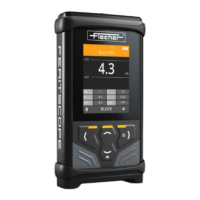
1. Settings in the gage
Navigation
: Selects – parameter/value
: Confirms – selection/setting
:Exits – page/menu
a Activate the data export via USB interface:
Main menu ( ) > Gage Settings > OK > Data Transfer > OK > PcDatex
> OK > USB > OK > Block Separator > OK > PC-DATEX > OK.
Parameter is activated:
b Go to the Measurement view: 3 x .
2. Connecting the gage to the PC
► Use the USB cable to connect the gage to the PC via the USB interface.
3. Settings in the PC-Datex, MS Excel
a Open office program MS Excel on your PC.
b Set the used COM interface (e.g. COM20), to which the gage is
connected: double click on Port of the Settings menu in the PcDatex tab.
Select the used COM port under Port.
Find COM interface: in the device manager (Bluetooth and other devic-
es), in the section "Further Devices" you will find the name of the COM
port to which the measuring instrument is connected in brackets (ex-
ample: Serial USB Device (COM20).
cSave the settings: OK.
The connection settings are finished.
What you can do next
Transfer data, see page 39.







 To Next Page