44 GPSMAP
®
700 Series Owner’s Manual
Almanac, On-boat, and Environmental Data
Selecting the Engines Shown in Gauges
You must manually select the number of engines shown in the engine gauges (page 43) before you
can select the engines for which information appears in the gauges.
1. From the Home screen, select
Information > Dashboard Gauges > Engine > Menu > Gauge
Setup > Engine Selection > Edit Engines.
2. Select
First Engine.
3. Select the number of the engine for which you want to view information in the rst gauge or bar.
For example, if you select “3,” the rst engine bar shows information for the engine identied as
“Engine3” on the NMEA 2000 network.
4. Repeat step 3 for the second, third, and fourth engine bar, as needed.
5. Select
Back.
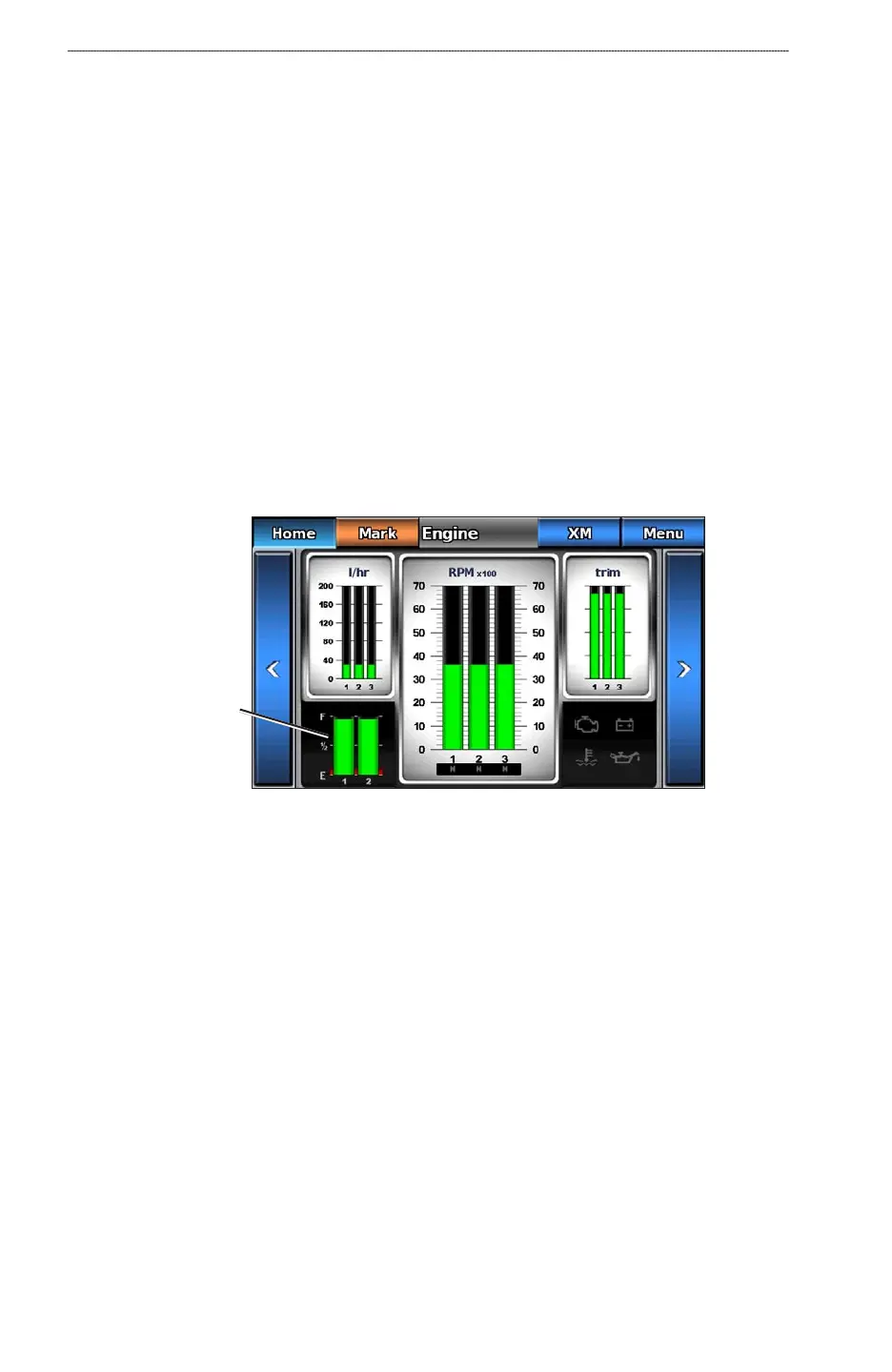
Viewing Fuel Gauges
To view fuel information, your chartplotter must be connected to an external fuel sensor, such as the
Garmin GFS
™
10.
From the Home screen, select Information > Dashboard Gauges > Engine.
Fuel gauge
Conguring Fuel Gauges
The amount of fuel on board can be represented by either the total fuel level (numeric) or by
individual tank level (graphic).
1. From the Home screen, select
Information > Dashboard Gauges > Engine > Menu > Gauge
Setup > Fuel Display.
2. Complete an action:
Select Use Total Fuel Level to display a numeric value for the total fuel level.
Select Use Fuel Tank Levels > Number of Fuel Tanks to display a graphical representation
of all the specied tanks.
Customizing Gauge Limits
See “Customizing Engine and Fuel Gauge Limits” (page 43).
Activating and Customizing Gauge Alarms
See “Activating Engine and Fuel Gauge Status Alarms” (page 43) and “Customizing Engine and
Fuel Gauge Status Alarms” (page 43).
•
•













 To Next Page