GPSMAP
®
700 Series Owner’s Manual 87
Digital Selective Calling
Deleting a Position-Report Call
1. From the Home screen, select Information > Other Vessels > DSC List.
2. Select a position-report call.
3. Select
Clear Report.
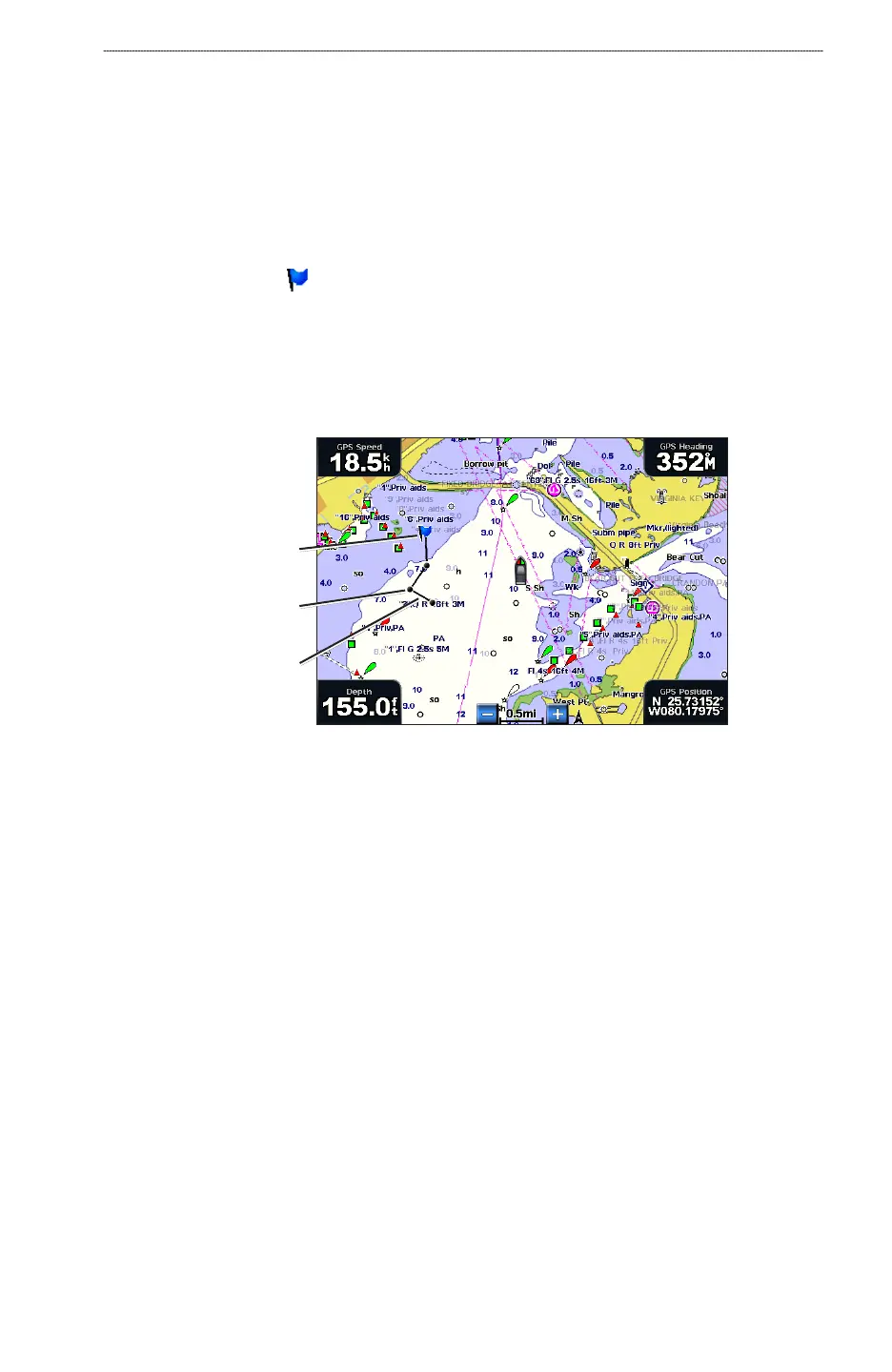
Vessel Trails on the Navigation Chart
You can view trails for all tracked vessels on the Navigation chart, the Fishing chart, and the
Mariner’s Eye 3D chart view. By default, a black dot appears for each previously reported position
of a tracked vessel, and a Blue Flag symbol indicates the last reported position of the vessel. A
black line indicating the path of the vessel also appears.
You must enable the DSC Trails setting in order to view trails for tracked vessels (page 87).
NOTE
: The Fishing chart and Mariner’s Eye 3D are available with a preprogrammed BlueChart g2
Vision data card.
Vessel trail
Last-reported
vessel position
Position-report
location
Vessel Trail on the Navigation Chart
Showing and Setting the Duration of Trails for All Tracked Vessels
NOTE: The Fishing chart and Mariner’s Eye 3D are available with a preprogrammed BlueChart g2
Vision data card.
1. From the Home screen, select
Charts.
2. Select
Navigation Chart, Fishing Chart, Perspective 3D, or Mariner’s Eye 3D.
3. Select
Menu > Other Vessels > DSC Trails.
4. Select the number of hours to show tracked vessels on the chart or 3D chart view.
For example, if you select 4 Hours, all trail points that are less than four hours old appear for all
tracked vessels.













 To Next Page