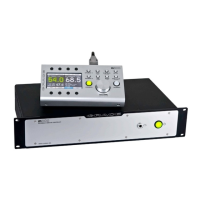
m908 User Manual, Rev. G
For Windows 7, 8, 8.1, and 10 PC computers, users will need to download and install the
Grace Design m908 USB ASIO audio driver. This driver can be found on our website:
http://www.gracedesign.com/support/support.htm
For Windows 7 make sure that your computer has the latest updates from Microsoft or driver
installation may fail.
Installation and operation instructions can be found in the following chapter: Windows USB
ASIO Driver.
On Mac computers driver-less operation basically means the m908 will automatically show up
in your computer’s list of supported audio devices as ‘m908’. The m908 will provide 8 input
channels and 24 output channels. In most cases, simply choose the m908 as your audio recording
or playback device and the system will work.
In the event that you have any setup issues which aren’t addressed by these resources, feel free
to contact us directly at 303.823.8100, Monday through Friday 9 – 5, MST.
8.2 Windows USB ASIO Driver
8.2.1 Installing USB ADIO Driver
The m908 USB ASIO driver is necessary for operating the m908 as an I/O device on a
Windows computer.
1. Connect the m908 to you computer.
2. Download the installer .zip package from our website:
http://www.gracedesign.com/support/support.htm Extract the .zip file, and run the
installer .exe file.“GraceDesign_TUSBAudio_v4.0.0_2017-04-24_setup.exe”
3. Follow the steps illustrated below (It may take a few moments for the user prompts to
appear once the program is running).
4. Depending on the version of Windows your computer is running you may see a security
window similar to one of the images shown above. When prompted whether or not you
want to allow the program to make changes or if you want to run this file - click “Yes” or
“Run” to continue.:
Page 119 of 135 Table Of Contents


 To Next Page