Windsor 500 User Manual - Issue C
The Event Programmer
Windsor 500 incorporates a time scheduler, referred to as the event programmer. The event programmer
can have up to 4 different time schedules which can be applied to any of the control panel areas. Each
schedule has a number of times for each day of the week. The actual times in the schedule depends on the
type of software fitted to the control panel (commercial or high security) as shown;
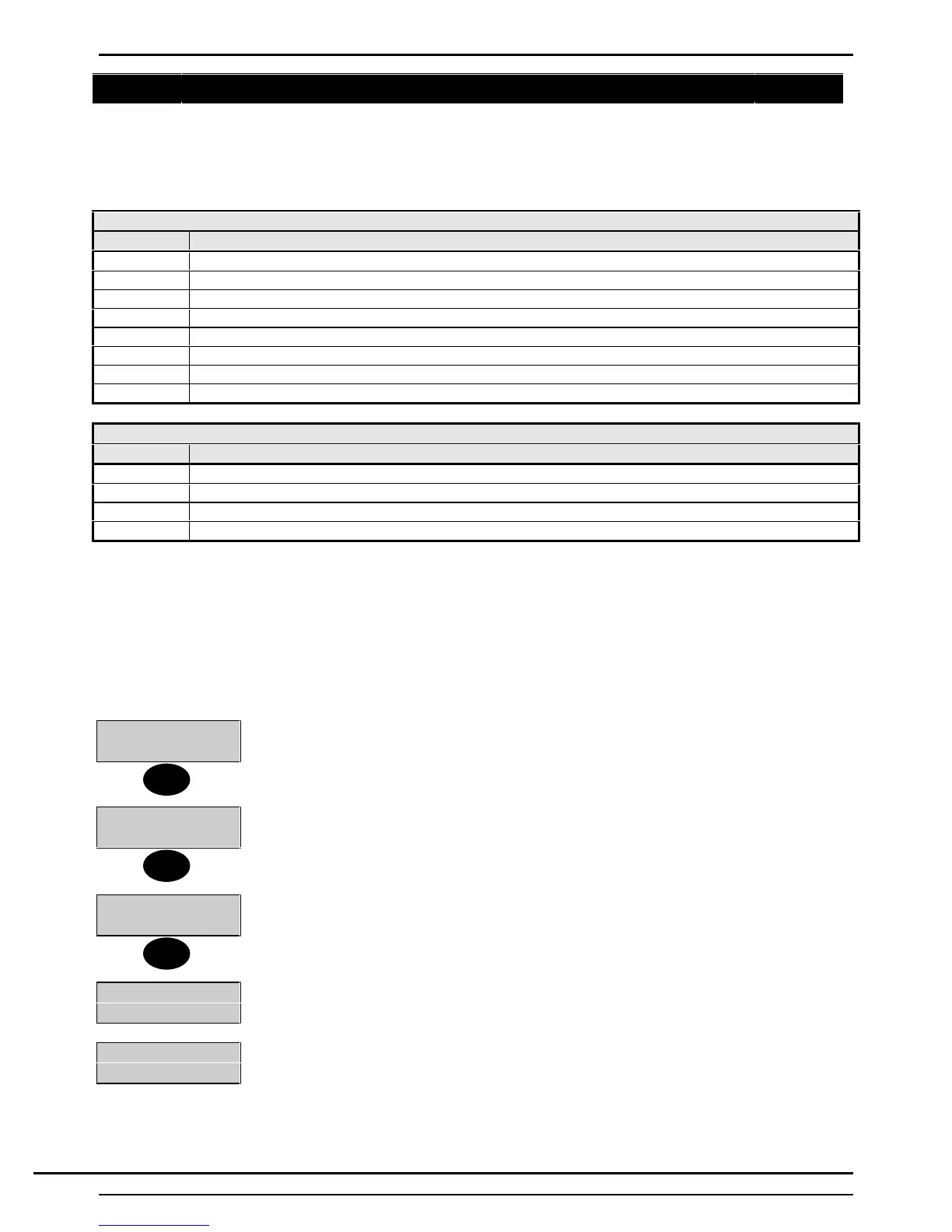
High Security Schedule
Time Action
Shunt On At this time all circuits in the programmed shunt group will be shunted (alarms will be ignored).
Open 1 The earliest time that the area(s) can be unset.
Close 1 The latest time that the area(s) can be unset.
Set 1 The normal auto set time.
Open 2 The earliest time that the area(s) can be unset.
Close 2 The latest time that the area(s) can be unset.
Set 2 The late working auto set time.
Shunt Off At this time all circuits in the programmed shunt group will be returned to the normal state.
Commercial Schedule
Time Action
Unset 1 The time that the area(s) will be auto unset (normally the morning unset time)
Set 1 The normal auto set time (normally the lunch set time).
Unset 2 The time that the area(s) will be auto unset (normally the afternoon unset time)
Set 2 The normal auto set time (normally the evening set time)
The following procedures assume the event programmer has been programmed by the installation engineer.
A user with ’Manager’ or ’Ordinary’ User authority can normally only view the event programmer for an
authorised area from a Keypad authorised for the same area. A ‘Manager’' or 'Ordinary' User can select late
working, add holidays and extend the set time. The system may be programmed to allow such users to
change the schedule times.
Note:- The event programmer can only be viewed when the area is unset. All changes to the event
programmer are recorded in the system event log. To access the event programmer proceed as follows:
2=Set 4=Test
5=Eng 6=Text....
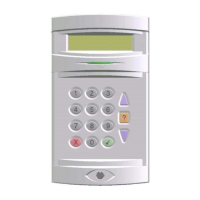
1. Log on at an area Keypad using a 'Manager' or 'Ordinary' User PIN code.
2. Press ‘Enter' to move the display to page 2 of the user options.
1=Chime 2=KPOff
3= Event Log
3. Press ▼ to view the remainder of page 2 user options.
4=User
5=Time 6=Keys
7=EvProg
8=Remote
4. Select 7 from user options.
1=Late Work
2=Schedule.......
5. The ‘Event Programmer ‘Main Menu' will be displayed. Select an option from the
menu.
Note: The actual options will depend on how the system has been programmed by the
installation engineer.
↵
▼
▼
Technical Manuals Online! - http://www.tech-man.comTechnical Manuals Online! - http://www.tech-man.com



 To Next Page