Windsor 500 User Manual - Issue C
Editing Text Descriptors
General
The text descriptors, which appear on the Keypad displays for circuits, bypass groups, areas, users names
and company name, are normally programmed by the engineer on installation. However, a user with
’Manager’ authority can edit text descriptors when required, as follows:
Note: The engineer can only edit The Company Name value.
Selecting Text To Be Edited
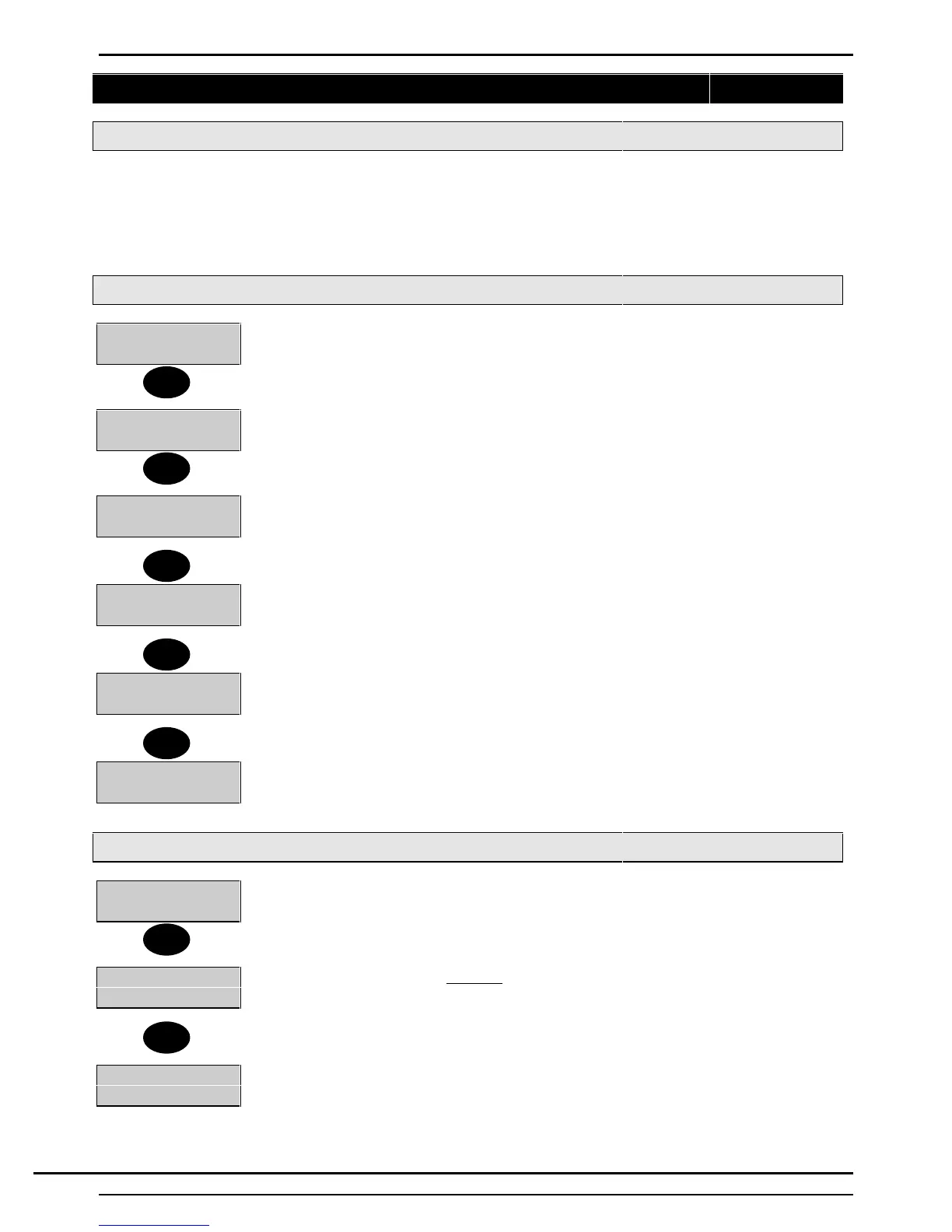
4=Test 5=Eng
6=Text......
1. Enter a user PIN code with ’Manager’ authority
2. Select ’6’ from the ’User Options Menu’
1=Circuit 2=User
3=Area 4=Group
3. The Text Edit’ menu is displayed. Select the title to be edited.
Cct Number_ _
5. If 1=’Circuit is selected, the display will prompt for the required circuit number. Enter
a circuit number (01 to 128 max.). The display will show the existing text descriptor
against the selected circuit number.
User Number_ _
6. If 2=’User’ is selected, the display will prompt for the required user number. Enter a
two-digit user number. The display will show the existing text descriptor against the
selected user number.
Area Number_
7. If 3=’Area’ is selected, the display will prompt for the required area number. Enter a
one-digit area number (1 to 7 Max) or system (0). The display will show the existing
text descriptor against the selected area or system.
Group Number_
8. If 4=‘Group’ is selected, the display will prompt for the required bypass group
number. Enter a one digit bypass group number (1 - 6). The display will show the
existing text descriptor against the selected bypass group number.
Editing Text Characters
User Number 11
W. Wood
1. The first character of the text descriptor will be flashing.
2. By pressing ‘help’ at this point the display will prompt you for a ‘Text Number’.
Text Number_ _
3. Using the text library on page 37 a combination of 2-digit codes may be entered for
ease of use.
For example:-
Enter ’61’ (which stands for ‘PIR In’), and then confirm it.
Cct number 2
PIR In
Enter a space character, (i.e. press 9 on keypad, a blank space will be written to the
display). Press help again.
6
1
2
3
4
Help
↵
Technical Manuals Online! - http://www.tech-man.comTechnical Manuals Online! - http://www.tech-man.com



 To Next Page