5-10
Chapter 5: Label Definitions
Modifying an Existing Label
You may need to edit an existing label to better suit your particular printer or for custom applications. Always be
careful when changing pre-defined labels. You may want to write the preferences before you start changing them.
First, you will need to go to the File menu and choose Select Label.... The Select Label dialog box will appear.
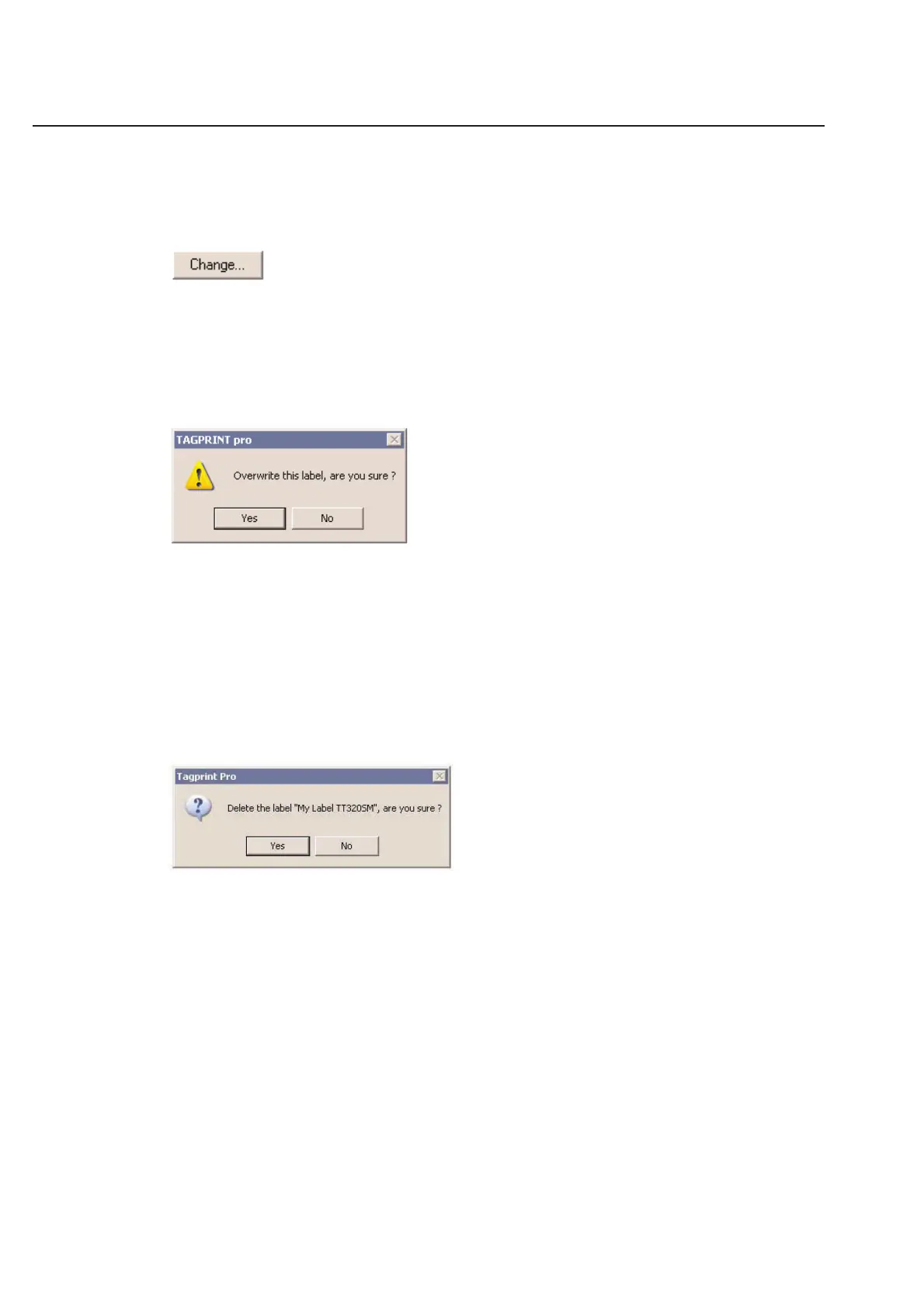
Simply click Change... to open the label’s preferences.
Make any necessary changes to the label’s preferences. You may want to refer to the section on adding a new label
definition. It explains what the different functions do.
When you have finished making all your changes, you will need to finalize your changes. To do this, simply click
Finish in the last page of the Label guide. Because you are changing an existing label, you will be warned with the
following dialog box.
If you are sure about the changes you want to make, click Yes. If you are not sure about the changes, click No and
you will be returned to the Label Guide. At any point in the Label Guide, you can click Cancel to revert to all the orig-
inal settings. Any changes you have made will be lost.
Note: Any label designs that you saved prior to changing the label preferences will retain the OLDER preferences
unless you open the saved label design, select the NEWER label preferences, and re-save the label design.
Deleting a Label
A label may be deleted from the labels database by first selecting the label and then pressing the Delete button on
your keyboard. To prevent you from deleting a label by mistake, the program will prompt you before the label is
deleted.



 To Next Page