Deleting a data le
NOTE: Formatting a card or flash drive erases all its
data. Before formatting any used card, back up its
data onto your PC.
If you use a brand new SD card, format it by doing the
following steps.
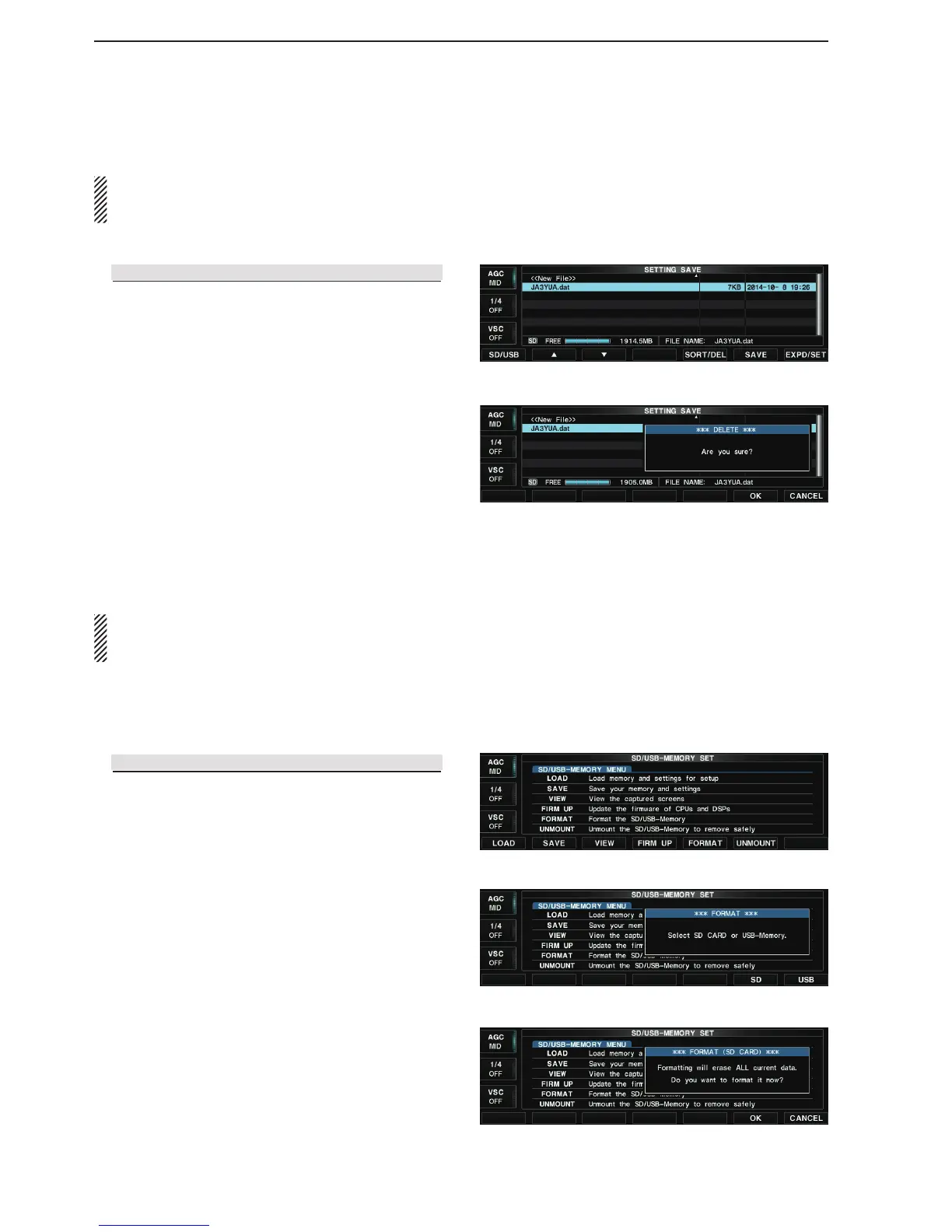
Display the q SD/USB-Memory set screen.
SET [F-7] SD/USB [F-7]
Hold down [FORMAT](F) for 1 second. w
• Opens the “FORMAT” window.
Push [SD](F) or [USB](F). e
• Opens the conrmation window.
• To cancel saving, push [CANCEL](F).
Push [OK](F). r
• After formatting, returns to the SD/USB-Memory set
screen.
Formatting an
SD card or USB ash drive
• When selecting a le to be deleted
• Conrmation window
• Format screen
• Conrmation window
• SD/USB-Memory set screen
NOTE: Deleted data from a card or flash drive can-
not be restored. Before deleting any card or flash
drive, back up its data onto your PC.
Displays the q Setting save screen.
SET [F-7] SD/USB [F-7] SAVE [F-2]
Push [SD/USB](F). w
• Pushing [SD/USB](F) toggles between the card and
flash drive that the file to be deleted is stored.
Push [ e ∫](F) or [√](F) to select the desired file to be
deleted.
Hold down [SORT/DEL](F) for 1 second. e
• Opens the conrmation window.
• To cancel saving, push [CANCEL](F).
Push [OK](F). r
• Deletes the selected le.
• While deleting the le in the card, the indicator to the left
of the [SD CARD] slot blinks.
• While deleting the le in the ash drive, the indicator to
the right of the [SD CARD] slot blinks.
• After deleting, returns to the Setting save screen.


 To Next Page