User Management
No. Item Description
1
User
Management
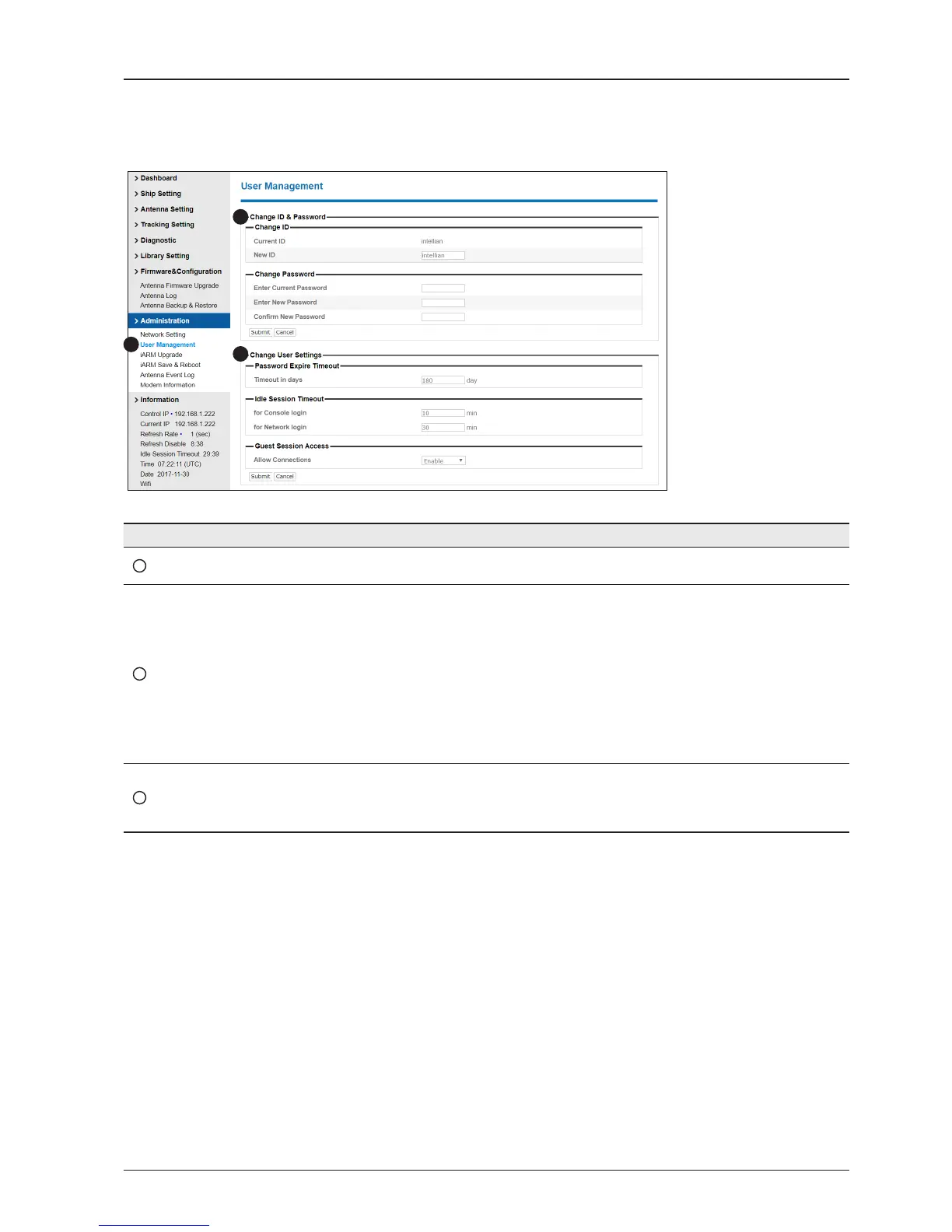
Change login ID and Password to access the Aptus Web. This setting can be also accessed by
‘Account’ icon on the top menu.
2
Change ID
& Password
Change your login ID (user name) and password.
- Change ID : Enter your current login ID (user name) and new login ID. Click the Submit button to
validate the changes that are made to the login ID.
- Change Password : Enter your current login password and new login password. Click the Submit
button to validate the changes that are made to the login password.
Note: New login password will be disallowed in the following cases.
• Common dictionary words
• Too short password
• If not a combination of letters, numbers and special characters
• Recently used password
3
Change
User Settings
Change User Password Expire in days and Idle session timeout.
- Password Expire Timeout : Set password expire in days.
- Idle Session Timeout : Set for Console and for Network timeout.
- Guest Session Access: Set up the guest access option.
1
3
2


 To Next Page
 Loading...