LIP-9071 iPKTS User Guide
118
Note
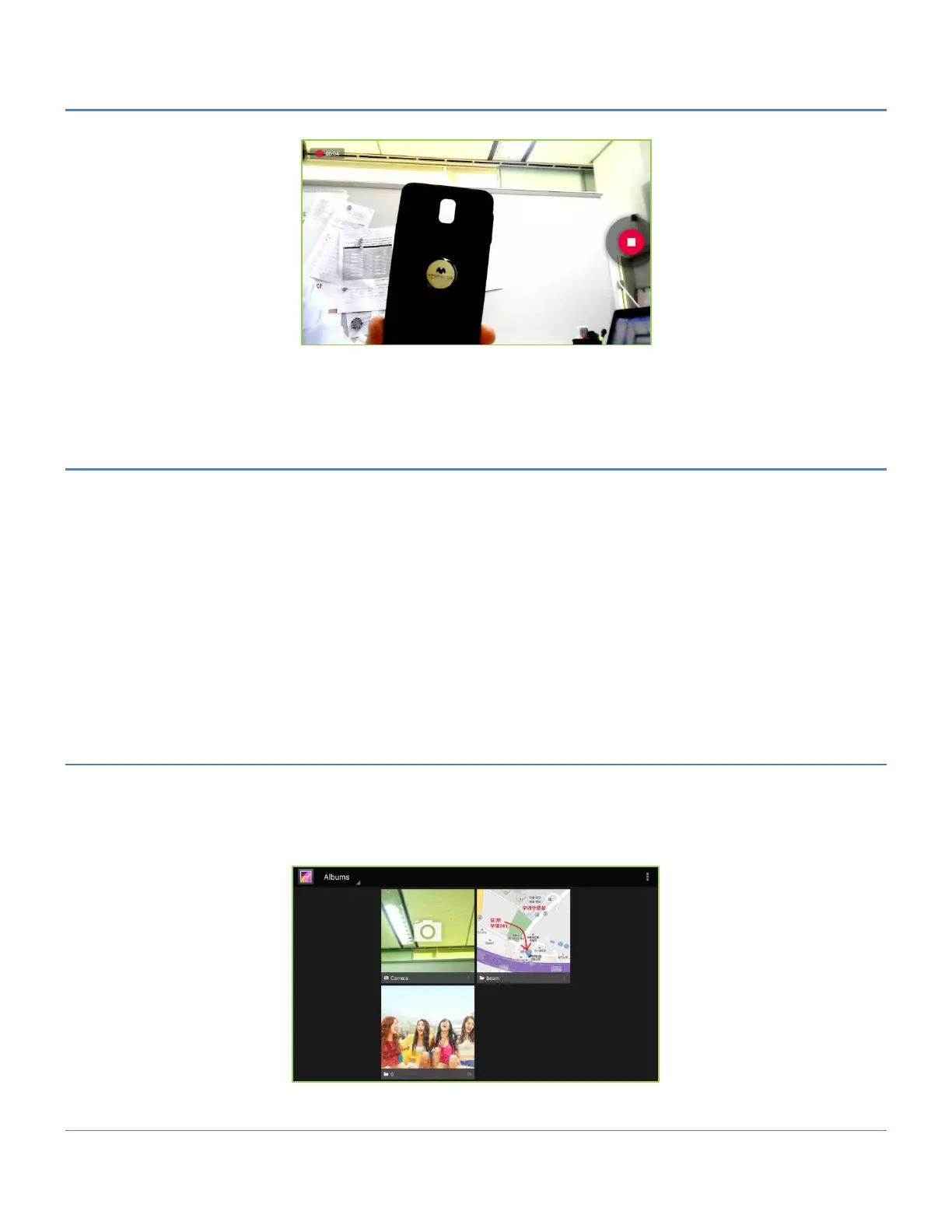
° Videos and pictures taken with the camera are stored in the user dedicated 2G memory.
° A video can be a maximum of 30 minutes.
13.3.3 Review Pictures and Videos
Pictures and videos stored in the Camera application memory can be viewed, edited, deleted or rotated. The
Pinch gesture can be used to control zoom and, if the left/right arrow displays, the Flick gesture will display the
next/previous picture.
The Picture review screen opens when a thumbnail in the upper right corner of the Camera screen is touched.
The screen includes the following Picture tools.
Delete: delete the picture, a confirmation is required.
Slide show: It will start showing pictures with sidle show mode.
Rotate Left: rotate the picture 90° counterclockwise.
Rotate Right: rotate the picture 90° clockwise.
Details: display details for the picture including name, type of file, date and album.
To return to the Camera, move to the first picture by Flick gesture and you will see the camera button.
13.3.4 Using the Gallery and Albums
The Gallery application organizes and displays picture albums on the USB stick and in the Camera. Items in the
album are shown in a grid view with thumbnails of each picture or video. The Gallery displays files of the JPEG,
PNG, BMP and GIF types as pictures, and H.264 and MPEG4 files as videos. At the top of Gallery screen is the
name of the Gallery and, at the top right, is the View Control. At the bottom is the navigation control to view the
next or previous album. The navigation displays thumbnails for additional pictures and videos organized by date.
Slideshow: show all pictures in album as a slide show.
Select item: select multiple items to rotate or delete.


 To Next Page