EasyManua.ls Logo

Kyocera KM-2540 - User Manual

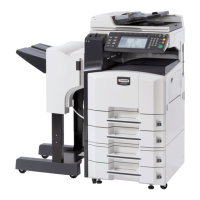
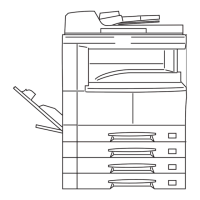
Kyocera KM-2540
208 pages
Print Icon
To Next Page IconTo Next Page
Loading...
FAX System (P)

Table of Contents

Other manuals for Kyocera KM-2540

Questions and Answers

  • X
    xmasonSep 12, 2025
    What does 'Memory Full' mean on my Kyocera All in One Printer and what to do?
    • V
      Valerie RichardsSep 12, 2025
      If your Kyocera All in One Printer displays 'Memory Full', it signifies that the memory has reached its maximum capacity. You will need to choose whether to continue the current communication or cancel it. If this occurs while scanning, you can select to continue and transmit only the successfully scanned documents. Pressing the [Yes] key will automatically begin transmission; pressing the [No] key will cancel the operation and return to the initial mode settings.
  • B
    Bonnie VargasAug 25, 2025
    How to fix text not printing correctly on Kyocera All in One Printer?
    • R
      Rebekah ThompsonAug 25, 2025
      If the text is not printing correctly from your Kyocera All in One Printer, ensure that you are using a compliant printer cable and that it is properly connected. Also, confirm that the settings in the printer driver and the software application you are using are correct.
  • J
    Jorge RodriguezAug 26, 2025
    What to do if my Kyocera KM-2540 says 'Add toner'?
    • A
      Arthur HernandezAug 26, 2025
      If your Kyocera All in One Printer displays 'Add Toner', it means the toner is depleted. Replace the toner container to resume printing.
  • B
    Billy SmithSep 23, 2025
    What does 'No Response' mean on my Kyocera All in One Printer?
    • K
      Kyle ScottSep 23, 2025
      If your Kyocera All in One Printer displays 'No Response', it means dialing was accomplished, but connection to the other party was not possible. Check with the other party.
  • D
    David GuzmanSep 12, 2025
    How to reset feeding unit for paper cassette in Kyocera All in One Printer?
    • J
      Joel CrossSep 12, 2025
      If your Kyocera All in One Printer displays 'Reset feeding unit for paper cassette', pull out the paper feed unit and securely push it all the way into the machine.
  • E
    Evan ColemanSep 16, 2025
    What to do if my Kyocera KM-2540 All in One Printer says 'Paper Misfeed'?
    • L
      Lauren SmithSep 16, 2025
      If your Kyocera All in One Printer displays a 'Paper Misfeed' error, it means paper has jammed inside the machine. Consult the Operation Guide for your printer and carefully remove any jammed paper, ensuring no small pieces are left behind. If the misfeed occurred in the Document Processor, refer to the Operation Guide to remove the jammed document, then reset all documents in the processor. The fax will then recount scanned documents and restart from where the jam occurred.
  • B
    Blake MillerSep 5, 2025
    How to fix moire pattern on Kyocera All in One Printer copies?
    • J
      Jennifer CoxSep 5, 2025
      If your Kyocera All in One Printer produces copies with a moire pattern, set the original image to [Photo].
  • S
    Shannon BarkerSep 6, 2025
    Why are my Kyocera KM-2540 All in One Printer copies not clear?
    • D
      Derek WilliamsSep 6, 2025
      If copies from your Kyocera All in One Printer are not clear: * Select an appropriate original image mode. * Replace the paper with new paper if the paper is damp.
  • M
    Mary DavisNov 24, 2025
    What to do if Kyocera KM-2540 All in One Printer network connection fails?
    • L
      Laura WilliamsNov 24, 2025
      If a network connection fails, for example, indicated by a Send Error, try the following: * Connect the network cable and properly set up TCP/IP. * Check folder sharing and access permissions in the Folder Properties dialog box. * Enable the SMB protocol setting. * Verify the host name of the destination computer and the name of the shared folder. * Confirm the domain name and domain user name are correct. * Ensure the login password is correct. * If the domain name specified in [Host Name] differs from the one specified in [Login User Name], delete the domain name and a \\ from the name entered in [Login User Name]. * Also, ensure the time setting is the same between the machine, PC, and the domain server. * To configure Windows Firewall, open Control Panel from the Sta...
  • M
    michellehumphreyAug 30, 2025
    How to set cassette in Kyocera KM-2540?
    • R
      Randy GeorgeAug 30, 2025
      If your Kyocera All in One Printer displays 'Set cassette #. (Close paper cassette #.)', pull out the indicated cassette and push it in securely.

Summary

Safety Conventions in This Guide

1 Fax Operation (Names of Parts; Preparations; Features and Functions of this Fax)

Names of Parts

Identifies and describes the main physical components of the fax machine and its document processor.

Features and Functions of this Fax

Explains the various capabilities and operational features available on the fax machine.

2 Fax Operation (Basic)

Sending Documents

Explains the standard procedures for transmitting documents via fax.

Receiving Documents Automatically (Automatic Fax Reception)

Details how to configure the fax for automatic reception of incoming documents.

3 Fax Operation (Advanced)

Sending 2-Sided Documents (Duplex Transmission)

Details the process for transmitting both sides of duplex documents.

4 Troubleshooting

If an Error Occurs...

Guides users on how to interpret and resolve error messages displayed on the machine.

Troubleshooting Tables

Offers a reference guide to common problems and their corrective procedures.

5 Managing Information About Your Fax Communications

Checking the Result of Each Communication (Communication Result Display)

Explains how to view the status of recent fax transmissions and receptions.

6 Various Settings and Registration

Kyocera KM-2540 Specifications

General IconGeneral
TypeAll-in-One Printer
FunctionsPrint, Copy, Scan, Fax
Print TechnologyLaser
Print Speed (Black)25 ppm
Print Resolution600 x 600 dpi
Copy Speed (Black)25 cpm
Copy Resolution600 x 600 dpi
Scanner TypeFlatbed
Scan Resolution600 x 600 dpi
Paper Capacity250 sheets
Fax Modem Speed33.6 Kbps
Max Scan Size8.5 x 14 inches
ConnectivityUSB
Operating System CompatibilityWindows, Mac

Related product manuals