2. LG Network Storage Installation
21
4 Insert the “LG NETWORK STORAGE Installer” disc and push the “DISC OPEN” button to
close the tray. The messages “Checking LG Network Storage ” and ” Loading kernel ”
indicate that the NAS is preparing to organize system les.
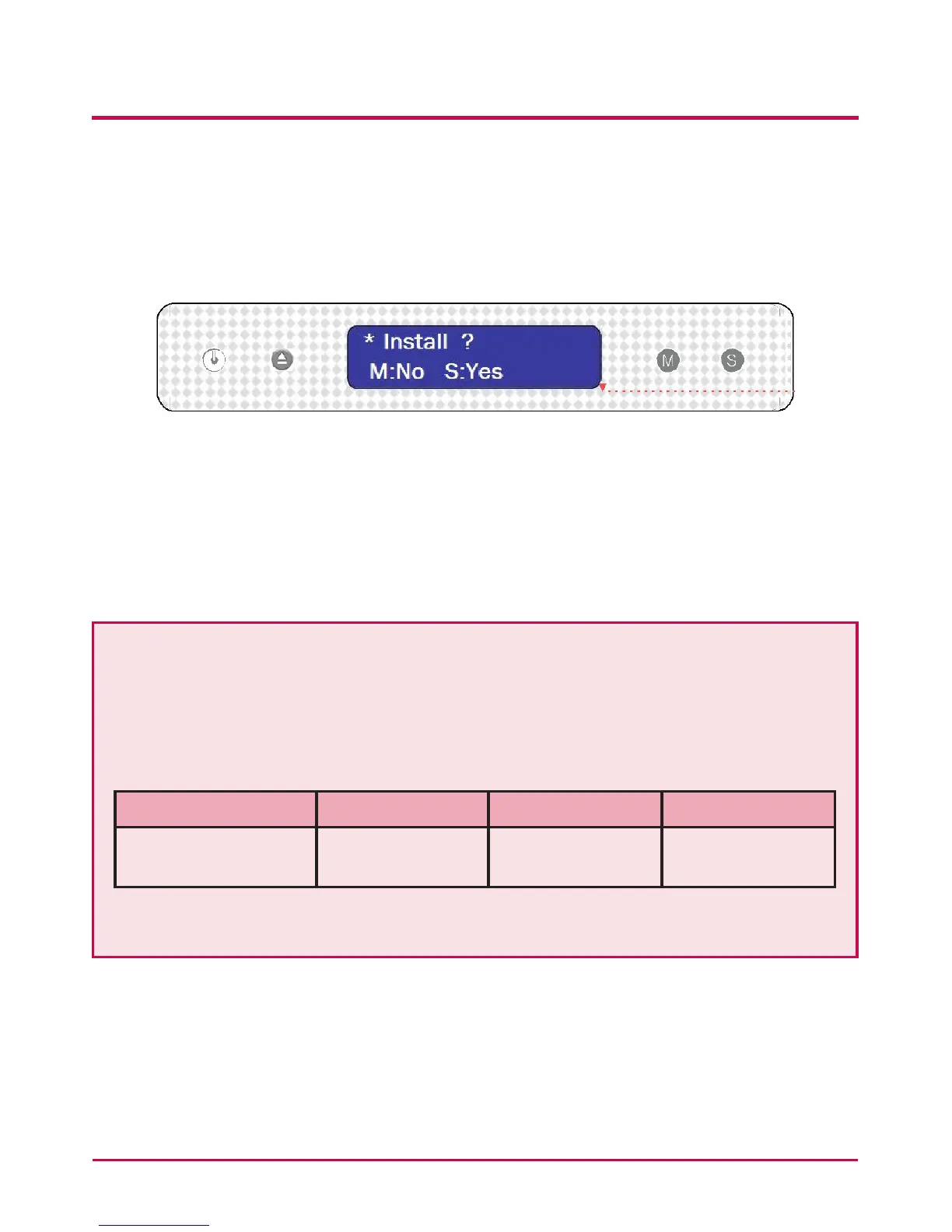
5 After 1 minute, the following two messages appear. Click on ‘SET’ and select ‘S:YES’
‘S’ indicates the ‘SET’ button and ‘M’ indicates the ‘MODE’ button.
If manual selection of the RAID level and volume conguration are desired, press the
MODE button to select ‘M: Custom Setup’ When ‘Custom ? /M:No S:yes’ is shown, select Y:
Yes(User to congure volume & RAID. The system le will be installed and LG NETWORK
STORAGE will reboot. The volme can then be congured using web menus. For detailed
contents see <Volume>
The RAID disperses the data to multiple hard disks to guard from data loss due to
physical damage. The default volume conguration of the LG NETWORK STORAGE
depends on the number of the installed HDDs.
The table below shows the list of the default RAID level conguration.
Default RAID Level
Hard disk numbers 1 2 3 or 4
DEFAULT RAID Level ONLY 1 DISK
(No RAID)
RAID 1 (mirroring) RAID 5 (parity)
For detailed contents see <Appendix A Volume and RAID Conguration>.


 To Next Page
 Loading...