3. LCD panel and front button usage
41
USB device / memory card back up
The LG NETWORK STORAGE allows for a simple procedure and use of buttons to back up
the USB device and memory card data.
Note: An adaptor is needed for any memory card. (Refer to the website http:// www.lge.
com for a list of compatible memory card devices. Use of incompatible devices may cause
unexpected action by the LG NETWORK STORAGE)
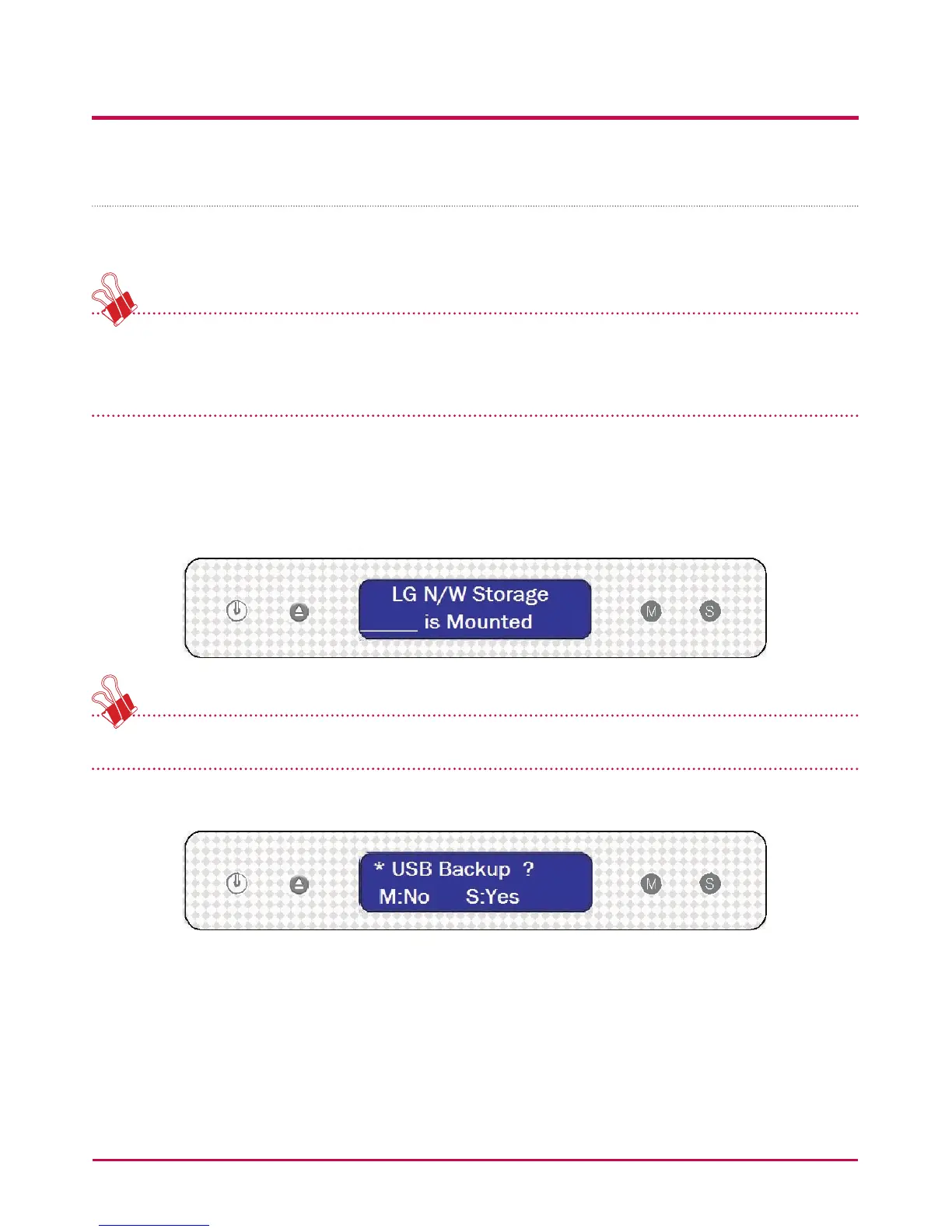
1 Connect the USB device or memory card to the LG NETWORK STORAGE. After a
short while a sound will be heard indicating that a connection has been made,
accompanied by the following message. (The message that will appear will be similar
to ‘[Name of Memory Card Manufacturer] device is Mounted’)
* The latest connection is valid, if multiple devices are connected.
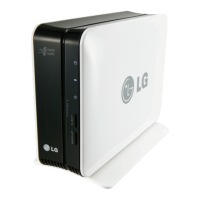
2 By pressing the MODE button from the rst screen, the USB back up mode will appear.
3 Pressing the SET button will save les in the default folder created by the
manufacturer of the LG NETWORK STORAGE service/Backup/usb. The memory data
saved in the created folder name, as indicated below will have a name in the form
shown below, i.e. ‘Memory data creator name_serial number-File Backup form /date
created yearmonthdaytime’. Hence this will assist in the location of the le in later
stages. Also, each back up le will have its own independent back up sub-folder. All
data on the external device will be backed up to the LG NETWORK STORAGE.


 To Next Page