4. LG Network Storage Web Menu Use (for LG
Network Storage administrators)
93
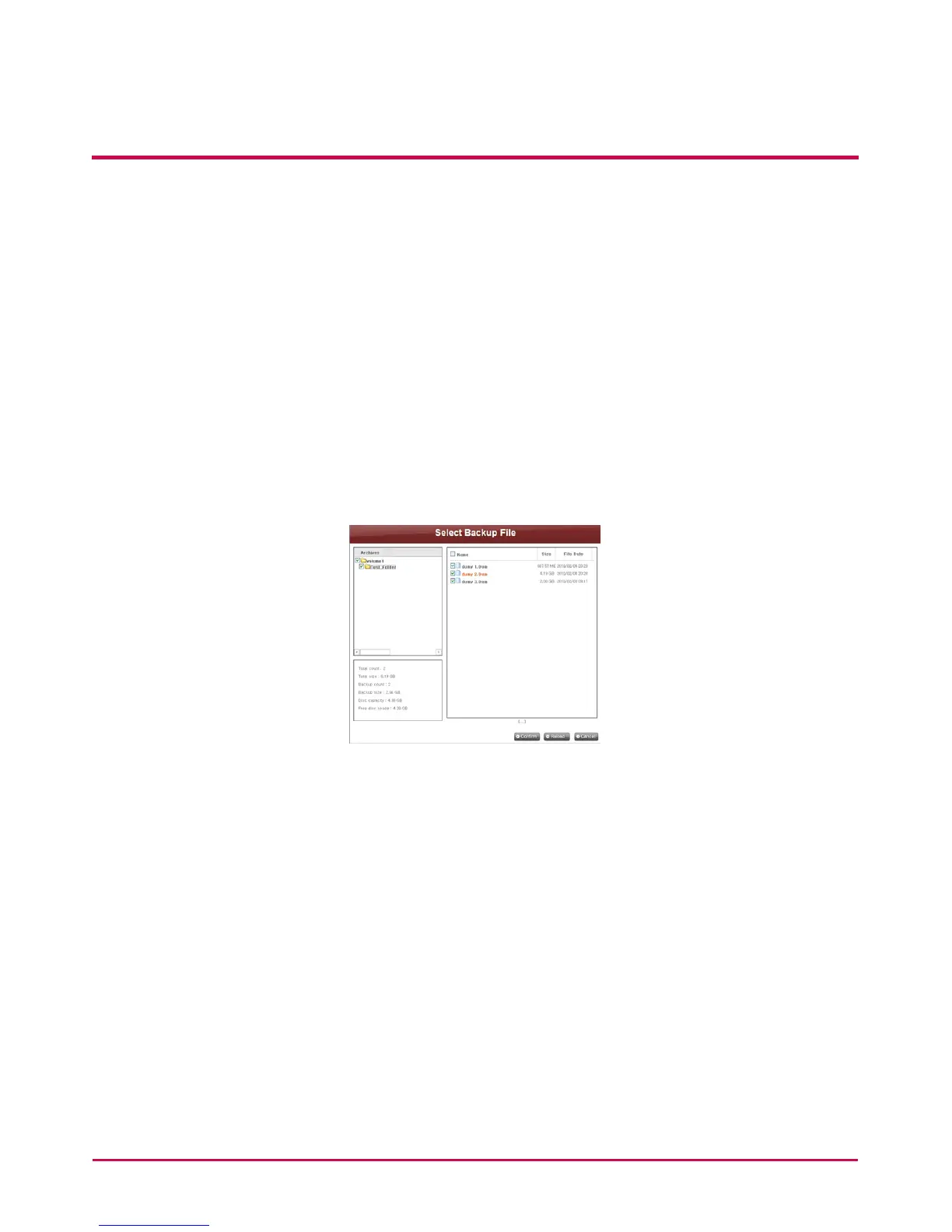
2 Check the backup folder and database.
Check the data of the folder to be backed up and the information of the backup
database. After checking is complete, ‘Select Backup File’ screen will pop up. You can
back up the le selected from the folder to back up on the screen below, using the
‘Backup’ button. All les that need to be backed up are selected. You can check the
total count of les to be backed up, and the backup count and disc capacity of the
selected les at the bottom left of the ‘Select Backup File’ screen, in accordance with
specied backup data. Also, you can check the total size and free space of the disc to
control backup size accordingly.
Maintain the existing le selection or select additional les, and click ‘Conrm’ button.
Click ‘Reload’ button to see the newest information about the folder to be backed
up(Reload function).
Click ‘Cancel’ button to cancel backup.
3 Congure a burning list.
Congures a list of data to be backed up on a disc.
4 Burn a backup le.
Burns the data in the congured list on a disc.
5 Check backup data.
Compare the backup data to the original data to check if backup has been properly
done. To check, put a check on ‘Verify after Burning’ check box when setting backup.
It may take more time to back up when using ‘Verify’ function. Even if you move to
another webpage or log out during backup process, you can check the progress by
logging in again and accessing the backup schedule page.


 To Next Page