4. LG Network Storage Web Menu Use (for LG
Network Storage administrators)
94
<Replace a Backup Disc>
If there is not enough free space in the disc from frequent scheduled backups, you can
replace the disc and proceed. If the size of the data to be backed up exceeds the free space
of the disc, the data as much as the free space will be backed up. When the backup is
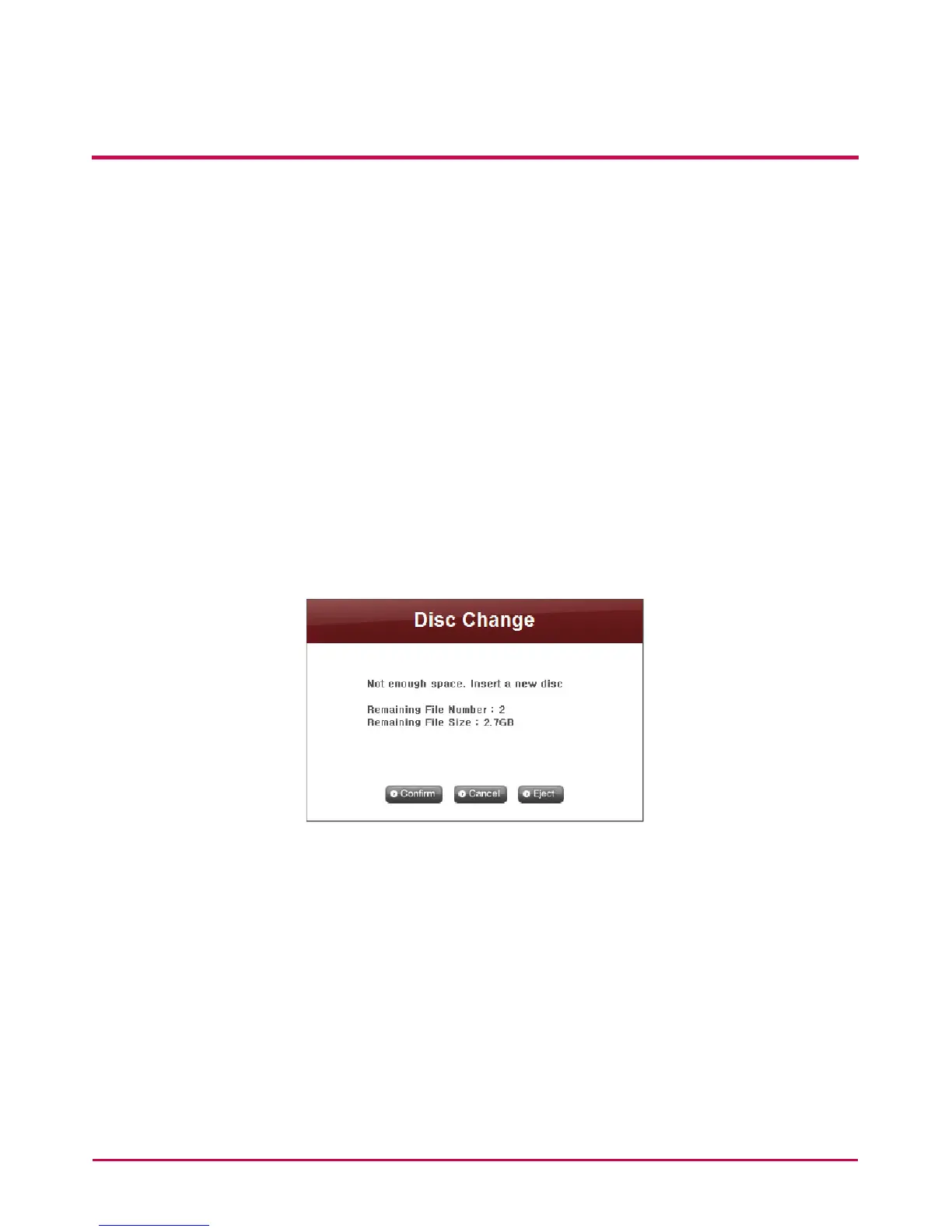
complete, ‘Disc Change’ screen will pop up and the trey will open automatically. Check the
size of the remaining les to be backed up on ‘Disc Change’ screen, insert a new disc and
proceed with backup. In case of using a disk previously used, you can format the disk and
proceed with backup, following the directions.
If the size of the le to be backed up exceeds free space of the disk, you can divide the
les to back them up consecutively in a number of discs. In such a case, restoration will be
done by inserting two discs consecutively as well.
Replace with writable media and click ‘Conrm’ button.
Click ‘Cancel’ button to back up rest of les later.
When backing up rest of les later, you can click ‘Backup’ button on ‘Scheduling Backup
List’ menu and back them up consecutively, or insert a writable disk for automatic backup
at a preset time.
Screen below will pop up when you click ‘Backup’ button for consecutive backups.
The le in red is a le which had been divided, due to insucient size of the writable disc,
and then backed up. The le above it is a le that has been completely backed up, and the
le below it is a le to be backed up.
Click ‘Conrm’ button to proceed with backup in the previous setting.


 To Next Page