Step 2: Setup Network for Communication
through Ethernet
Chapter Five: Ethernet Interface
Setup and Configuration
49
Additional IP Addresses
In the case that you need to be able to connect to more than one IP Address, simply click on the
“Advanced” button at the bottom of the current window. Once the “Advanced TCP/IP Settings” window
pops up, verify that you’re on the “IP Settings” tab and then click “Add” in the “IP Addresses” section. If
you have a different IP Address on your network, e.g., 10.X.X.X, you will need to add the IP Address
10.X.X.X, where “X” is a number from 0 to 254 that is unique from any other IP address on your
network. Now click in the Subnet mask field and enter the Subnet mask (255.0.0.0).
7. Close out all dialog boxes by selecting O.K., Close, etc. as required.
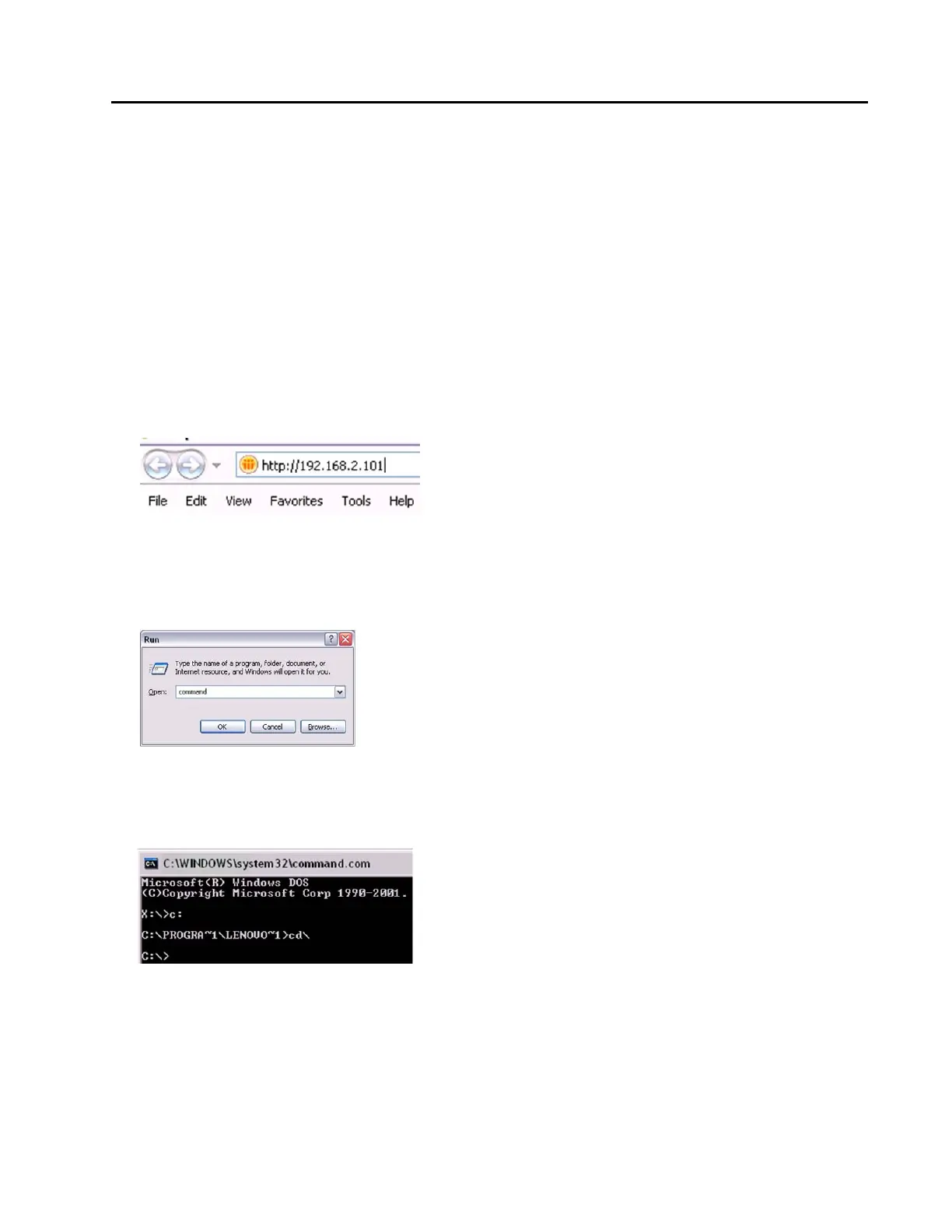
8. Launch Internet Explorer (or a similar program) and enter “http://xx.xx.xx.xx” in the address field, where
xx.xx.xx.xx stands for the IP address of the MFC you wish to connect to, and click “Go.” Internet
Explorer will open and display the device Monitor screen which displays the device’s gas settings, model
code, valve type and Digital I/O connection status (if applicable). The Serial Number can always be
found in the bottom left-hand corner of the browser window.
For more information on the web-based program, go to Chapter 6 on page 54.
Option 3: For Multiple IP Address Setup
1. From your computer’s “Start” menu, select “Run...” then enter the word “command” and click OK.
2. At the command prompt, if it’s not already in the root directory “C:\>”, then you can use the following
commands to change the directory: “CD\” will bring you to the root of whatever drive that is currently
set. If this is not the root directory, enter the command “C:”. Use the “CD\” command again if necessary.
This will bring you to the C:\> prompt. See the example below:
3. Now, before going any further, it is important that you have an active network connection that allows you
to connect to the Internet. If you do not have an active connection, please set that up and then continue.



 To Next Page