DVR Server Manual
install mobile client in your smart phone directly (downloaded the program in
WAN or LAN) or use the application supplied by the manufacture of your smart
phone to download mobile client.
6.3.2 Connection
After you installed mobile client in your smart phone, you should be sure
that your smart phone connect with Internet correctly. Currently, mobile
providers support WAP and WEB access point, mobile client must use Internet
as access point (AP) to access DVR Server remotely.
6.4 Login Interface
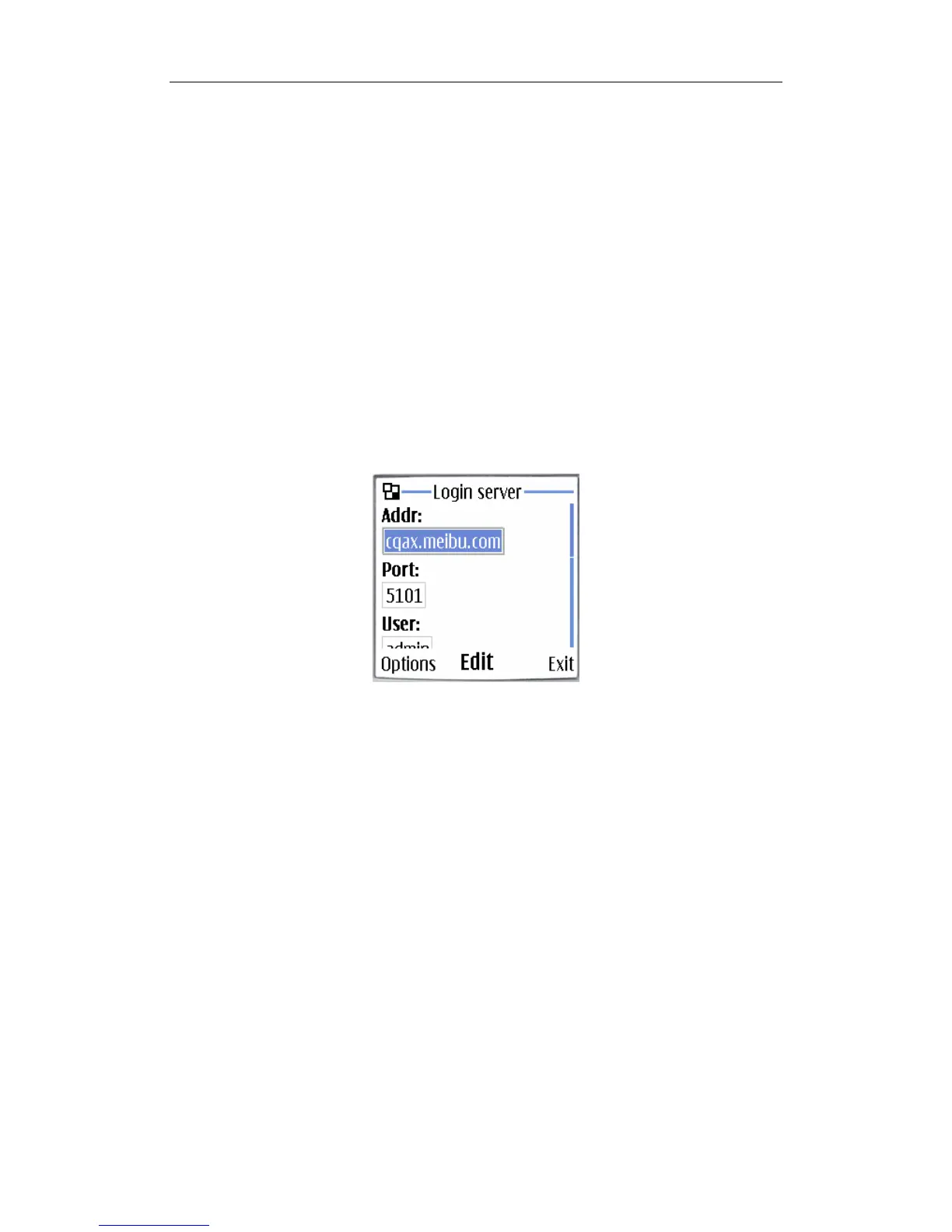
After you downloaded and installed the MobileDVR software, you can run
it on your mobile phone to enter the login interface.
【Addr】Fill the IP address or domain name of the DVR server.
【Port】Fill the port through which connects to DVR Server.
【User】/【Pass】Fill the valid user with its password to visit server from
MobileDVR. And whether the server has enabled right management, login user
ID and password will be checked. If the user has no right to visit that camera,
the connection will be cut down automatically.
Click Options and select Login to connect with the DVR server.
6.5 Camera List
The MobileDVR will enter the Camera List after you connect with the DVR
server successfully.
When the camera you want to view is selected, click “Options” and then
select “Preview” to enter the preview GUI.
117



 To Next Page