DVR Server Manual
When you enter the menu, you can control it by , using up,
down, left and right buttons. Press IRIS- to enter the sub
menu. When you use up or down to move to “exit”, press IRIS- to exit the
menu.
For details, please refer to Chapter 4 in Network_Camera_Menu for
details.
8. Control PTZ via Video Window
Press and drag the mouse to the corresponding area can control the PTZ
when there is a decoder.
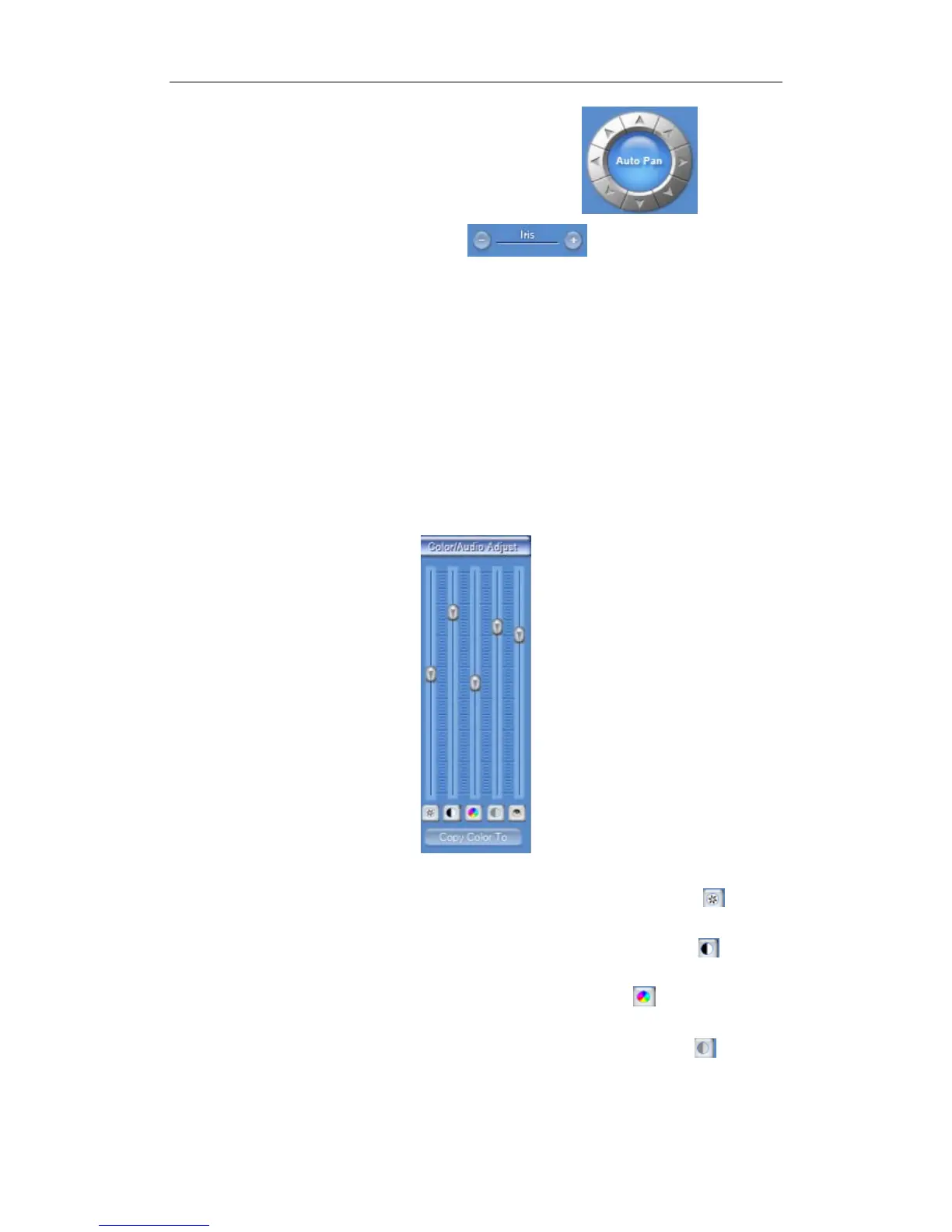
1.4.8 Color and Audio Adjustment
① Press the first button and drag it to adjust the brightness of the image
that you selected, and you can resume its default value by pressing .
②Press the second button and drag it to adjust the contrast of the image
that you selected and you can resume its default value by pressing .
③Press the third button and drag it to adjust the hue of the image that you
selected, and you can resume its default value by pressing
④Press the fourth button and drag it to adjust the saturation of the image
that you selected, and you can resume its default value by pressing .
⑤Press the fifth button to switch sound of the audio that related to the
image you selected and drag the bar to adjust the volume, and you can
50



 To Next Page