DVR Server Manual
【Camera Name】Enter a name description for easy identification.
【Frame Rate】Select the record rate of camera from drop-list.
【Main Stream】【Sub Stream】Select Main Stream or Sub Stream for the
current cameras.
【Resolution】Set the resolution at which the video files will be recorded.
Choices are DCIF, CIF, QCIF, 2CIF and 4CIF. The higher the resolution is, the
more disk space needed.
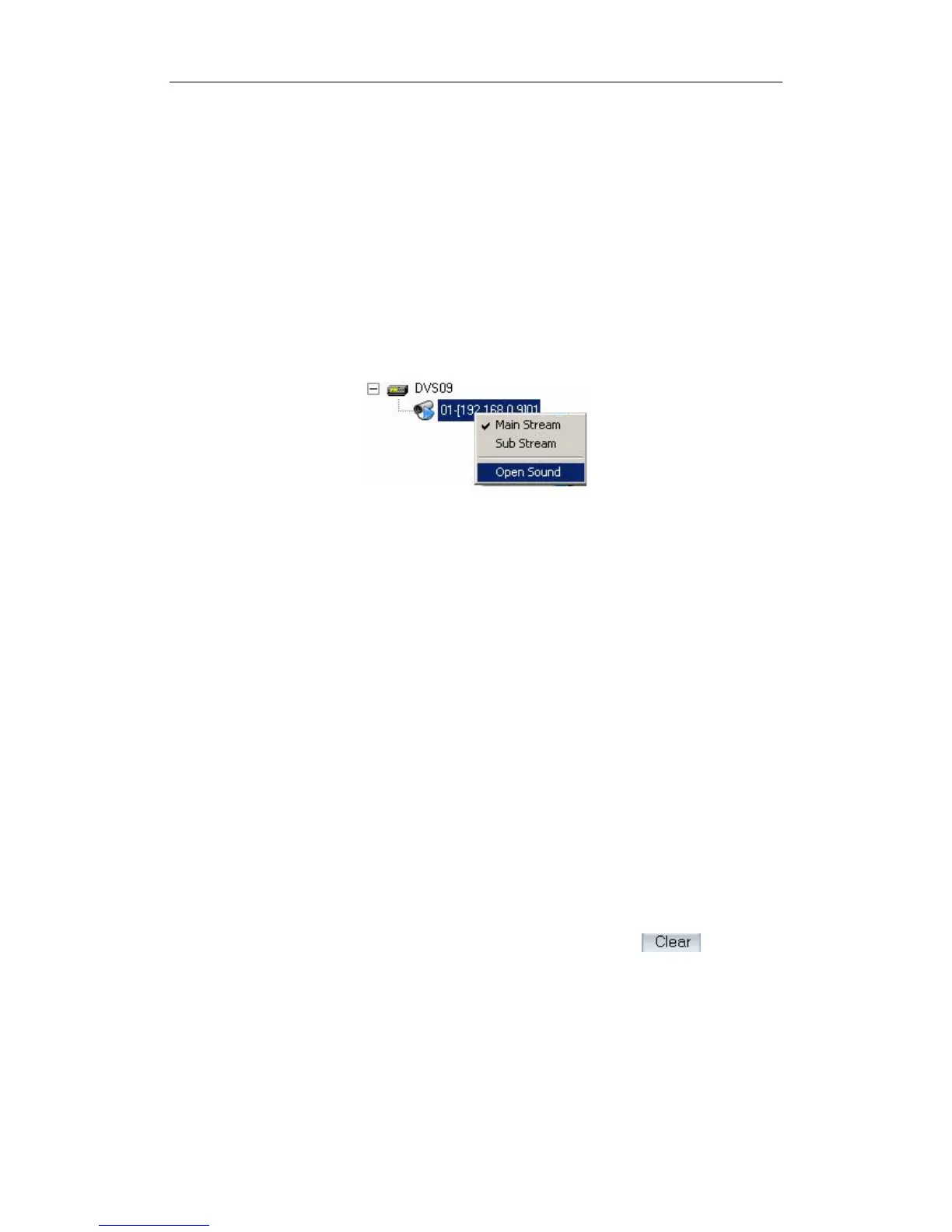
【Stream Type】Select video and audio or only video record. If you want
to preview and record audio, please connect a sound pick-up to your IP
camera. Besides, you have to single-right-click the camera name in IE to open
sound.
【Image】Set the quality of the image to be recorded. Select from worst,
worse, normal, good and best.
【Bit Rate Type】Select bit rate type from Variable Bit Rate (VBR) and
Fixed Bit Rate (FBR) record:
VBR range= Poorest, Poor, Medium, Good, Best.
FBR range = 45 Megabytes/Hour to 400 Megabytes/Hour.
【Max Bit Rate】Select the maximum bit rate for Variable Bit Rate (VBR)
record.
【Show LOGO/ OSD/ Week】If you check those box, system will show
corresponding information on screen.
【Position】Set the position of OSD or Logo by entering the X and Y
coordinate directly.
【OSD】Set the display attribute of the OSD & LOGO. There are four
types of display modes: Clarity-Glitter, Clarity-Not Glitter, Not Clarity-Glitter and
Not Clarity-Not Glitter.
【OSD Type】Select the type of OSD for the Week.
【Privacy】You can check this box to set the privacy mask on image
directly, and you can clear some privacy masks by pressing button.
【Record schedule】You can set record schedule in following chart.
85



 To Next Page