MAINTENANCE
GENERAL MAINTENANCE
Smart Touch Analyze and Retrieve Tool
HySecurity provides Smart Touch Analyze and
Retrieve Tool (START) software to help HySecurity
gate operator users and installers conduct the
following eld service activities:
Congure installer and user menu settings
View the operator history (event) log
Display monitored inputs for operator
diagnostics
Load Smart DC Controller (SDC) operator code
With START software loaded on your laptop
computer, you have an invaluable management
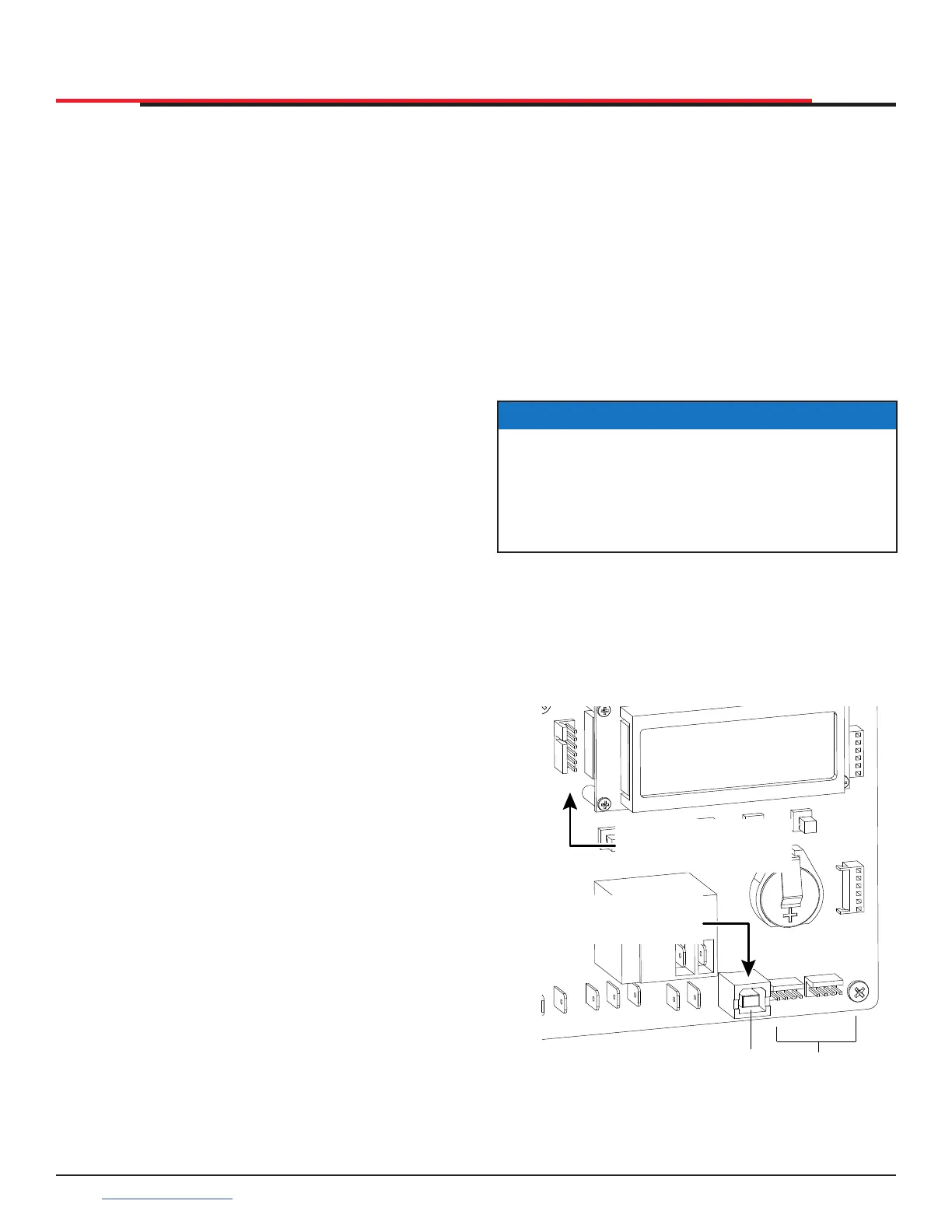
tool for all HySecurity operators. Either the USB
port or the RS-232 serial port, found on the Smart
DC Controller (see Figure 73), allows you to
download system diagnostics and upload system
congurations using the START software. The
free START software is conveniently located on
the www.hysecurity.com website. Instructions for
downloading START are found on the website,
as well.
What You Need
Standard USB 2.0 A-B communications cable.
If you are using the HySecurity RS-232 to USB
adapter, be sure to install the USB driver in your
laptop.
Laptop computer with Windows PC operating
system (XP, Vista, or Windows 7/8/8.1/10)
Minimum 128MB of RAM
Minimum 5MB of hard drive disk space
VGA graphics card (minimum resolution of 800
x 600)
Installing START Software
Read the START User Manual, and then take the
following steps to download START software:
1. Bring up your web browser and type in http://
www.hysecurity.com in the command line.
2. Click Technical Support (left column) on the
HySecurity home page.
3. Enter your user name and password. If you do
not have a user name, register as an online
member.
4. Click to Download: S.T.A.R.T. software for
Smart Touch and Smart DC.
5. Read the End User License Agreement and,
if you agree to the terms, click on, I accept
(bottom of the page).
6. Click RUN. A setup window appears.
7. Follow the step-by-step instructions to
complete the installation.
8. When the download is complete, log out of the
HySecurity website. Shortcuts for the START
and Smart DC Controller History Logs appear
on your laptop’s desktop.
Figure 73. Smart DC Controller RS-232 and USB
Connection
NOTICE
If the operating system on your laptop is
VISTA or Windows 7, you must rst disable the
"User Account Control Settings," refer to the
procedure in "Setting User Account Controls"
on page 107 and then continue to step 9.
P
T
I
ON
S
E
N
COM
DU
A
L
G
A
TE
COM
B
A
U
S
E
R
2
COM
N
O
D
C
RS-485
USB PORT
USER 1
RS-232
Connect to RS-232 with
a HySecurity adapter.
If using a USB cable,
connect it to the USB port.
SlideSmart HD Programming and Operations
106106
support.hysecurity.com


 To Next Page