RUN MODE
Gate status displays appear when the operator is
ready and waiting for a gate operation command.
When the menu display is flashing “GATE
OPENING” or “GATE CLOSING” a command
has been received which starts the motor and
drives the gate. The command may come from
a variety of sources: a card reader, pushbutton
remote, or recognition of a vehicle passing over
a free exit loop detector. In all cases, the operator
“runs” the motor when it receives a gate operation
command.
Understanding Gate Status Displays
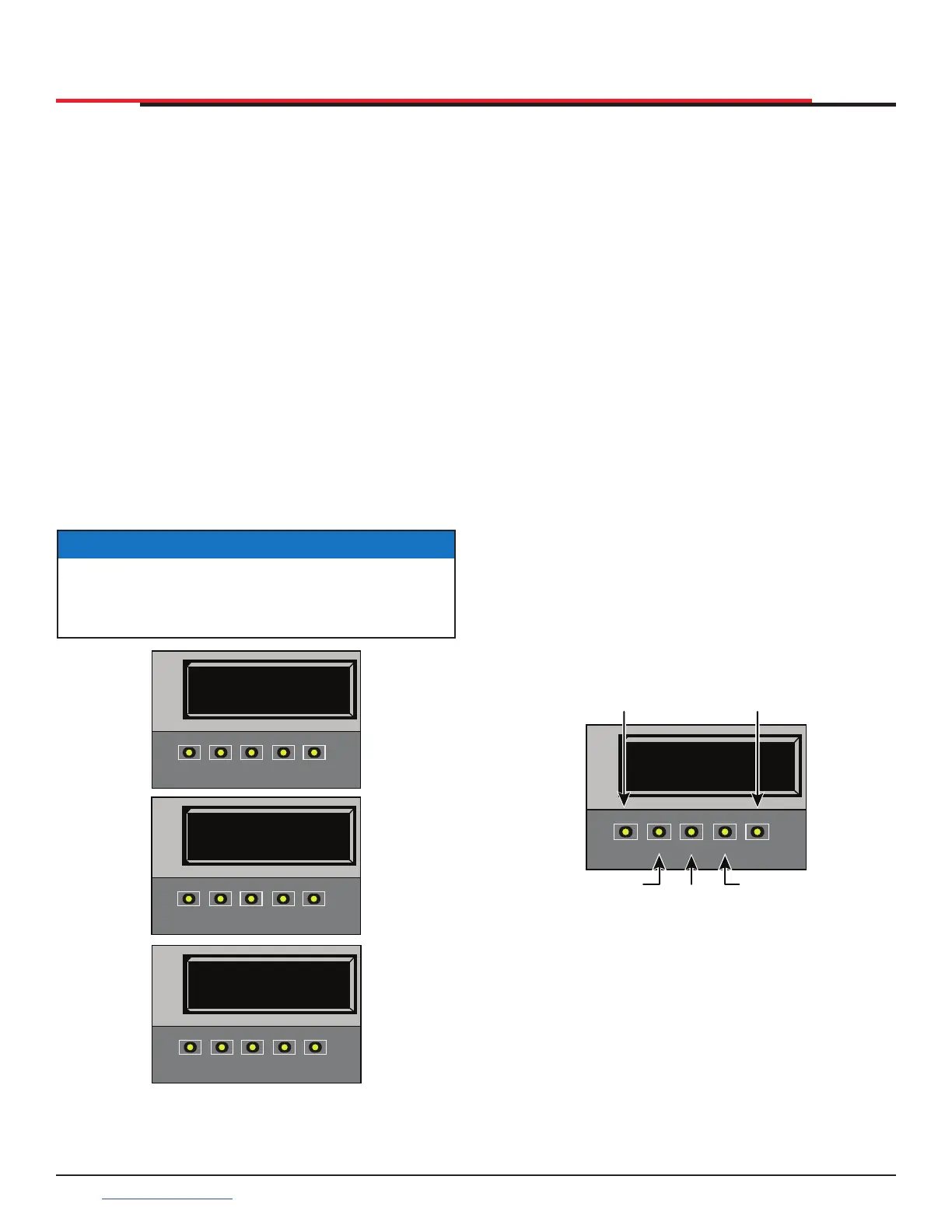
The three gate status displays in Figure 33 indicate
the position or status of the non-moving gate.
When accessing the User or Installer Menus, you
must begin at one of these gate status displays.
Figure 33. Gate Status Display
NOTICE
While accessing the User or Installer Menus,
the motor cannot engage and the gate will
not move.
HYSECURITY
GATE OPEN
OPEN
CLOSE
STOP
MENU
RESET
PREV
NEXT
SELECT
HYSECURITY
GATE CLOSED
OPEN
CLOSE
STOP
MENU
RESET
PREV
NEXT
SELECT
HYSECURITY
GATE STOPPED
OPEN
CLOSE
STOP
MENU
RESET
PREV
NEXT
SELECT
USING THE SMART DC CONTROLLER
BUTTONS IN RUN MODE
The Run Mode buttons are distinguished by the
fact that their name appears above each button.
The Controller buttons with text above and below
function differently depending on the mode of
the operator. Three different modes exist, and
see Figure 34:
z Run Mode - gate is operational awaiting
commands.
z Menu Mode - motor disengages and operator
commands are ignored. Menu navigation and
menu selection can be accomplished using the
Smart DC Controller buttons or through a START
software connection via the USB port. Refer to
"Using the Smart DC Controller Buttons In Menu
Mode" on page 37.
z Fault Mode - errors, faults or alerts appear
on the display. Some errors or faults can be
reset with the STOP button while more serious
faults require the RESET button or cycling
power. Faults indicate a need for diagnosis
and resolution. Refer to "Smart DC Controller
Troubleshooting" on page 92.
Figure 34. Function of Smart DC Controller Buttons
in Run Mode
HYSECURITY
GATE CLOSED
OPEN
CLOSE
STOP
MENU
RESET
PREV
NEXT
SELECT
Pressing OPEN
opens the gate.
Pressing
CLOSE
closes the
gate.
Pressing
STOP
stops gate
travel.
Pressing
MENU
scrolls through
displays and
accesses the
User Menu.
The CLOSE
TIMER display
appears
which presents
the first of
eleven
programmable
menu items
Pressing RESET clears
faults and returns to
Run Mode.
Note: Pressing the MENU
button twice bypasses the
operator status display
DISPLAY AND MENU OPTIONS
SlideSmart HD Programming and Operations
3838
support.hysecurity.com


 To Next Page