DISPLAY AND MENU OPTIONS
To designate what you want operator to do during
an AC power loss, access User Menu (see "User
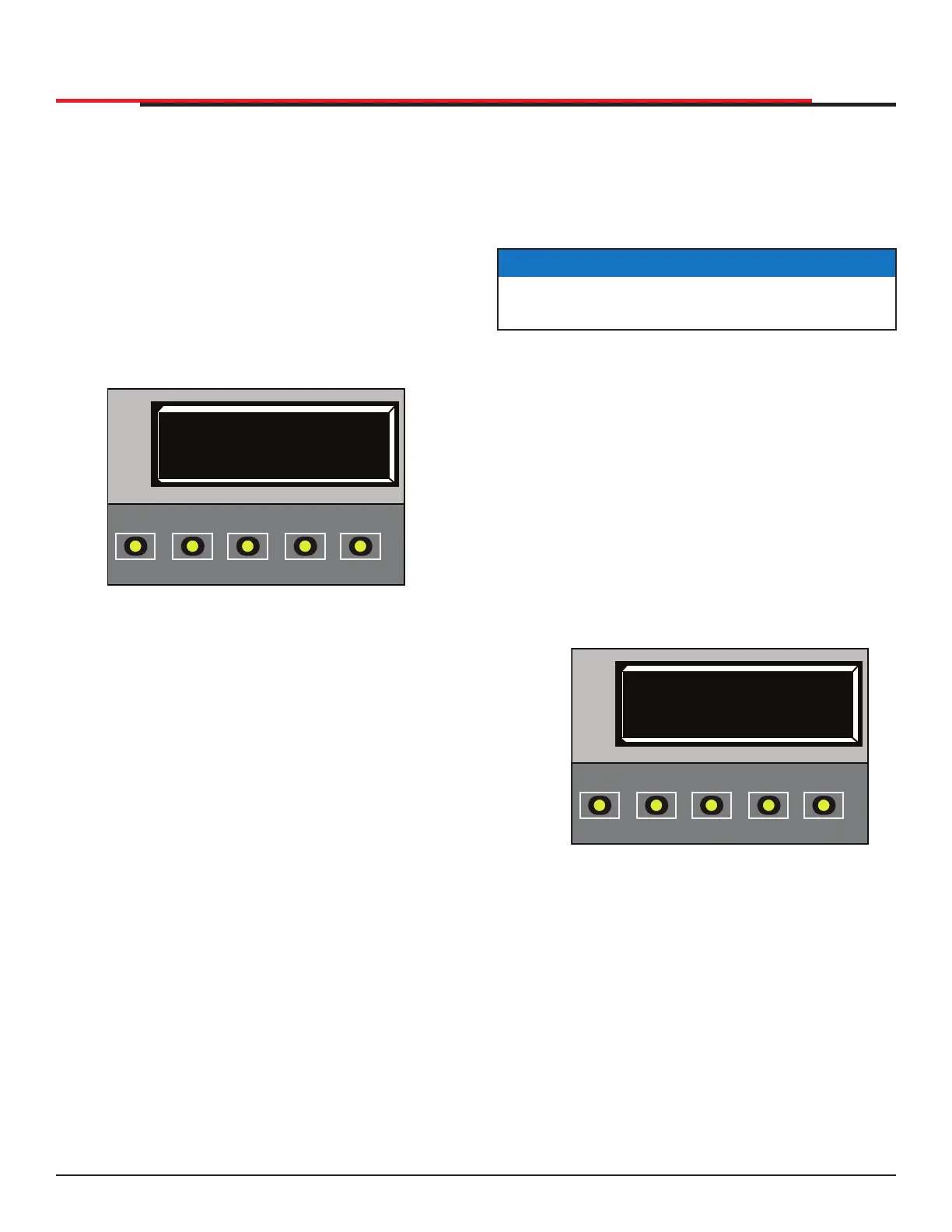
Menu" on page 40 and Figure 37) and scroll
through items until AP (AC LOSS) display appears:
1. Use SELECT and NEXT buttons to navigate
and change number on display. Review "Using
the Smart DC Controller Buttons In Menu
Mode" on page 37.
2. To exit User Menu, press MENU button. A gate
status appears in display indicating you have
returned to Run Mode.
Figure 37. AC Power Loss
AP 0 (AC LOSS)
UPS FAIL OPEN
OPEN
CLOSE
STOP
MENU
RESET
PREV
NEXT
SELECT
ADJUSTING THE DISPLAY CONTRAST
The display contrast can be adjusted from 1 to 9
to increase visibility and ease of use. It is set at the
factory to level 5. The text becomes darker as you
go up the scale.
To adjust the contrast (1 to 9), take the following
steps and see Figure 38:
1. At a gate status display, press the MENU
button twice. This accesses the User Menu and
the CLOSE TIMER display appears.
2. Press NEXT until the LCD CONTRAST display
appears.
3. Use the SELECT and NEXT buttons to navigate
and change the number on the display.
4. To exit the User Menu, press the MENU
button. A gate status appears in the display
indicating you have returned to Run Mode.
Figure 38. LCD Contrast
NOTICE
If extremely low temperatures are expected,
set the contrast to a higher number.
LD 5
LCD CONTRAST
OPEN
CLOSE
STOP
MENU
RESET
PREV
NEXT
SELECT
SlideSmart HD Programming and Operations
4343
MX4435 Rev.G ©2022


 To Next Page