DISPLAY AND MENU OPTIONS
Gate maintenance - Gate rollers will deteriorate
and begin to fail over time. Gravel or dirt roads
will incur more debris in the gate rail or inverted
V-track than a paved surface. In poorly maintained
gate areas, the chance for false IES trips is higher.
To adjust the IES sensitivity, take the following
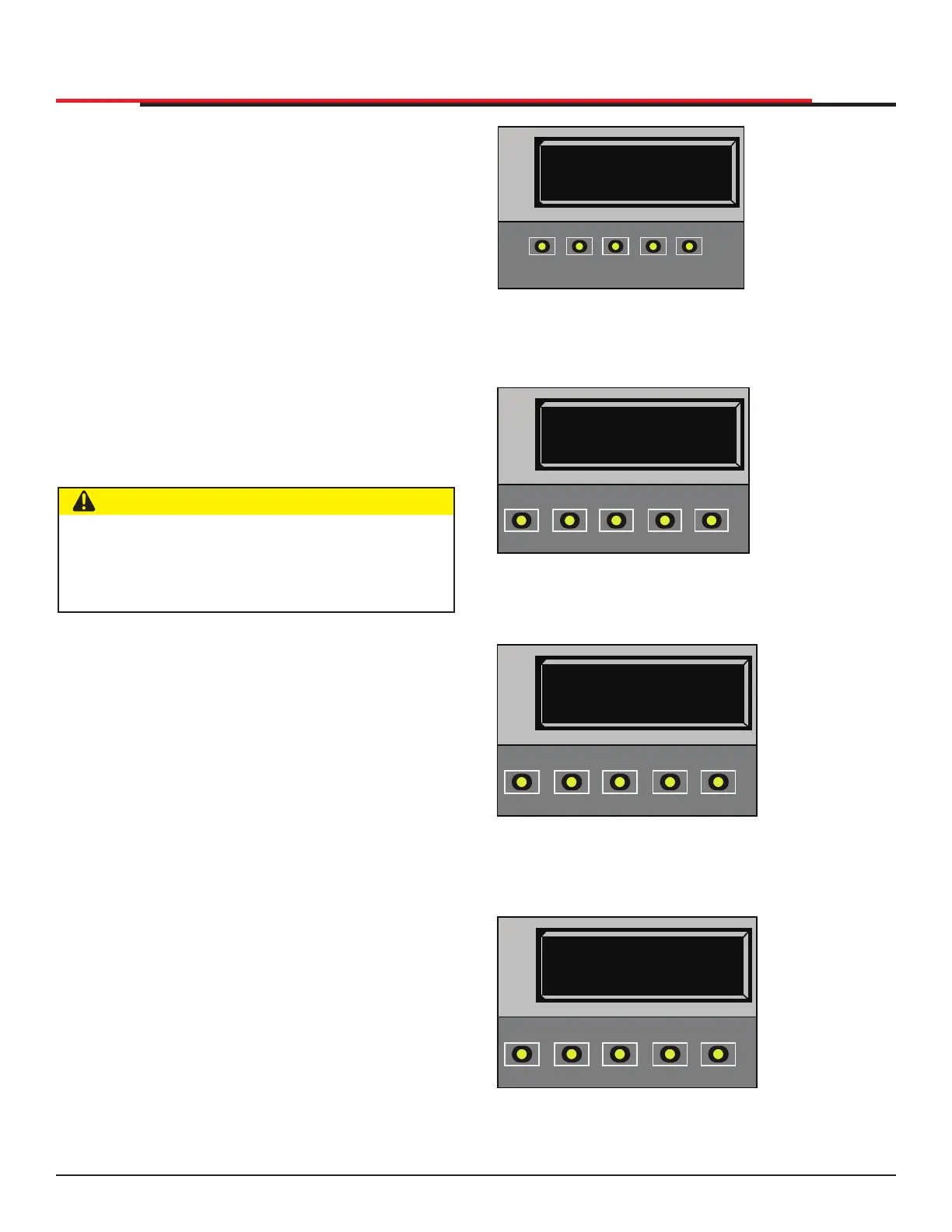
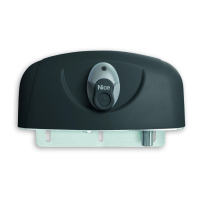
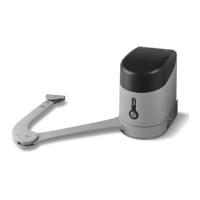
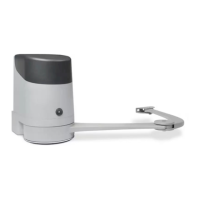
steps and see Figure 46:
1. At a gate status display, press the MENU button
twice. The CLOSE TIMER display appears.
2. Simultaneously, press the OPEN and RESET
buttons to enter the Installer Menu. Release
the buttons and the LEARN LIMITS display
appears.
3. Press NEXT until the IES SENSITIVITY display
appears. The factory default setting is 2.
4. Use the SELECT and NEXT buttons to navigate
and change the number on the display.
5. To exit the Installer Menu, press the MENU
button. The gate status appears in the display
indicating you have returned to Run Mode.
If IES trips occur, SAFE MODE or ENTRAPMENT
MODE will appear on the display. For more
information about troubleshooting, refer to "Table
16. Smart DC Controller - Troubleshooting" on
page 92.
CAUTION
Avoid setting the IES sensitivity to a xed level
(7 - 9 setting). The high motor current required
for the IES to trip could cause severe injury or
death to people caught in the moving gate.
Figure 46. Adjusting IES Sensitivity
CT 0 (OFF)
CLOSE TIMER
OPEN
CLOSE
STOP
MENU
RESET
PREV
NEXT
SELECT
HYSECURITY
GATE CLOSED
OPEN
CLOSE
STOP
MENU
RESET
PREV
NEXT
SELECT
1. Start at a gate
status display.
2. To access the
User Menu,
button twice.
3. Access the
Installer Menu, by
simultaneously,
pressing the
OPEN and
RESET
buttons.
4. Use NEXT to
navigate to the
menu display.
Change the
SELECT and
NEXT buttons.
LL 0 (OFF)
LEARN LIMIT
OPEN
CLOSE
STOP
MENU
RESET
PREV
NEXT
SELECT
SE 2
IES SENSITIVITY
OPEN
CLOSE
STOP
MENU
RESET
PREV
NEXT
SELECT
SlideSmart HD Programming and Operations
5151
MX4435 Rev.G ©2022


 To Next Page