Creating Objects
Designing a Form 7
2 Click anywhere on the form to create an object of a default size,
or hold down the mouse button and drag the tool to make the
object the size that you want.
3 While drawing, hold down the Shift key to:
• Make a rectangular object a square.
• Make an oval object a circle.
• Make a horizontal, vertical, or 45-degree angle line object.
4 With the object still selected, you can:
• Type text if it is a text or a circle text object.
• Choose
Object Definition...
in the Format menu to define the
object. See “Defining Objects” on page 5-16 for detailed infor-
mation.
• Choose
Object Appearance...
in the Format menu to set the ob-
ject’s appearance. See “Changing Object Appearance” on
page 5-29 for detailed information.
• Hold down the Ctrl key and drag the object to copy it.
5 Drag the object where you want it on the form.
When the object is complete and no longer selected, the draw-
ing tool reverts to the Selection tool unless the Lock On/Off is
on.
Creating a Text Object
A text object is most often used as a title, label, or header.
1 Click the Text tool in the drawing toolbar.
2 Draw the text object.
3 With the object still selected, type the text that you want to
replace the word
Label.
Creating a Line Object
Use a line object to separate sections of a form or as a design element.
1 Click the Line tool in the drawing toolbar.
2 Draw a line.
To make sure a line is horizontal or vertical, hold down the Shift key
while you draw.
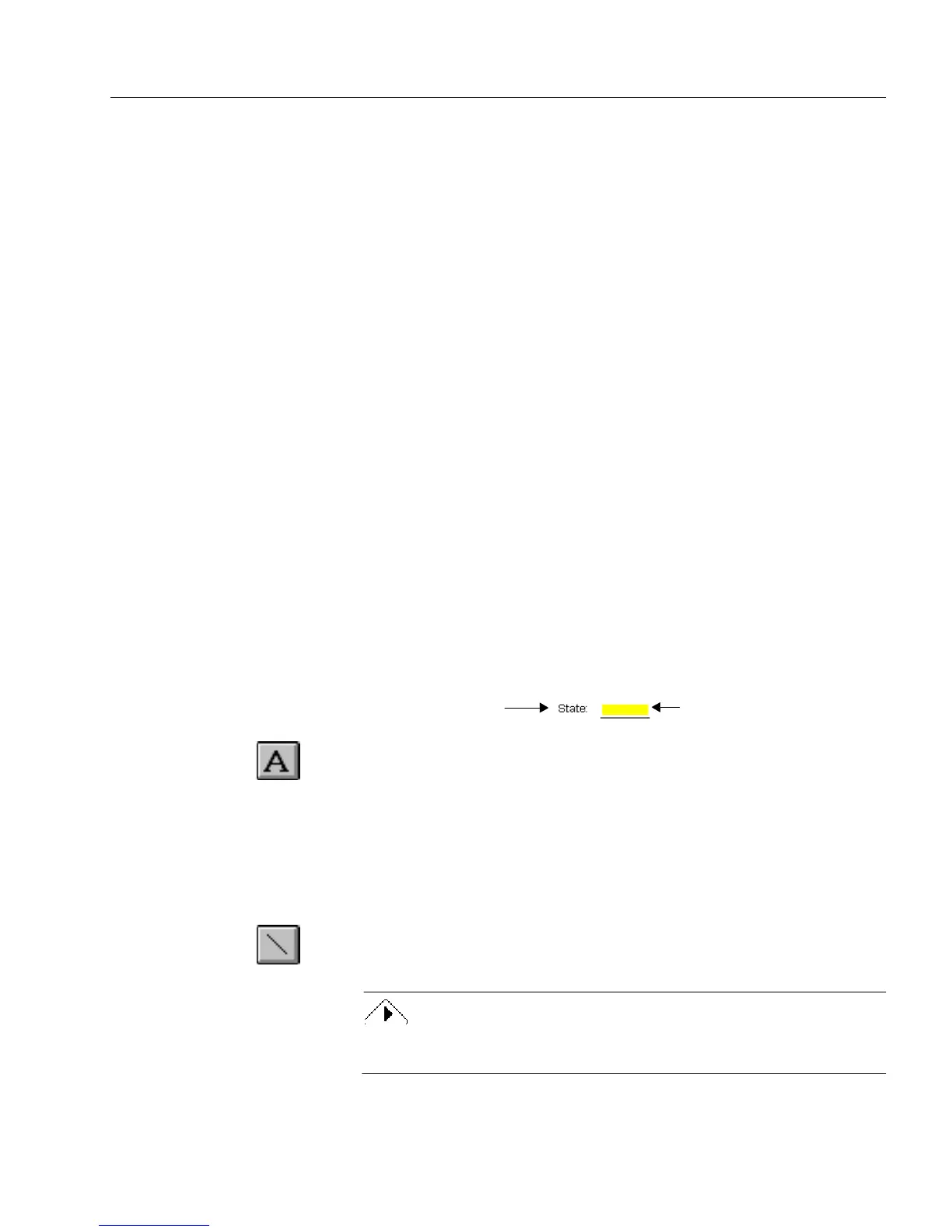
Text object used as label
The State fill text field



 To Next Page