Creating Objects
8 Designing a Form
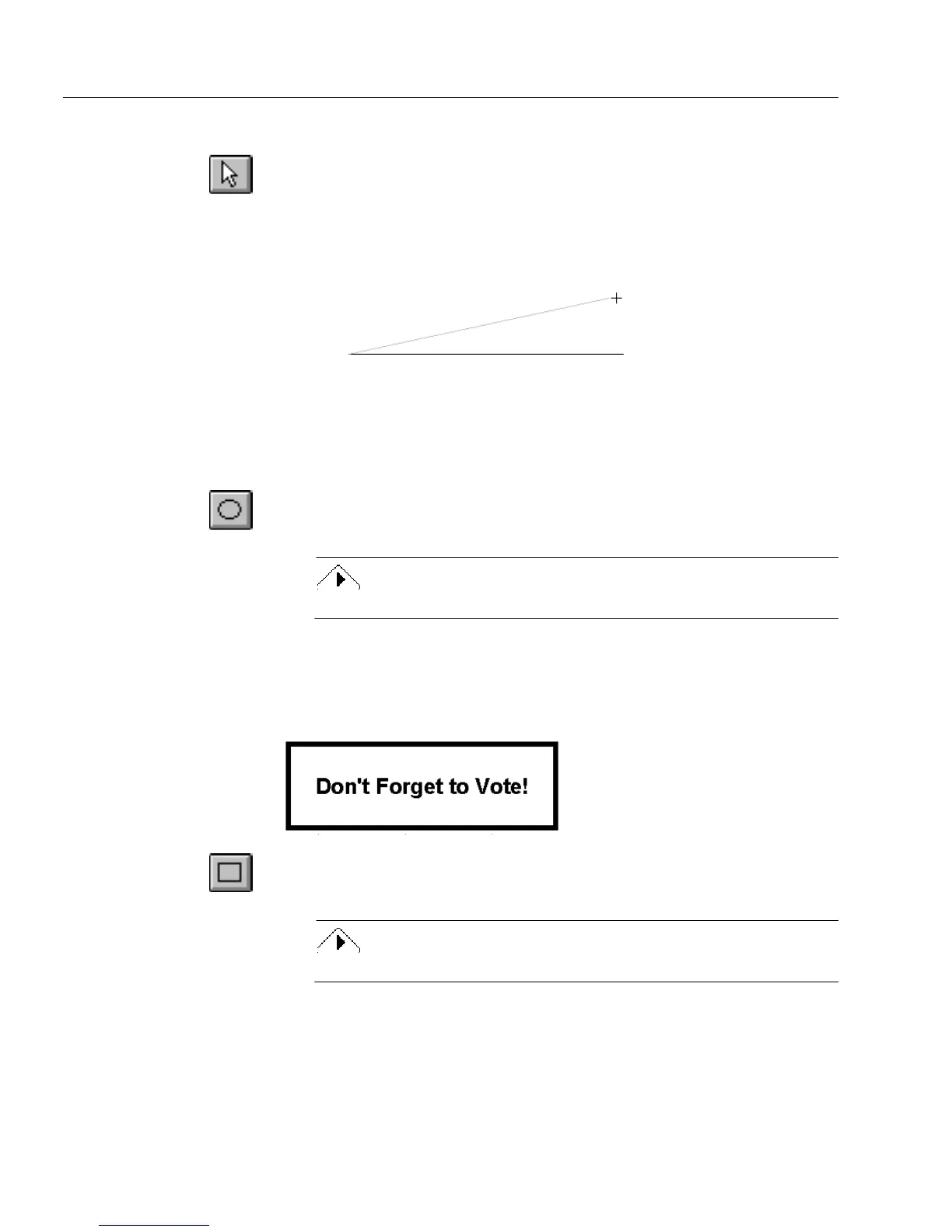
To rotate a line:
1 Click the Selection tool and select the line to edit.
A handle appears on each end of the line.
2 Place the cursor over one handle.
3 When the cursor turns into a crosshair, hold down the mouse
key and drag the end of line where you want it.
To rotate the line in 45-degree increments, hold down the Shift
key while pulling one of the handles in the desired direction.
Creating an Oval Object
Use an oval object to highlight areas on a form or as a design element.
1 Click the Oval tool in the drawing toolbar.
2 Draw an oval.
To create a circle, hold down the Shift key as you draw.
Creating a Rectangle Object
Use a rectangle object to highlight areas on a form or as a design
element.
1 Click the Rectangle tool in the drawing toolbar.
2 Draw a rectangle.
To create a square, hold down the Shift key as you draw.



 To Next Page